TABLE OF CONTENTS
- Introduction
- How to complete a new UpperBee Pay onboarding
- After submission
- After activation: Changing the bank account
- Special situations
Introduction
Starting October 1, 2026, new requirements will apply to all new UpperBee Pay onboardings for condominium clients across Canada.
Important — Rental clients: These changes do not apply to the UpperBee Pay onboarding procedure for rental clients, which remains unchanged. Rental clients already disclose all ultimate beneficial owners who directly or indirectly own or control 25% or more of the legal entity.
The identification document provided must now belong to a current board member whose name appears in the official corporate registry or official corporate profile applicable to the entity’s jurisdiction, rather than to the property manager.
Depending on the jurisdiction, this may include the:
Québec Enterprise Register (REQ) in Québec;
Ontario Business Registry in Ontario;
Alberta Corporate Registry in Alberta;
corresponding provincial, territorial, or federal registry elsewhere in Canada.
These examples are not exhaustive. The applicable registry depends on the jurisdiction under which the entity is incorporated or registered. You can consult Canada’s Business Registries to find the appropriate registry.
The management team remains responsible for preparing and submitting the onboarding request using the individual account of a user with the required system permissions.
Before you begin
For any new UpperBee Pay onboarding request, make sure to:
Identify a current board member whose name appears in the applicable official corporate registry or corporate profile.
Confirm that this person agrees to become the administrator/signatory of the UpperBee Pay merchant account.
Obtain the board member’s identification document and the required information and supporting documents.
Ensure that the board member has an individual user account.
Verify that the person on the management team who will submit the onboarding request has the required system permissions.
Confirm that the entity’s official corporate information is current before submission.
How to complete a new UpperBee Pay onboarding request
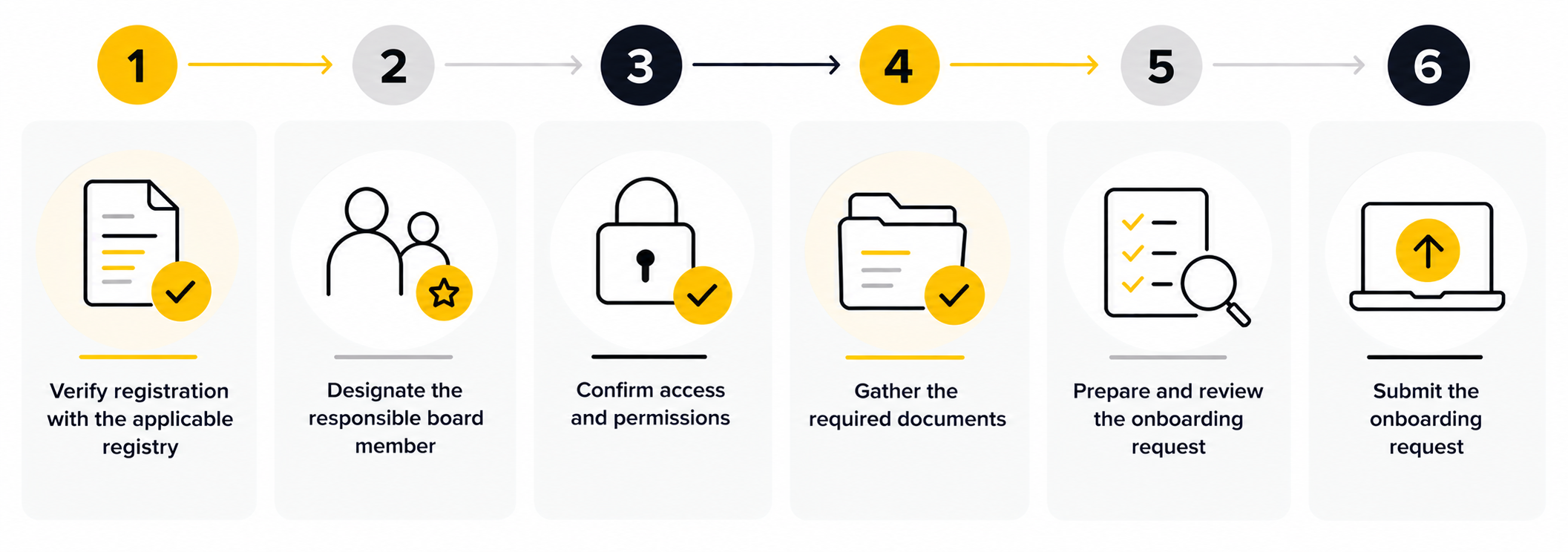
Step 1 — Verify the applicable official registry information
Review the official corporate registry or corporate profile for the entity’s jurisdiction. Confirm that the selected board member is still listed as a current director, officer, or representative, depending on the terminology used in that jurisdiction.
For example:
in Québec, consult the Québec Enterprise Register (REQ);
in Ontario, consult the Ontario Business Registry;
in Alberta, consult the Alberta Corporate Registry;
for a federally incorporated entity, consult Corporations Canada.
Step 2 — Designate the responsible board member
Select an eligible board member who will become the administrator/signatory of the merchant account.
Step 3 — Confirm access and permissions
Ensure that the board member has an individual user account and verify that the person submitting the onboarding request has the required system permissions.
Step 4 — Gather the required documents
Obtain the board member’s identification document, along with any other required information and supporting documents.
Step 5 — Prepare and review the onboarding
Enter the board member’s information, upload the required documents, and verify that the information matches the information listed in the REQ.
Step 6 — Submit the onboarding request
The management team submits the onboarding request using the individual account of a user with the required system permissions.
After submission
Once the onboarding has been submitted, keep the system confirmation and follow up on the request according to the usual process.
After activation: Request in Changing the bank account linked to the Upperbee Pay account
Once the merchant account has been activated, the management team can prepare a bank account change request.
However, the request must be submitted by the board member designated as the administrator/signatory during the onboarding.
The process is as follows:
1. Prepare — The management team completes the bank account change request.
2. Notify — The designated Board member is notified that action is required.
3. Review — The administrator/signatory logs in and reviews the new banking information.
4. Submit — The administrator/signatory officially submits the request.
Special situations
The property manager’s identification document has already been prepared
Replace it with the identification document of the designated board member before submitting the onboarding. The property manager’s identification will no longer meet the new requirement.
The selected board member is not listed in the applicable official registry
Check whether the entity’s official corporate information needs to be updated or select another current board member who is already listed.
The person listed in the registry is no longer a board member
The person must be both currently serving on the board and listed in the applicable official corporate registry or corporate profile.
The applicable registry does not publicly display directors
If the registry for the relevant jurisdiction does not allow the board member to be confirmed publicly, or if the information is unavailable, contact the UpperBee support team before submitting the request to confirm which official document is required.
The board member is unavailable
The management team can submit the new onboarding if the board member’s information and documents are available. However, after activation, a bank account change request cannot be submitted until the designated administrator/signatory is available.
| Key takeaways |
|
Was this article helpful?
That’s Great!
Thank you for your feedback
Sorry! We couldn't be helpful
Thank you for your feedback
Feedback sent
We appreciate your effort and will try to fix the article