Release Notes
Release week 2026-02-07
New Features
- Security Deposit for Reservations
What's New:
- Displays unit information
- Displays check in and checkout dates
- Breakdown section showing:
- Guest Charge
- Security Deposit
- Total Amount
- Transaction Notice
- Not Applicable
- Deposit was never taken on the reservation.
- Deposit Not Refunded
- Deposit Refund Due
- Reservation has been completed
- Automatically changes from "Deposit Not Refunded" when the reservation end date passes
- Deposit Refunded
- Keep Deposit
- Manager has decided to retain the deposit
- Partial Refund
- Allows claiming only a certain amount
Archive Multiple Documents
Overview
Details
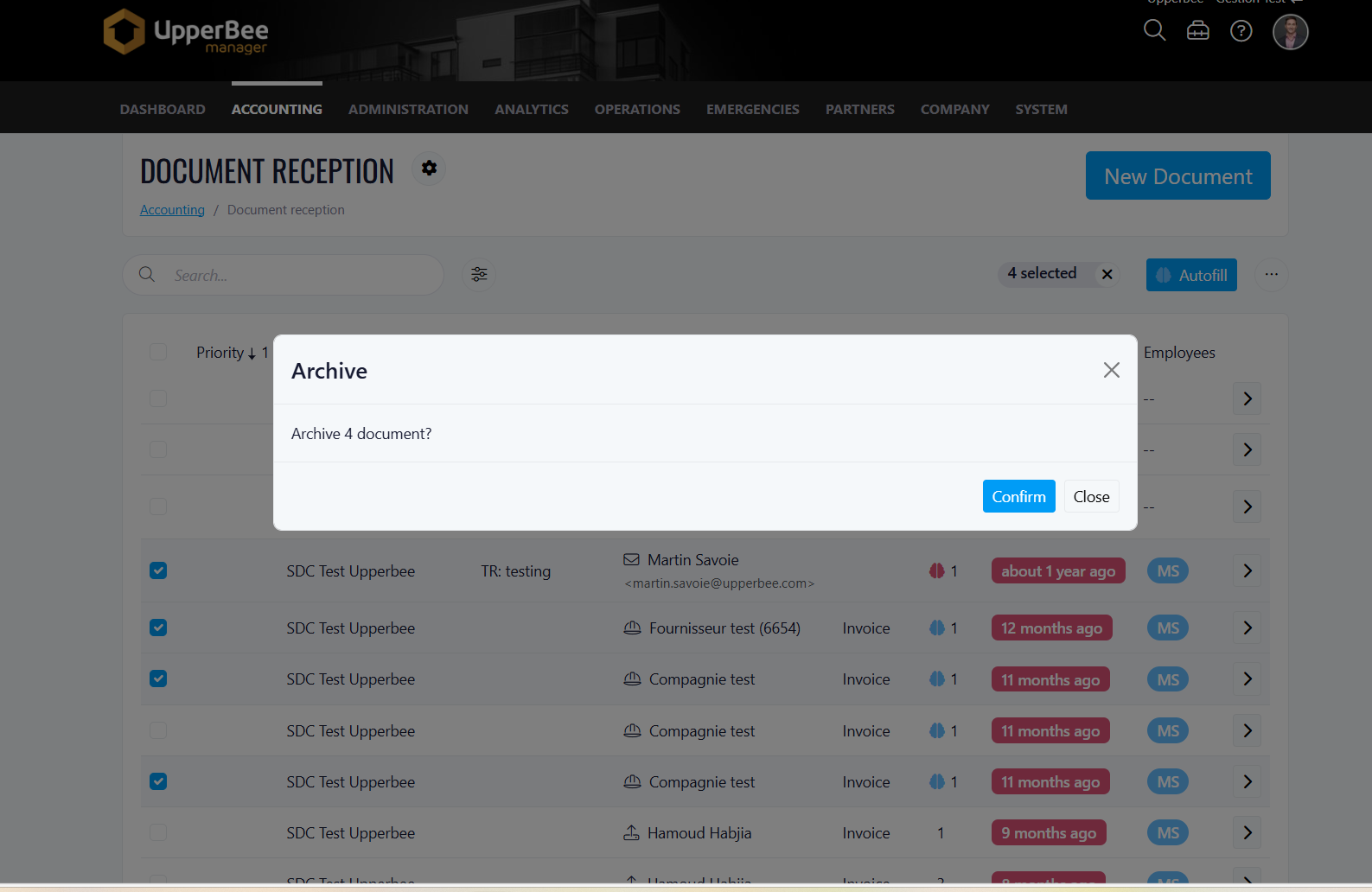
- Multiple document selection is now supported.
- A new Archive option is available when multiple documents are selected.
- Users can archive multiple documents:
- from the Document Reception page
- from the Index page
- Archived documents are removed from the active list and can be accessed from the Archived section.
Benefits
- Faster document management.
- Fewer repetitive actions.
- Improved and more consistent user experience.
Draft Message Visibility Update
Overview
What’s Changed
- Draft messages are now visible only to the user who created them.
- Drafts will no longer appear in the Draft folders of other managers, even if they are selected as recipients.
- Managers will only see messages once they are sent.
Benefits
- Saving a message creates a draft only in the creator’s Draft folder.
- Draft items are private and cannot be viewed by other users.
- Messages become visible to recipients only after being sent.
Improvements
Recipient Information Tooltip
Overview
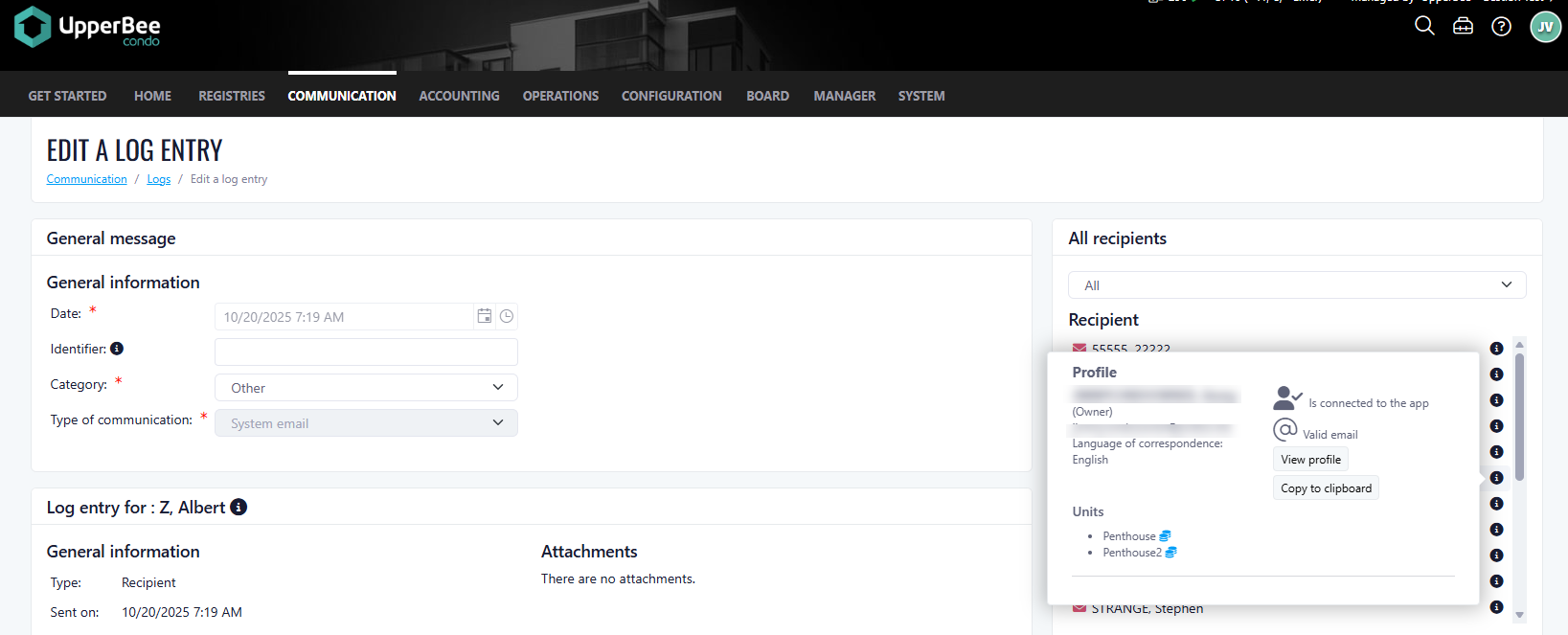
- Full name
- Email address
- Preferred language
- Associated unit(s)
- Copy recipient information to your clipboard
- Access the recipient’s profile via a direct link
- See whether the recipient is currently connected to the app (when available)
Benefits
Hide Accounts Without Balance
Overview
Details
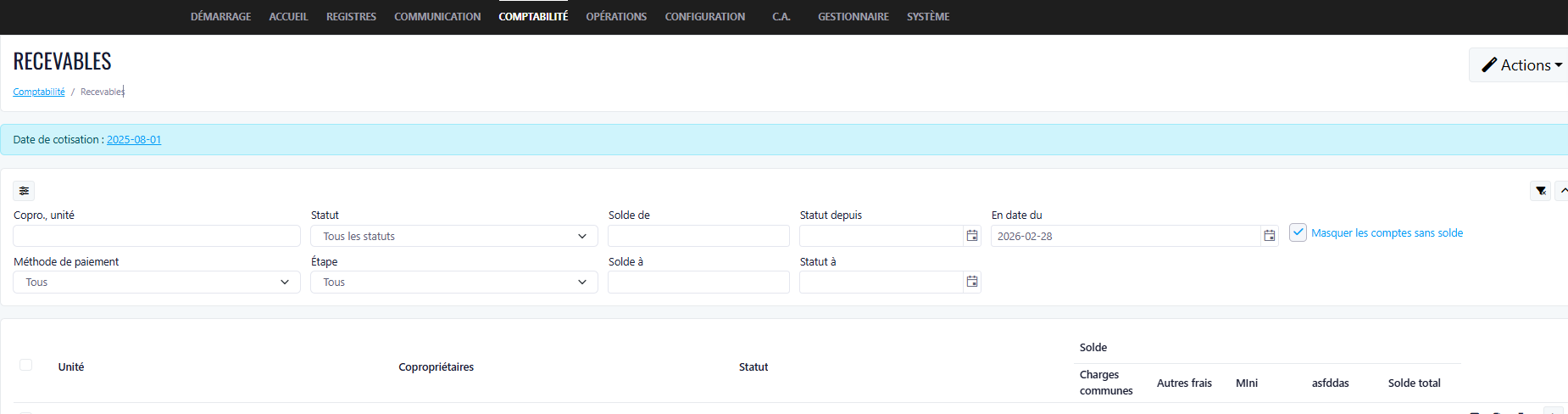
- Added a “Hide accounts without balance” filter.
- When enabled, accounts with a zero balance or no balance data are hidden.
- Accounts with a positive or negative balance remain visible.
- The filter can be toggled on or off at any time to display all accounts.
Benefits
- Improved readability of the account list.
- Reduced visual clutter.
- Faster and more efficient navigation
- Time Zone Reservation
- Budget Screen – New Filters and Columns
- Added Management Type column to the Budget table
- Added Main Manager column to the Budget table
- Added filters for:
- Management Type
- Main Manager
- Budget data can now be filtered more efficiently directly from the screen
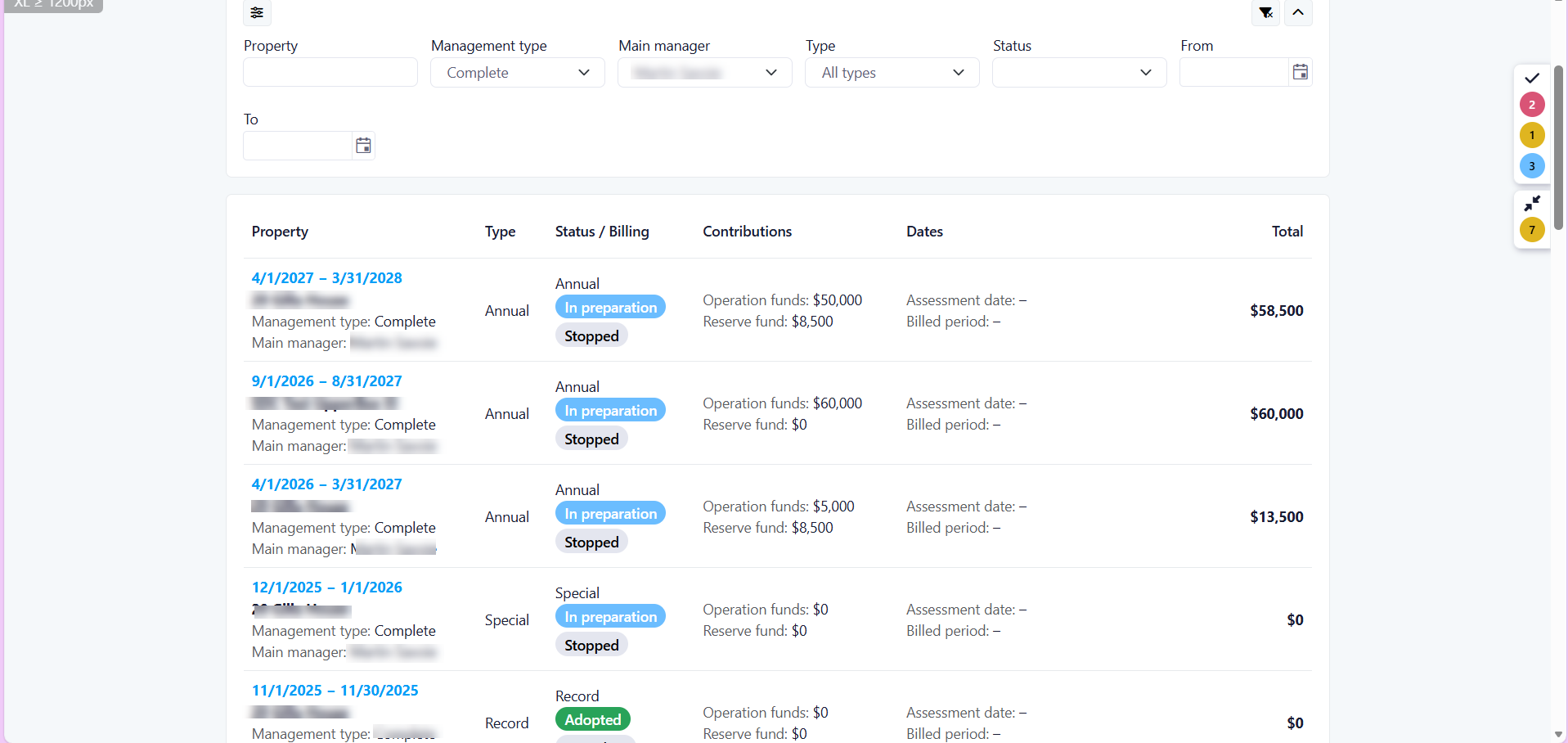
- Managers can now quickly filter, analyze, and export budget data by management type and main manager, improving visibility and decision-making.
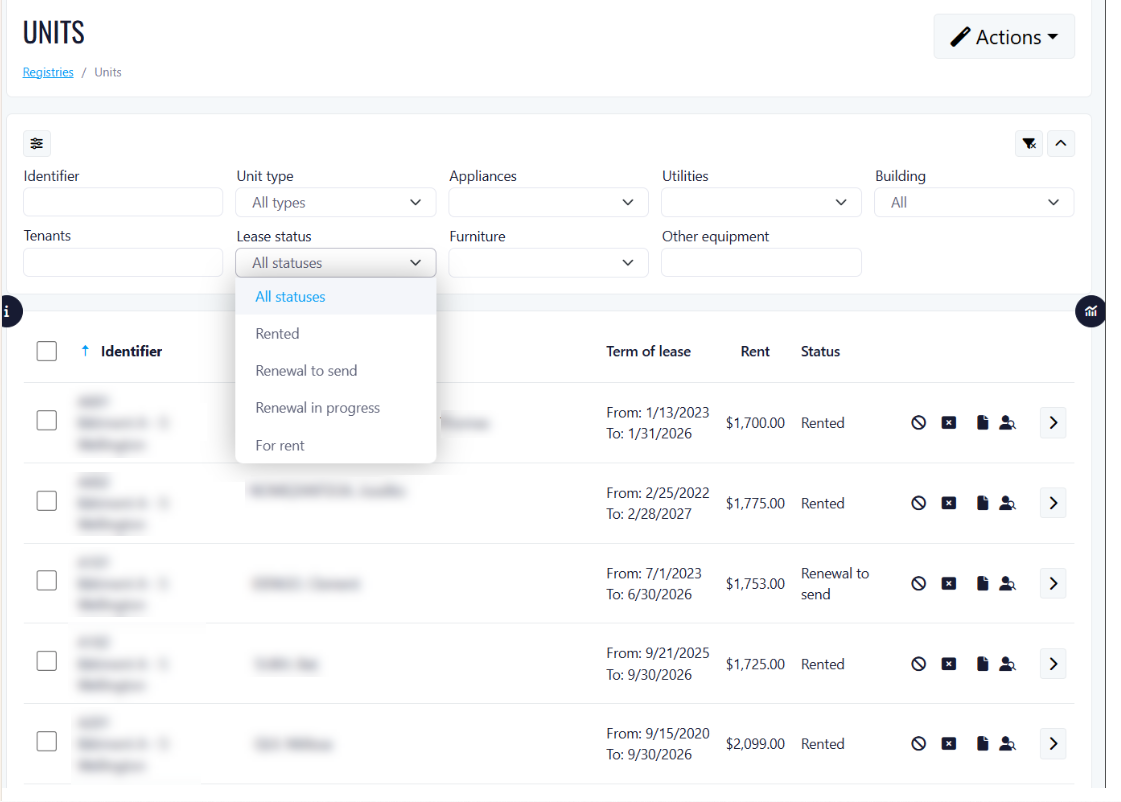
- Rental Status Column and Lease Status Filter
What's New:
Benefits:
- Save time when managing multiple properties
- Quickly identify available units for prospective tenants
- Better visibility into current occupancy
How to Use:
- Navigate to Units page
- Locate the Status column in the table
- Use the Lease Status dropdown filter to show only relevant rental statuses
- Combine with other filters to show more refined searches
Rental Calendar Improvements
Overview
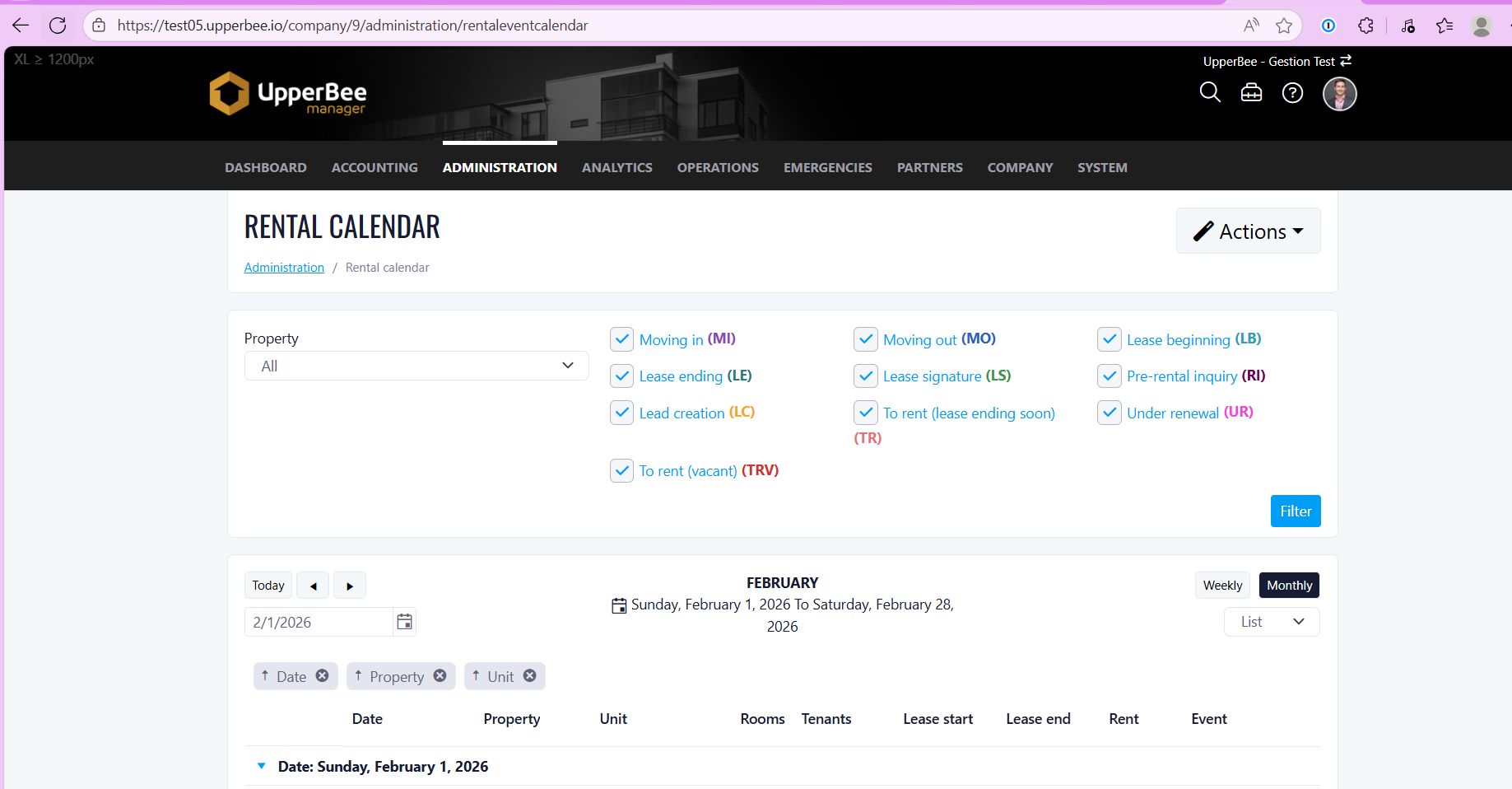
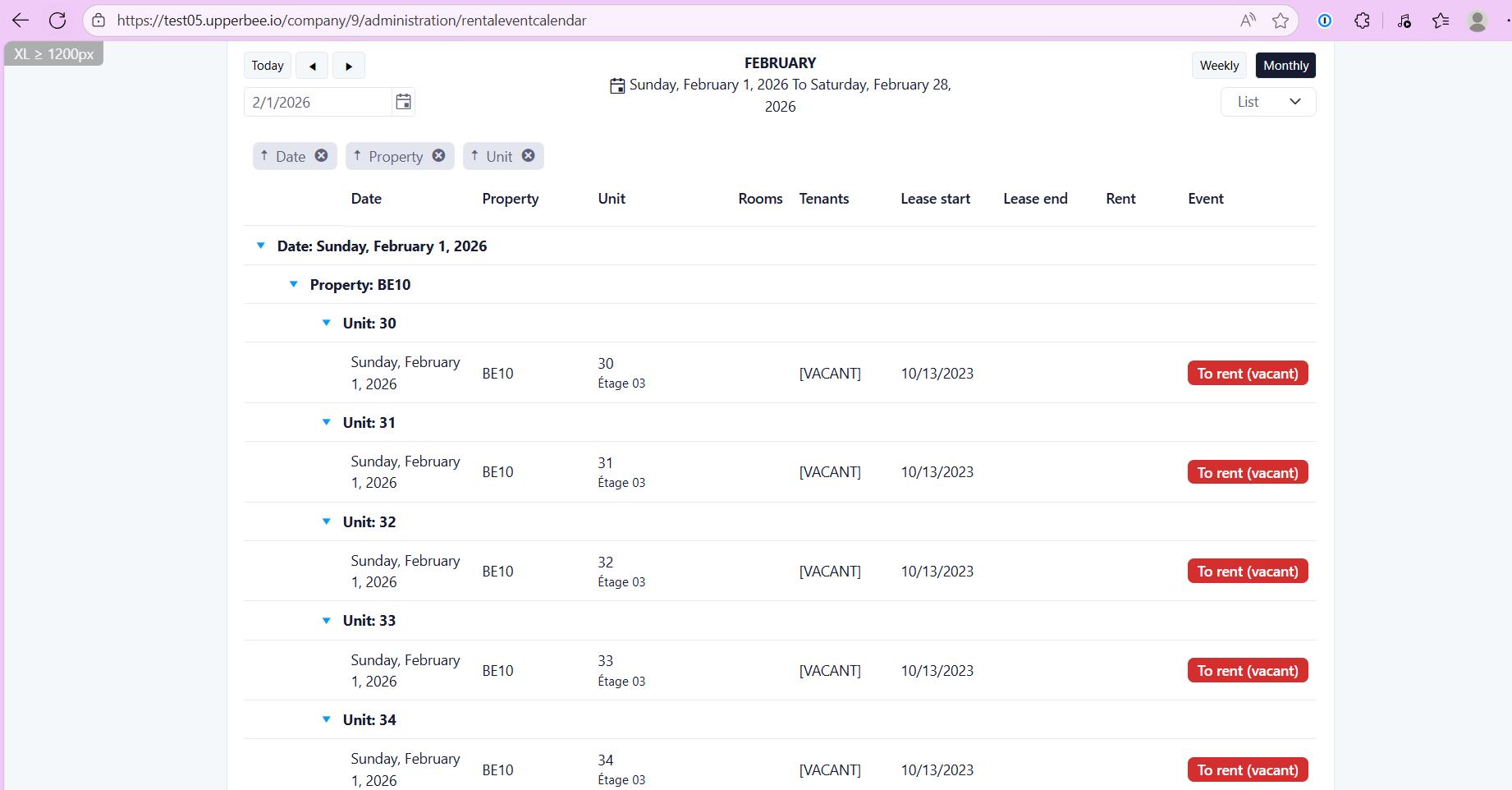
- Added a filter by unit type (e.g. 1 1/2, 2 1/2, etc.).
- Display of the lease period for each unit, including start and end dates.
- Display of the rent amount ($) based on the unit’s last known rent.
- Display of the floor number when available.
- Display of current tenant information, including first name, last name, and phone number.
- Display of previous tenant information when a lease has ended.
- Ability to view and modify report groupings (e.g. group by unit type).
- The default calendar view is now set to list view.
- Improved export functionality to match exactly what is displayed on screen, with no duplicate columns.
Benefits
- Improved visibility of unit availability and lease information.
- Faster and more efficient data analysis.
- A more consistent and user-friendly experience.
Release Week 2026-02-14
New Features
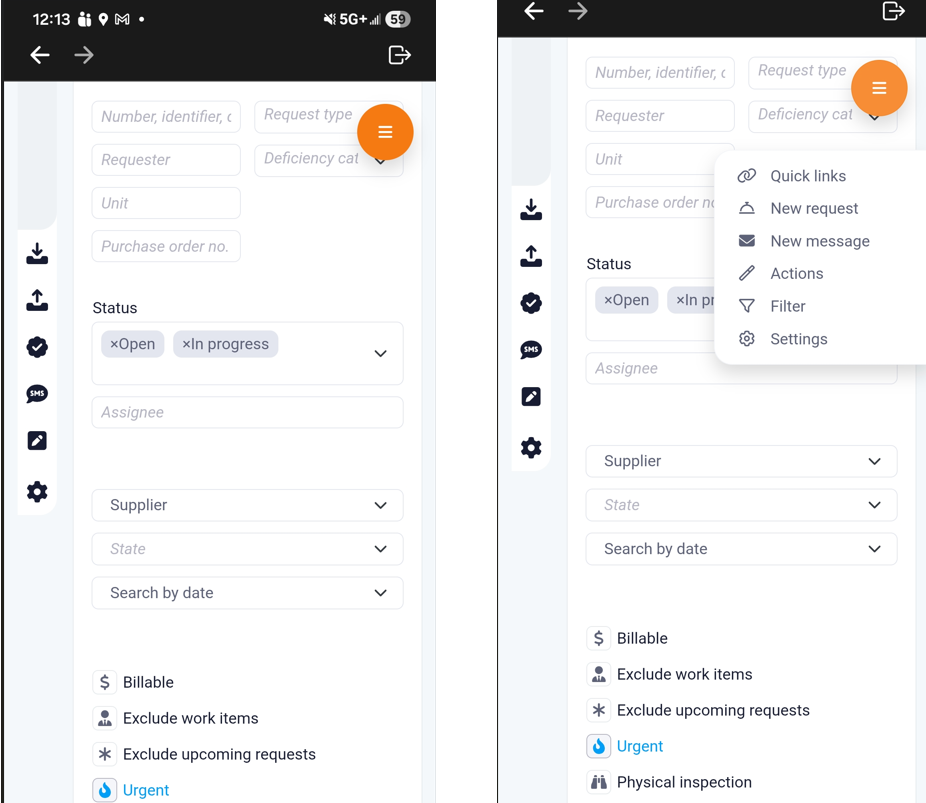
Sticky Pin Button for Quick Access
Overview
Features
- Added a sticky pin button visible on all backend pages.
- The button remains visible while scrolling and is positioned in the top-right corner of the screen.
- The pin becomes available when the top-of-page actions are no longer visible.
- Role-based pin display:
- Orange for Property Managers
- Green for Condo Owners
- Blue for Rentals users
- Clicking the pin opens a contextual quick action menu including, depending on the page:
- Quick Links
- Actions
- Create New
- Filter
- Settings
- The menu only displays options that exist on the current page.
- The menu closes when clicking or tapping anywhere outside of it (desktop and mobile).
- The pin does not resize and may overlay page content if needed.
Benefits
- Faster access to key actions without scrolling back to the top.
- Improved workflow efficiency.
- A more intuitive and consistent user experience.
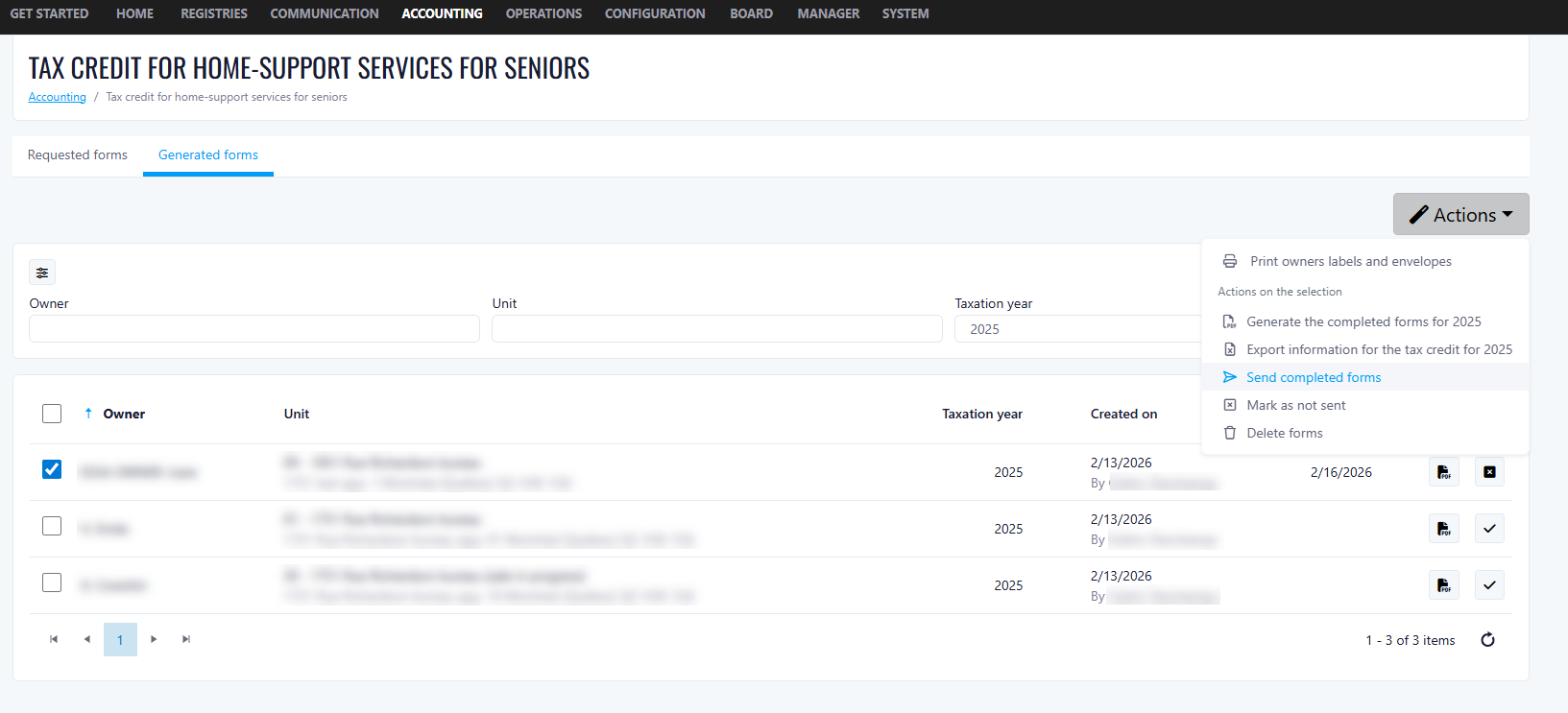
- Email Home Support Tax Credit form
You can now generate and email completed forms for a selected year (20XX) directly from the list, with clear validation and tracking to ensure emails are only sent to users with valid email addresses.
1) Outbound email behavior (no replies / no ticket creation)
All emails are sent from DONOTREPLY.
Replies are not supported:
If a client replies to the email, no ticket will be created.
2) Batch sending
Emails can be sent in batches (multiple users at once).
3) Email validation prompt (missing/invalid email)
If a user is selected who does not have a valid email on file, the system displays:
“User, XYZ, does not have a valid email on file”
Clicking OK closes the prompt.
The user must then manually uncheck the affected user(s) before continuing.
4) Confirmation prompt before sending (all emails valid)
When the user clicks “Generate and email the completed forms for 20XX”, and all selected accounts have valid emails, a confirmation prompt appears:
“Are you sure you want to send an email with the attachment for the year 20XX?”
Document Orders Module
Prerequisites
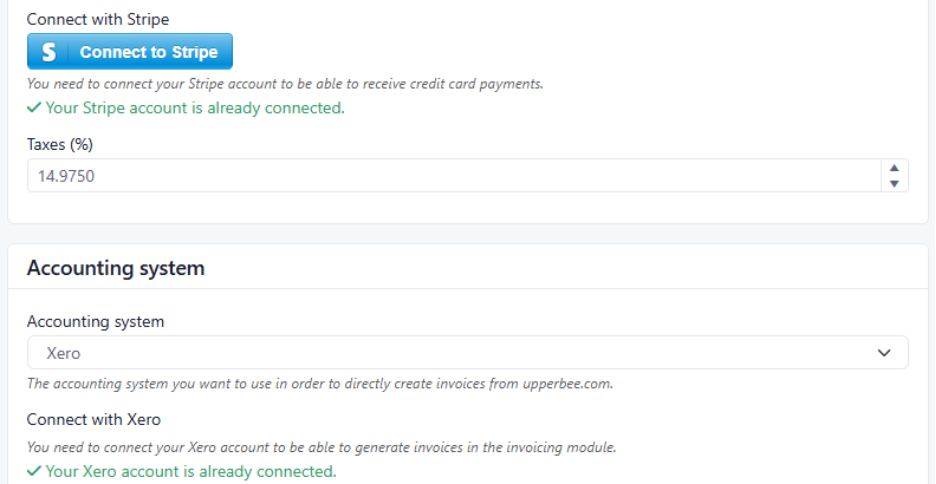
- Be connected to Stripe (for payment processing).
- Have an accounting system connected (currently supported: Xero and QuickBooks).
- Validate the automatically configured tax rate.
- The tax rate shown in settings will be the one applied to all document invoices.
How It Works
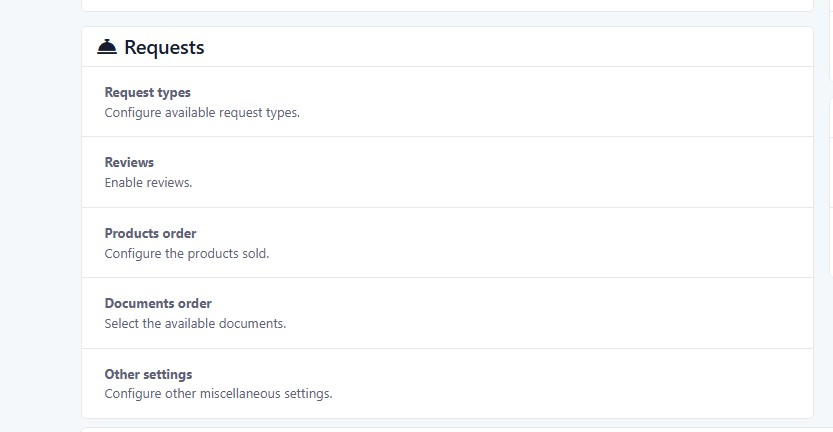
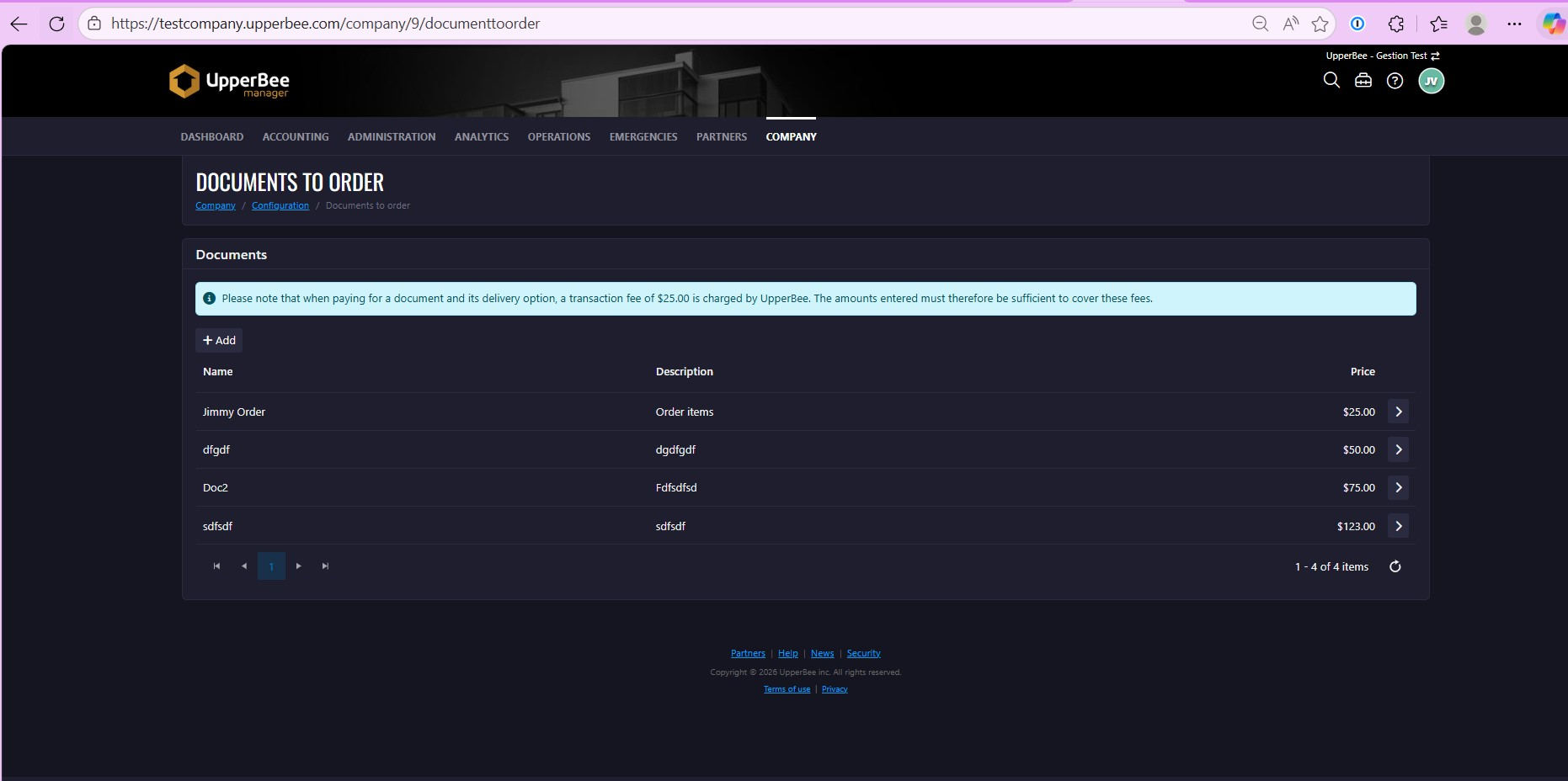
1. Configure Document Orders at the Company Level
- Create and manage documents available for order
- Define delivery options for each document
- Set pricing and processing delays
Document Setup
- Delivery options
- Price
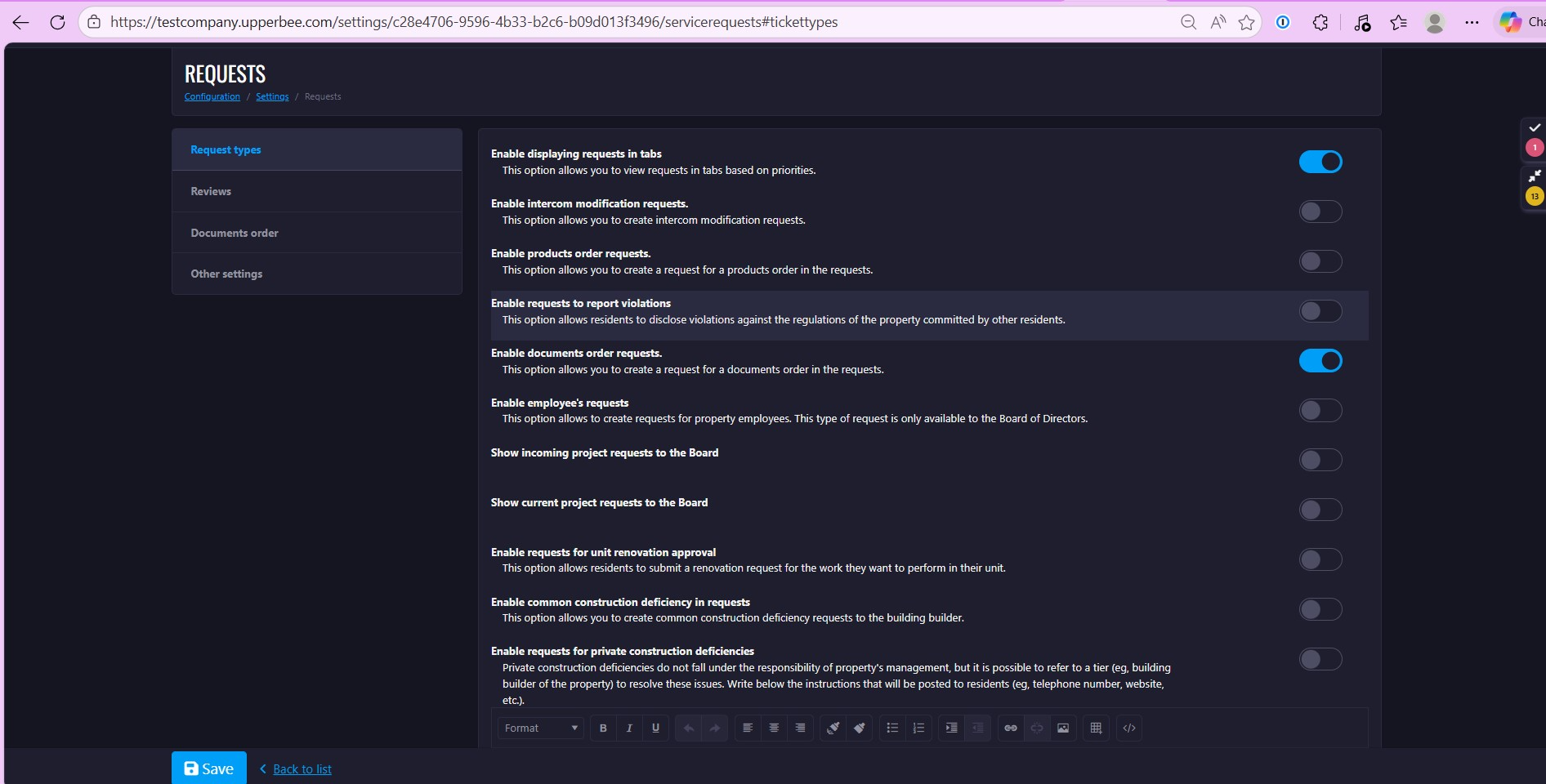
2. Enable Document Orders at the Property Level
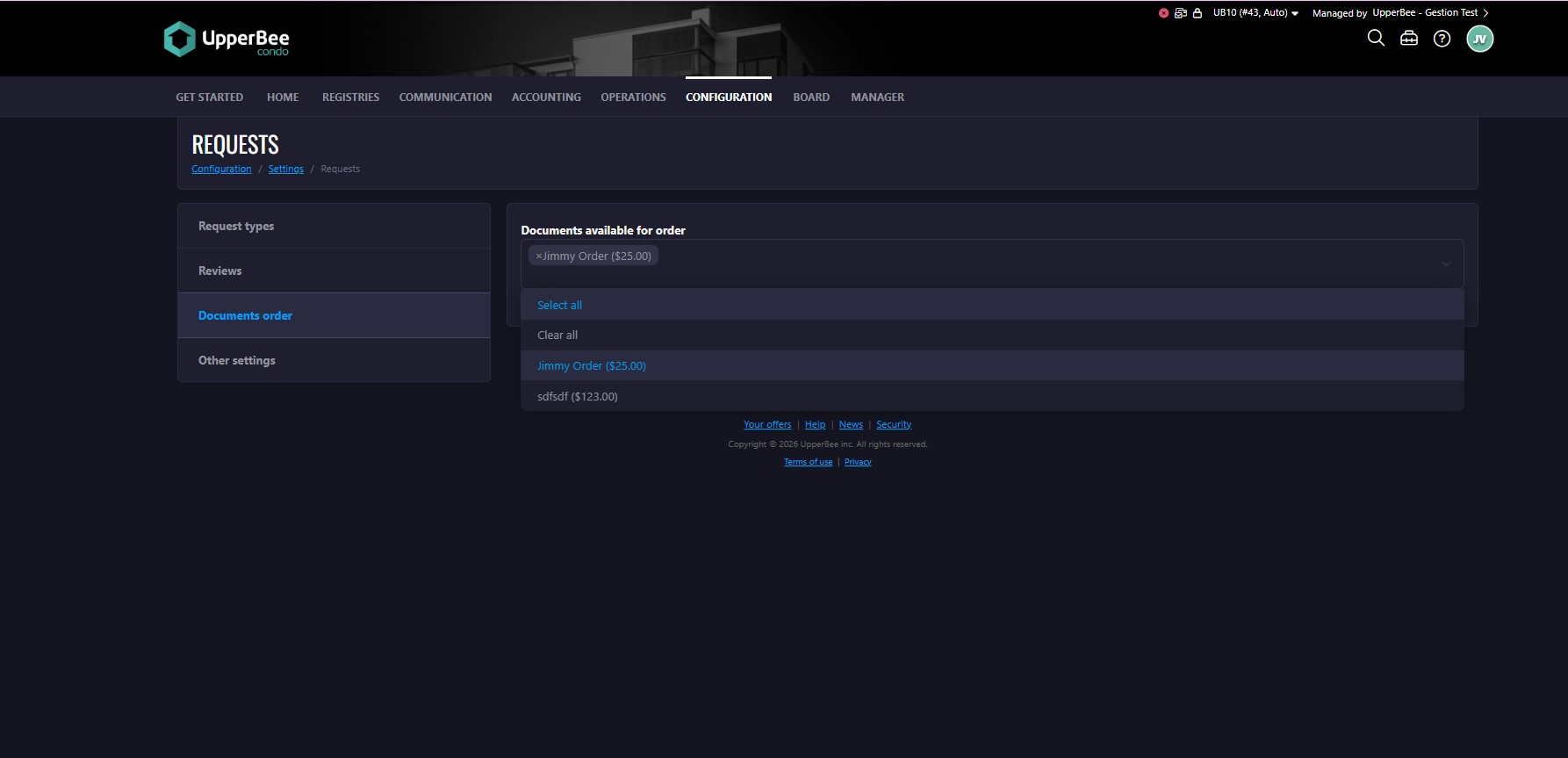
- A new option appears in the managed property settings
- Enable “Document Orders” for that property
- Select which documents should be available for requests
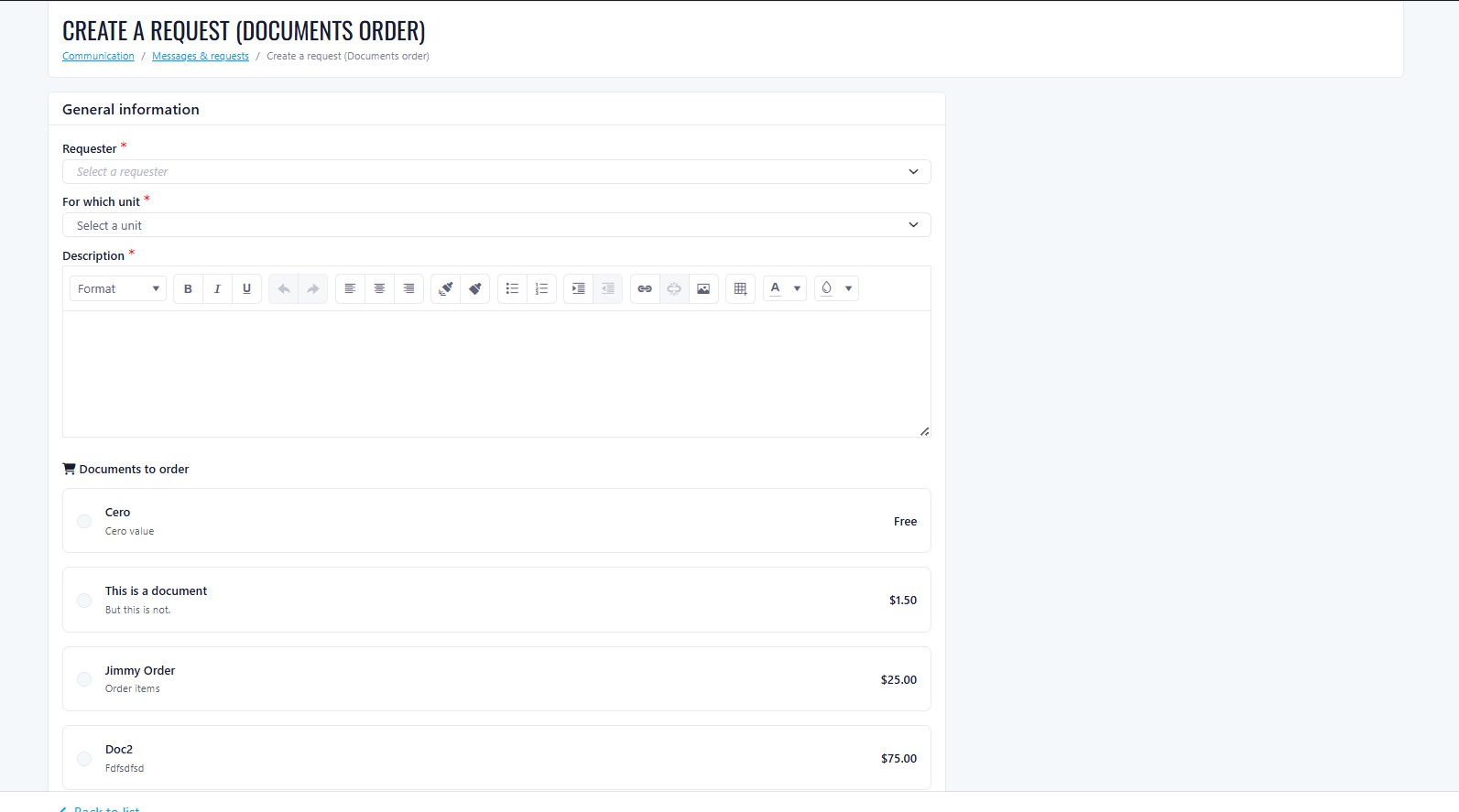
3. What Happens When a Request Is Submitted?
- Payment is automatically charged to the requester’s credit card
- Funds are transferred directly to the manager’s Stripe account
- A $25 usage fee is automatically deducted by UpperBee
- A confirmation email is sent to the requester
- A request is automatically created in the system
- An invoice is automatically generated in the connected accounting system (Xero or Quickbooks)
Property-Specific Order Forms
- Building A → Order Form with Pricing A
- Building B → Order Form with Pricing B
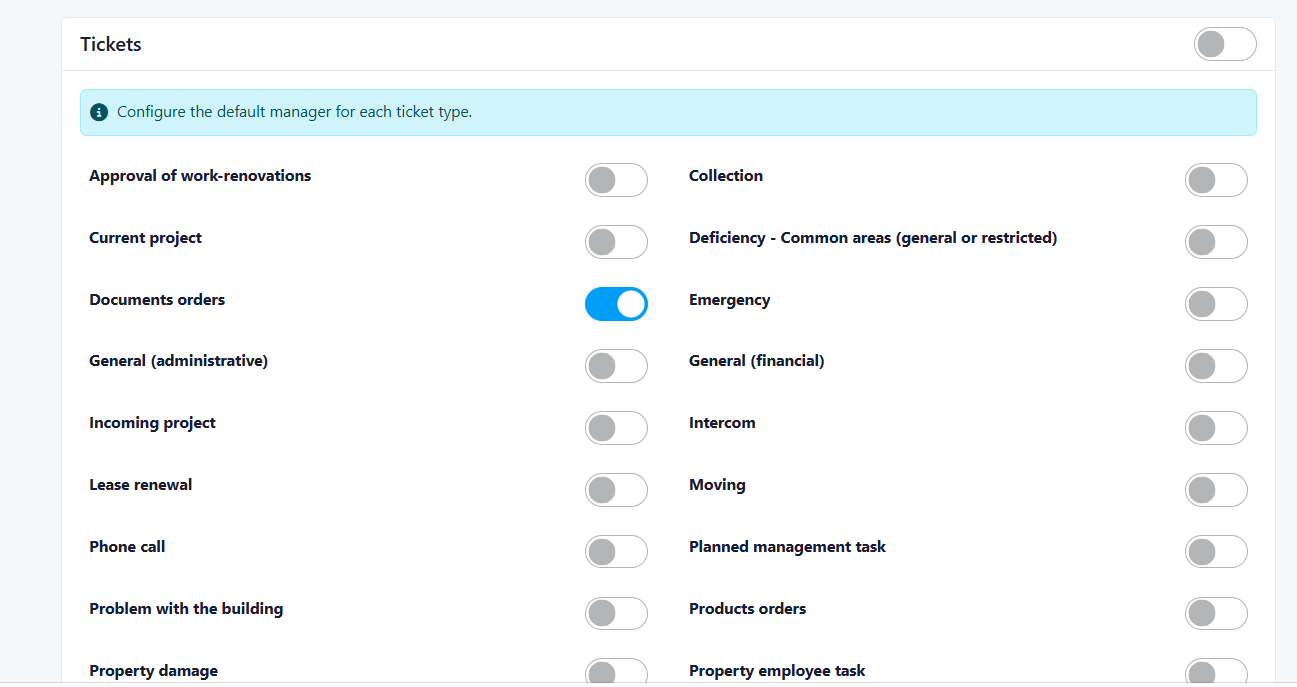
Additional Configuration: Automatic Assignment of Document Orders
- Reduces manual task assignment
- Ensures document requests are always directed to the correct team member
- Improves response time and workflow organization
Benefits for Property Managers
- Automatic payment collection
- Automatic accounting entry
- Automatic invoice creation
- Payments processed through Stripe
- Funds deposited directly into your account
- Tax rate automatically applied
- Invoice generated in Xero or Quickbooks
- Reduced manual bookkeeping errors
- No manual tracking of document payments
- No need to manually create invoices
- Requests are instantly created and tracked
- Payment collected upfront
- Immediate transfer to your Stripe account
Property-Level Document Availability
How It Works
- Documents and pricing are created at the company level in Document Orders.
- In the property settings, enable the “Document Orders” option.
- Select which documents should be available for that specific property.
- Save the configuration.
Benefits
- Greater control at the property level
- Clear visibility of which documents are offered per building
- Reduced configuration complexity
- Consistent pricing management at the company level
- Improved operational clarity
Summary
- Offer documents for online purchase
- Automate payment processing
- Automatically generate invoices
- Reduce administrative workload
- Improve financial tracking
- Enhance the client experience
- Annexe 6 Support
- Ensures legal compliance
- Simplifies rent modifications
- Protects both the landlord and the tenant
- Saves time by elimination paperwork
- Maintains records
- Added Annexe 6 template
- Implemented fillable fields in the form for each option
- Modified lease configurations to include Annexe 6
- Enhanced lease workflow now due to incorporation of Annexe 6
- Form signing capabilities now enabled
- Rental: Bulk Image Download and Delete
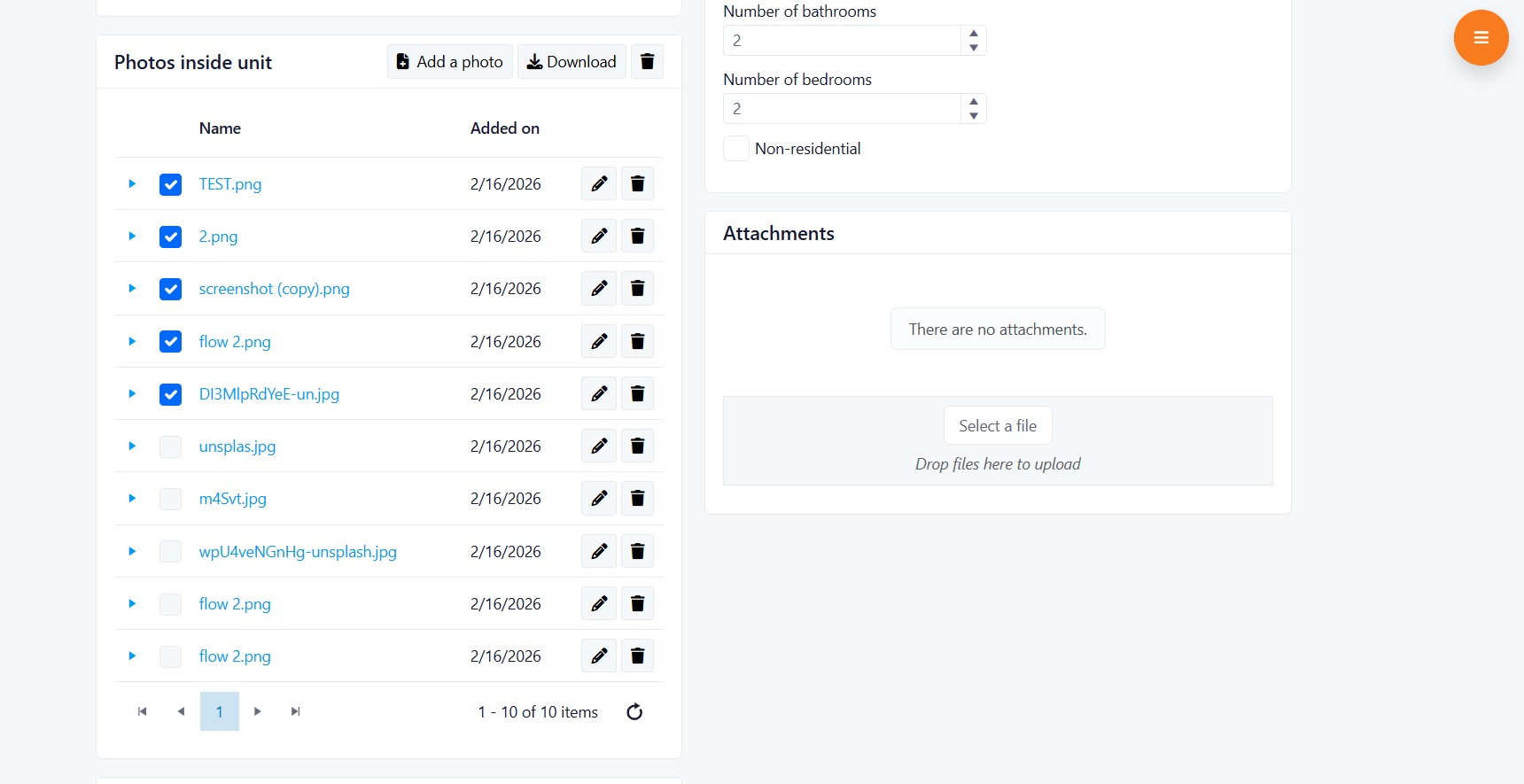
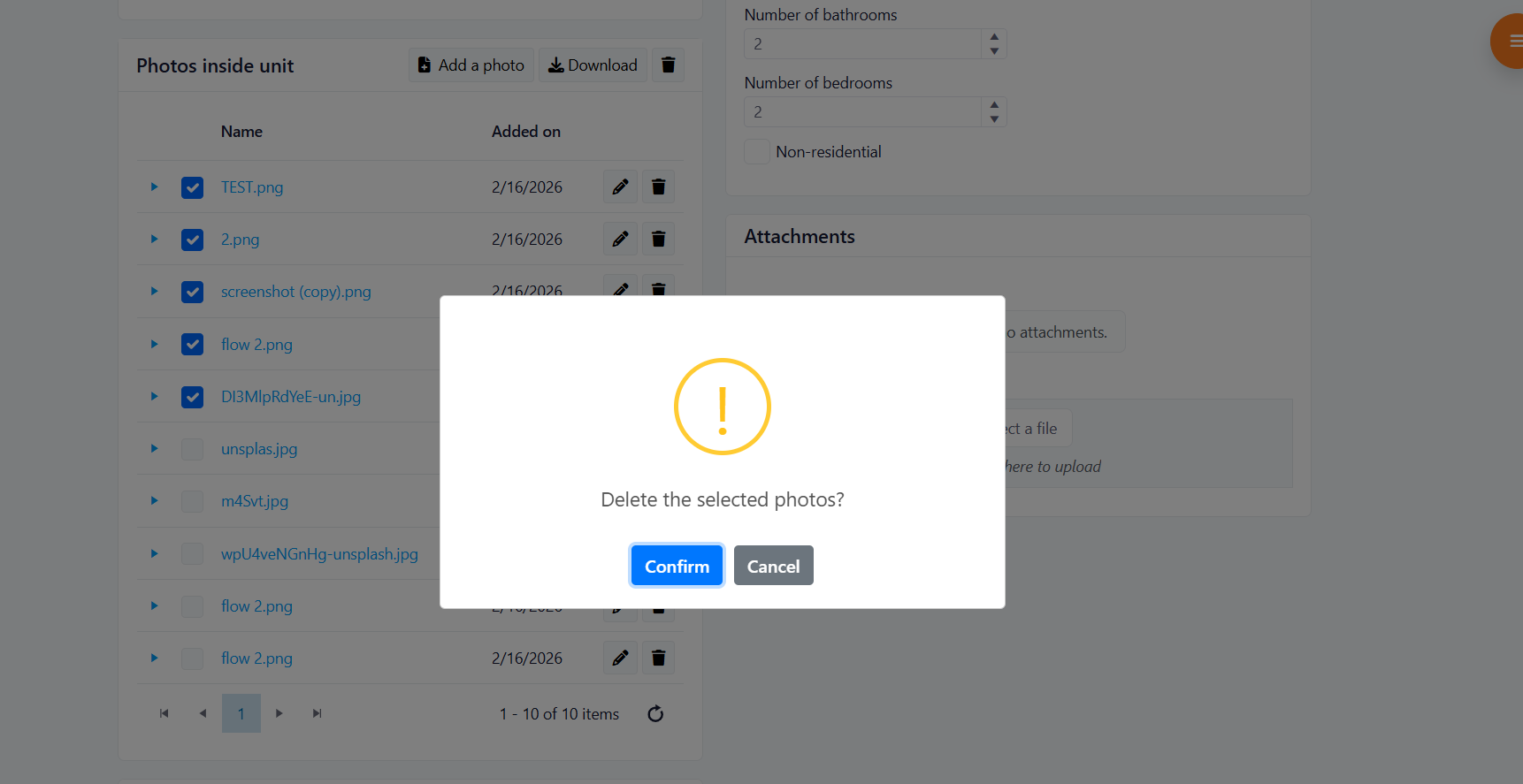
- Allows user to select as many images as needed in a single action
- Allows download of an entire set of images
- A confirmation dialog prevents accidental deletion, giving full control and confidence.
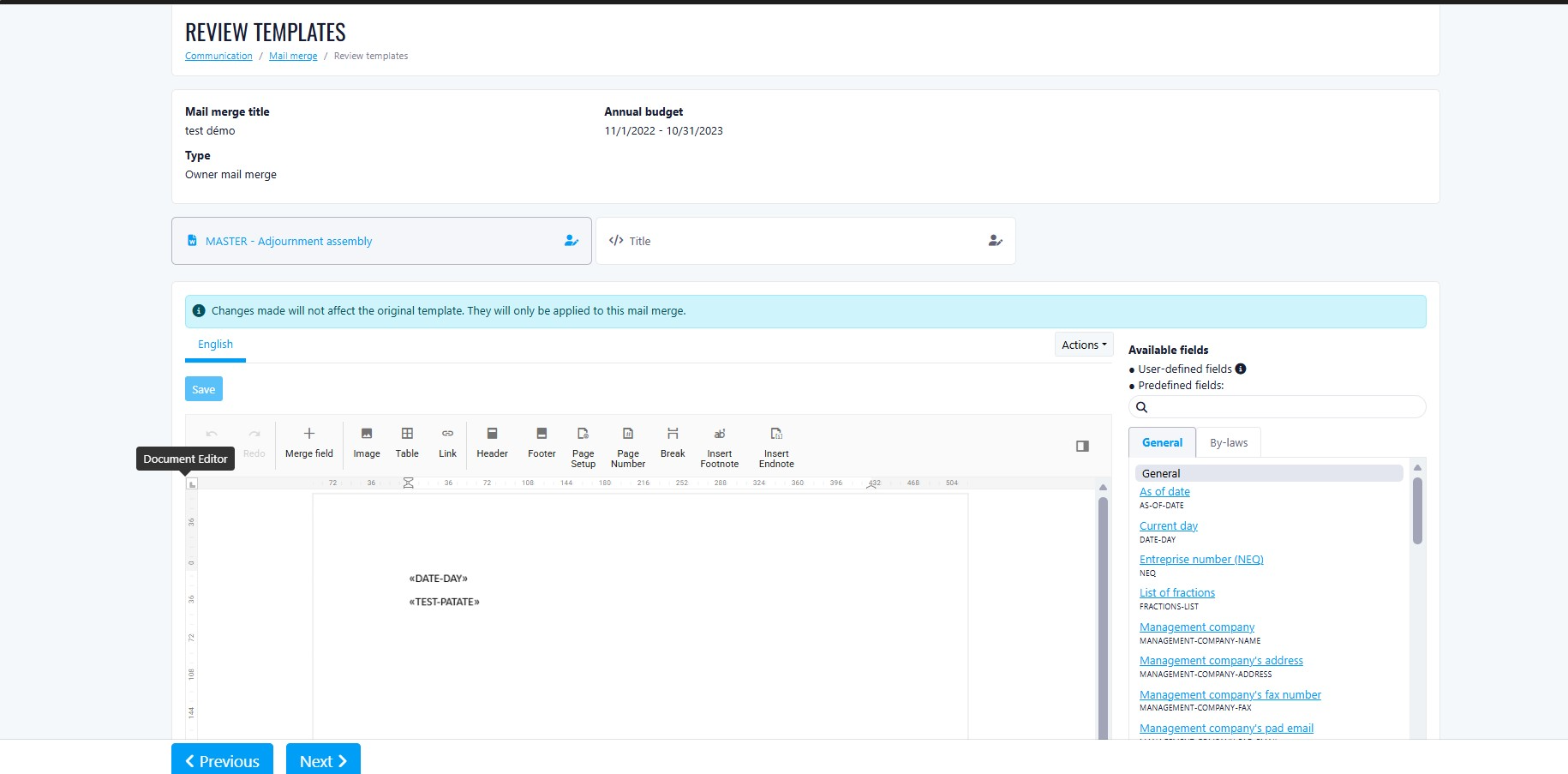
Mail Merge Template Editing via Syncfusion DOCX Editor
- The second step of the mail merge workflow, where users can modify the selected template
- The Word template editing interface within the mail merge module
What’s New
Integrated DOCX Editor for Template Modification
- Direct modification of mail merge templates
- Real-time editing before generating documents
- Improved workflow efficiency
Simplified Toolbar
- Text formatting
- Bold
- Italic
- Underline
- Headings (H1, H2, etc.)
- Mail Merge tools
- Insert Merge Field
- Right-clicking on a merge field inserts it directly into the document
- Insert Merge Field
- Table insertion
Benefits
- Streamline the mail merge workflow
- Reduce dependency on external Word editing
- Provide a cleaner and more focused editing experience
- Ensure users only access relevant tools for document customization
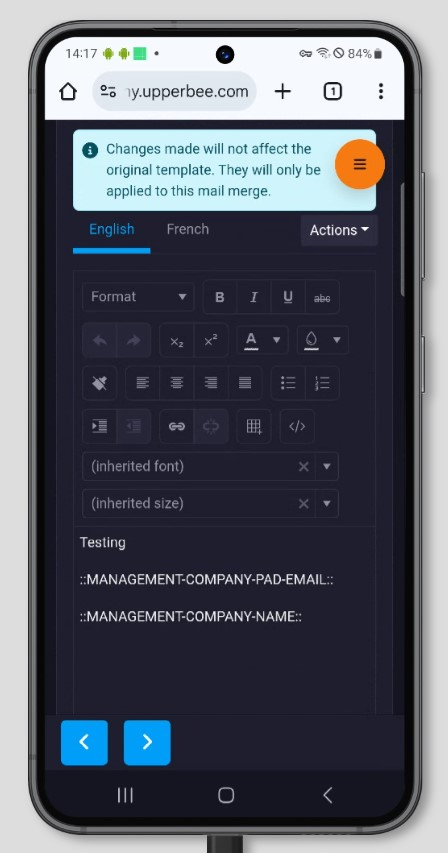
Impact
- No impact on existing templates
- No data structure changes
- Backward compatible with current mail merge functionality
Improvements
Release Week 2026-02-21
New Features
Inline Calculator in Amount Fields
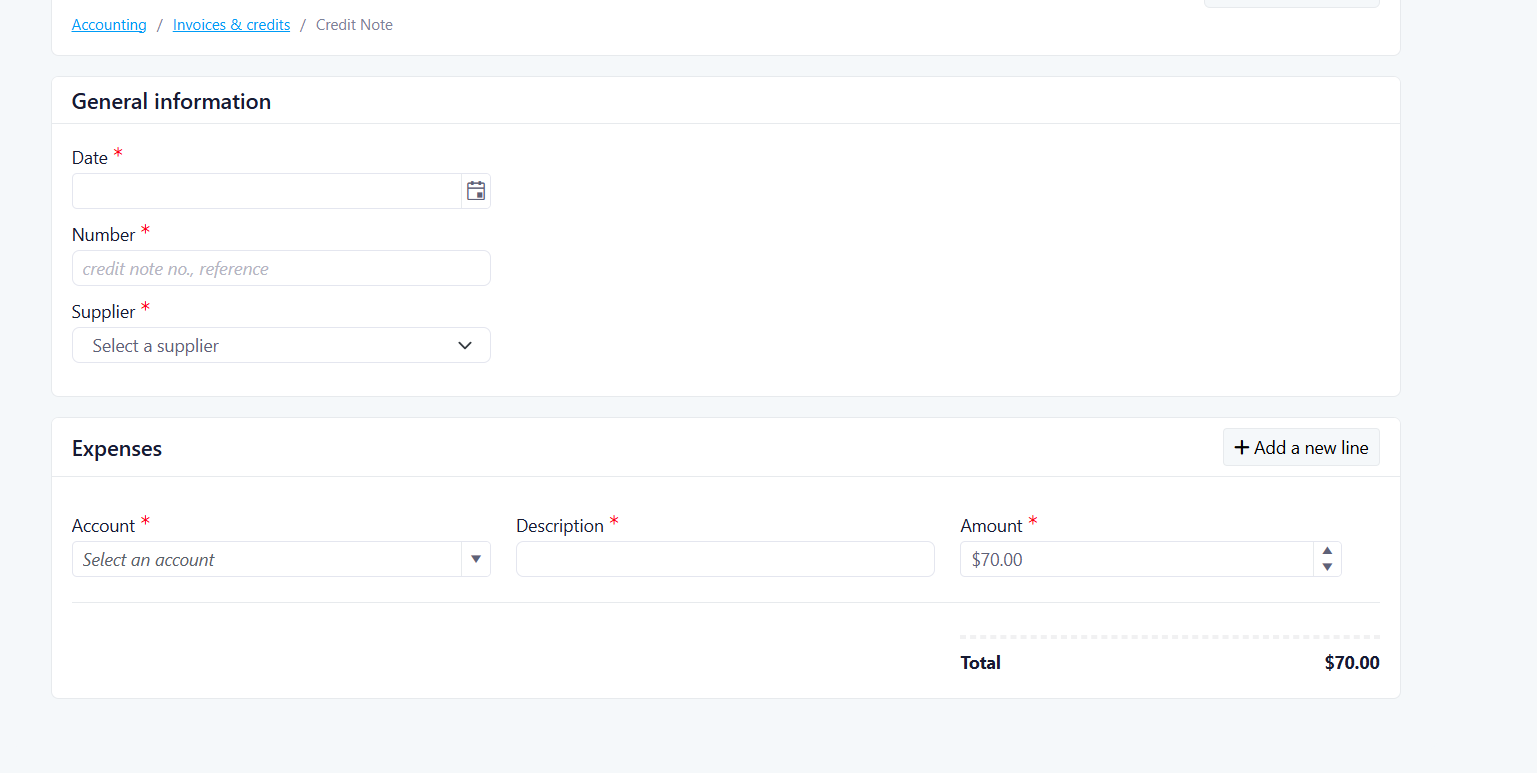
Feature Overview
How it Works
- Input: Enter basic math using addition (+), subtraction (-), multiplication (*), division (/), and parentheses ( ) for grouping.
- Trigger: The system calculates the total as soon as you press Enter, Tab out of the field, or click elsewhere.
- Formatting: You can start your calculation with or without an = sign (e.g., both =100+25.50 and 100+25.50 work).
- Validation: If an expression is invalid, the text will appear in blue, and the field will require correction before saving.
Key Benefits
- Increased Speed: Save time by calculating shared expenses or proportions without switching apps.
- Reduced Errors: Minimize manual transcription errors by letting the system handle the math.
- Native Precision: Calculations automatically respect accounting rounding rules (typically 2 decimal places).
- Clean Data: Only the final result is stored in your database and history logs, keeping your records tidy.
Improvements
Release Week 2026-02-27
New Features
Improvements
Was this article helpful?
That’s Great!
Thank you for your feedback
Sorry! We couldn't be helpful
Thank you for your feedback
Feedback sent
We appreciate your effort and will try to fix the article