Release Notes
First Week Of The Month
New Features
Penalties Management Enhancement
Current Behavior
- To review penalties, employees must navigate individually into each portal:
- SDC Portal → Configuration → Penalties
- To validate penalty details, employees must manually cross-check the applicable by-law in the By-laws registry.
- This process is time-consuming and requires multiple navigation steps.
What’s New
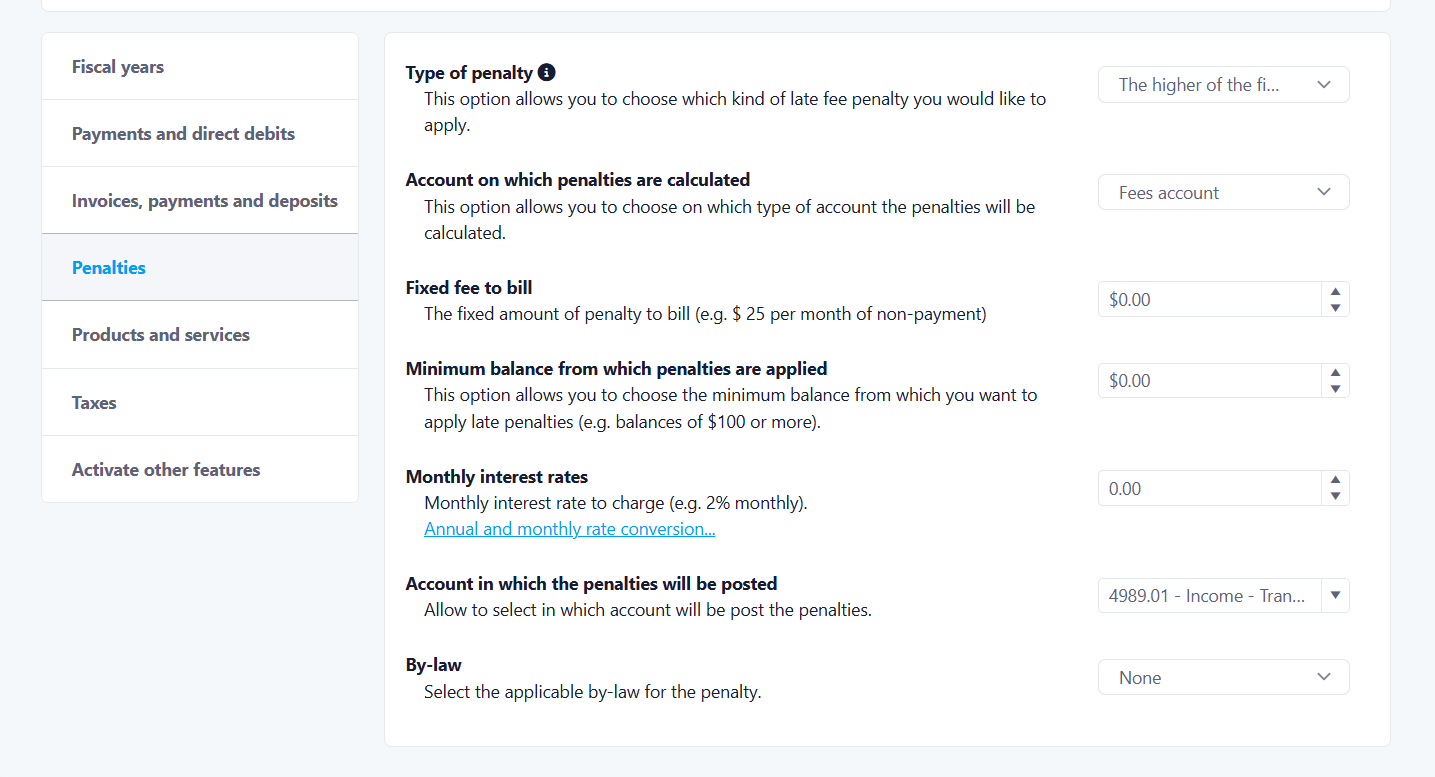
1. By-law Visibility in Penalties
- A new fieldis added to display:
- The by-law associated with each penalty
- A direct link to access the corresponding by-law
- This allows users to quickly validate the origin of a penalty without leaving the screen.
2. Manager-Level Consolidated Report
- A new report at the Manager level centralizes penalties across all portals.
- Each row represents a portal (property).
- Type of penalty
- Account on which penalties are calculated
- Fixed fee to bill
- Minimum balance from which penalties are applied
- Monthly interest rate
- Account where penalties are posted
- Applicable by-law

3. Quick Access to Portal Configuration
- Each row in the report includes a navigation arrow.
- Clicking the arrow redirects the user directly to the Penalties Configuration page of the selected portal.
- This enables faster edits without manual navigation.
4. Edit & Export Improvements
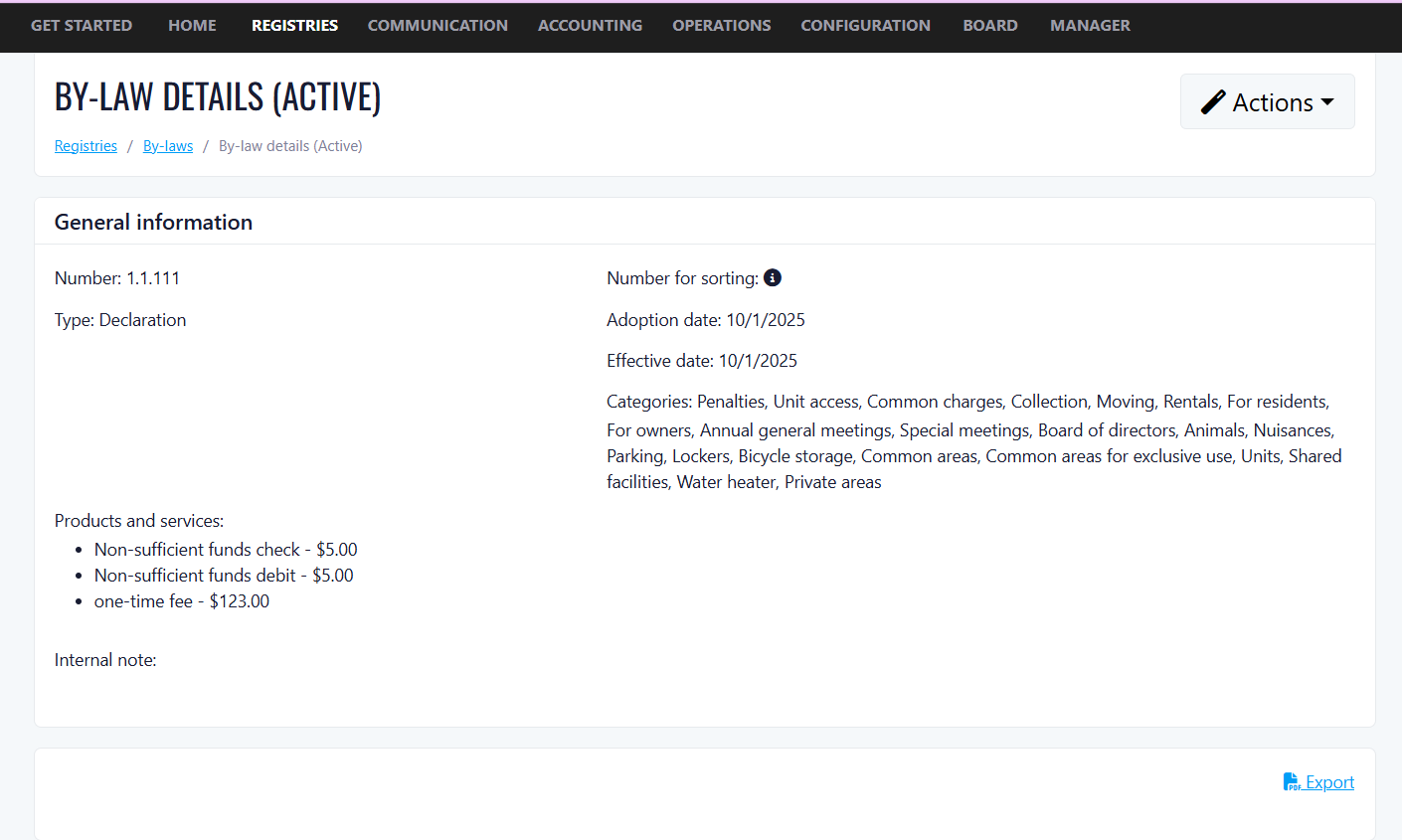
- The applicable by-lawis now included in:
- Edit popup
- Exported data
- In the edit popup, users can:
- View the selected by-law
- Access it directly via a clickable link
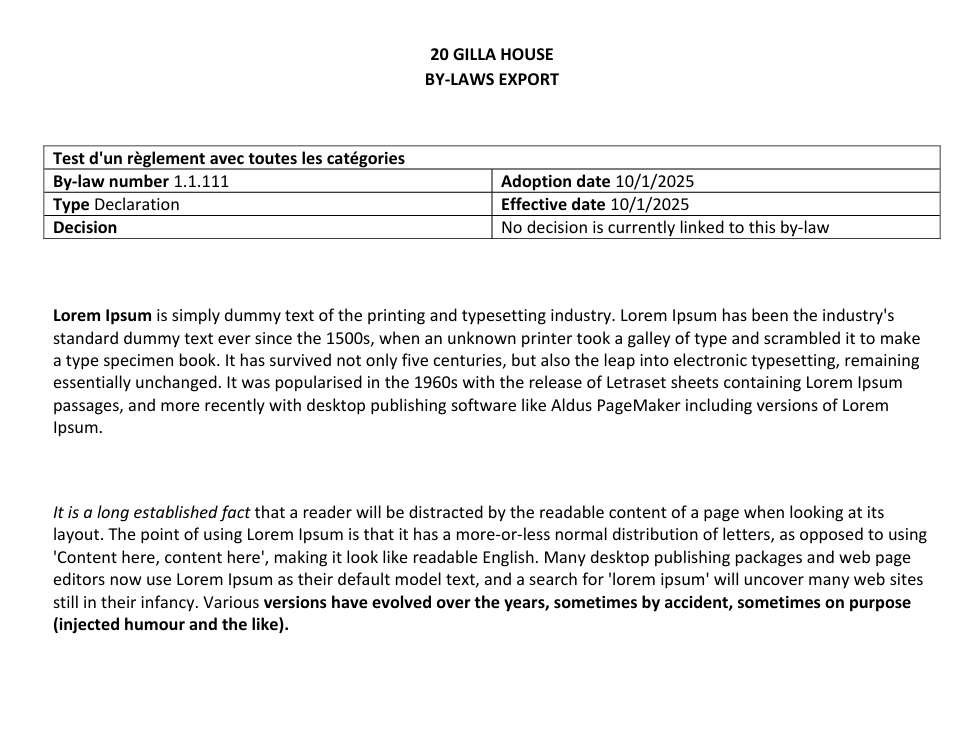
- Export formatting has been improved (HTML rendering fixes).
Options to Charge Taxes at the Condo Level
Benefits:
- Greater billing accuracy: Taxes are applied only to the right units, at the right time, eliminating over- or under-charging errors.
- Flexible tax management: Different tax rates can be configured for different periods, accommodating changes in usage type or applicable legislation over time.
- Time savings for managers: Automatic end date calculation and migration behavior reduce manual data entry and the risk of configuration errors.
- Full audit trail: Historical taxable periods are preserved and cannot be deleted, ensuring compliance and traceability for accounting and reporting purposes.
- Scalable configuration: Tax settings can be managed at the individual unit level, making it easy to handle mixed-use buildings with varying tax obligations across units.
What's new:
- Tax management per unit: Property managers can assign a specific tax rate to each condo unit (e.g., Tax exempt, etc.).
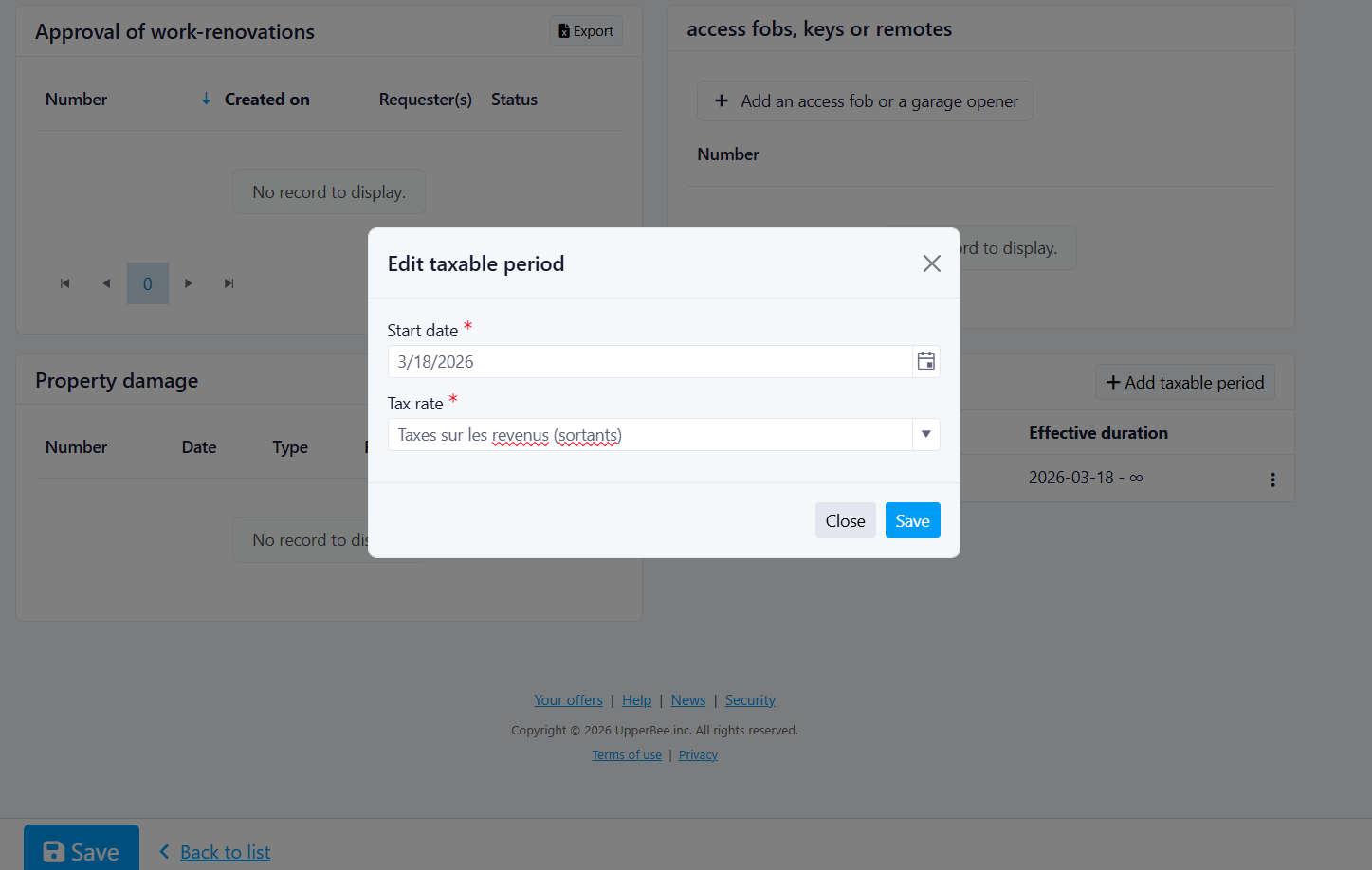
- Taxable periods: Each unit supports multiple taxable periods, each defined by a start date, a tax rate, and an automatically calculated end date. This allows different tax rates to apply at different points in time.
- Add / Edit / Delete taxable periods: Managers can manage periods directly from the unit edit screen using simple modal dialogs.
Business rules:
- Default migration behavior: Units that already had a tax rate configured will automatically receive a taxable period from today → ∞ using their previously assigned rate.
- No duplicate consecutive rates: The system prevents creating two back-to-back periods with the same tax rate.
- Past periods are protected: A taxable period whose end date has already passed cannot be deleted, as it must be preserved for historical record-keeping.
- Automatic end date calculation: When a new period is added, the system automatically adjusts the end date of existing periods. If the new period starts after all existing ones, its end date is set to ∞. Otherwise, the preceding period's end date is set to the day before the new period begins.
Goal:
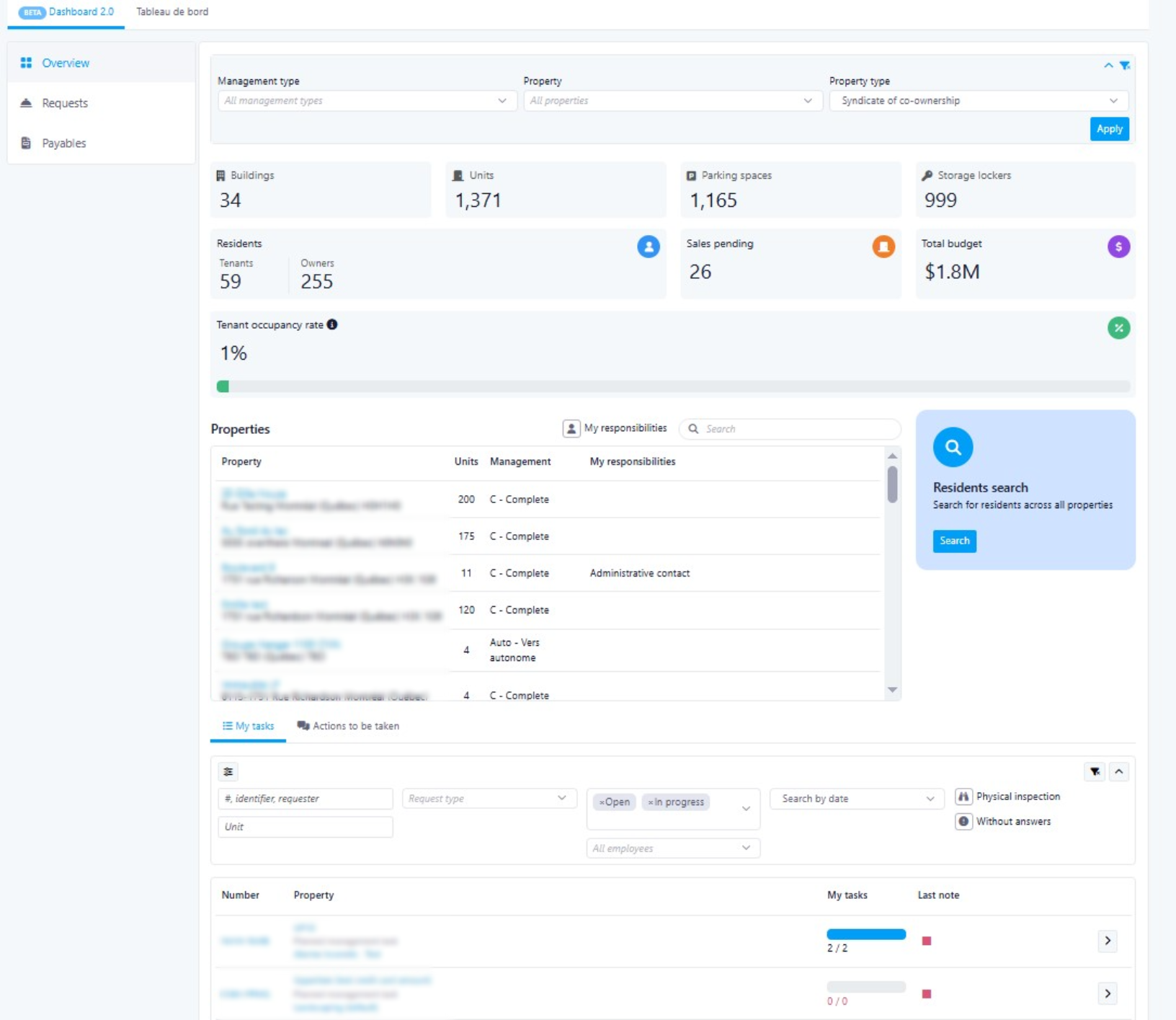
- Key objectives: Consolidated dashboard with key metrics from all properties, with built-in filters to switch between them
- Real-Time Status Snapshots: Focused on current operational status
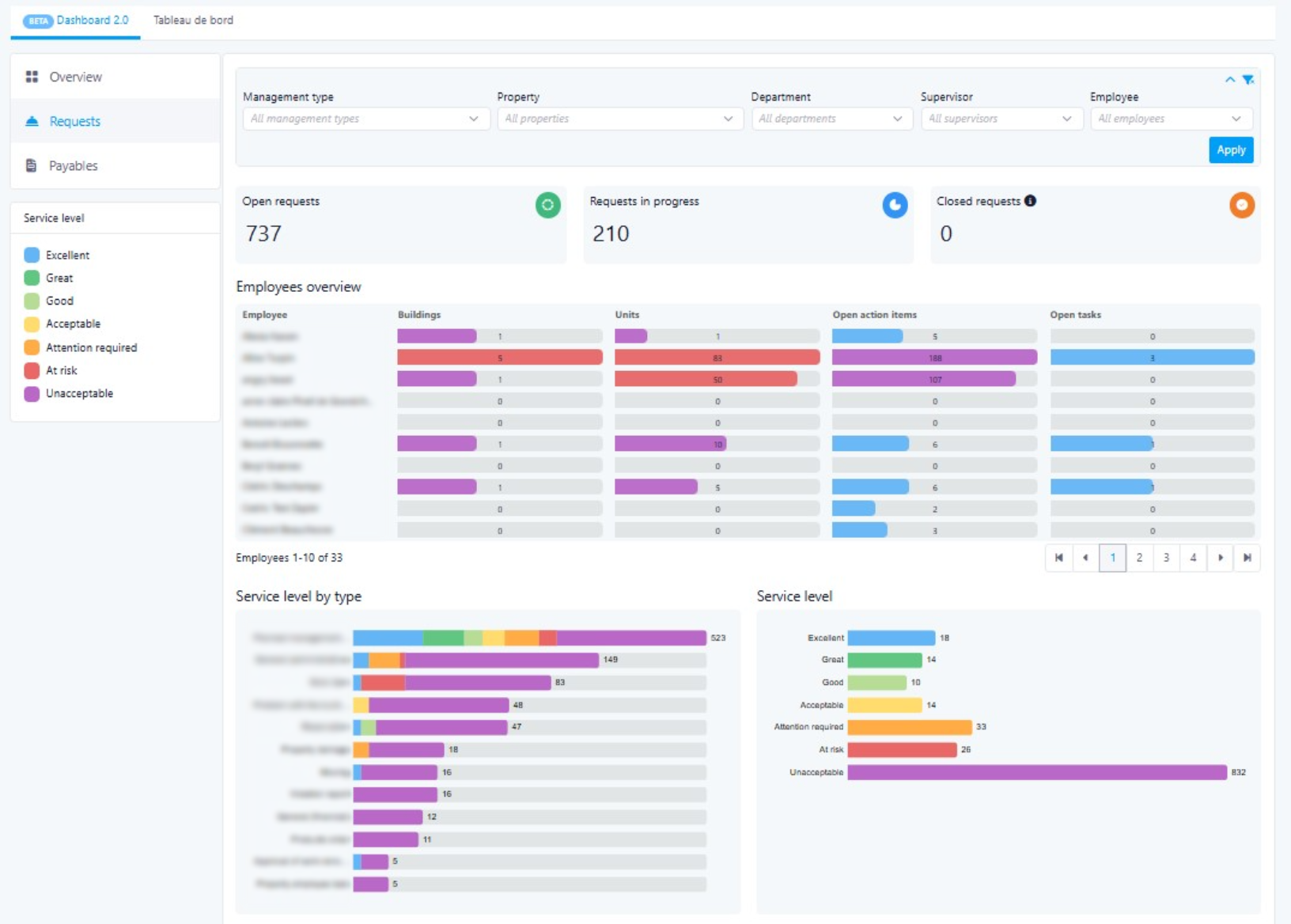
- Cross-Property and Employee Comparison: Compare employee performance within a single property using filtering capabilities
- Access Control Management: Managers can grant or remove dashboard access on a per-user basis
Giving Access
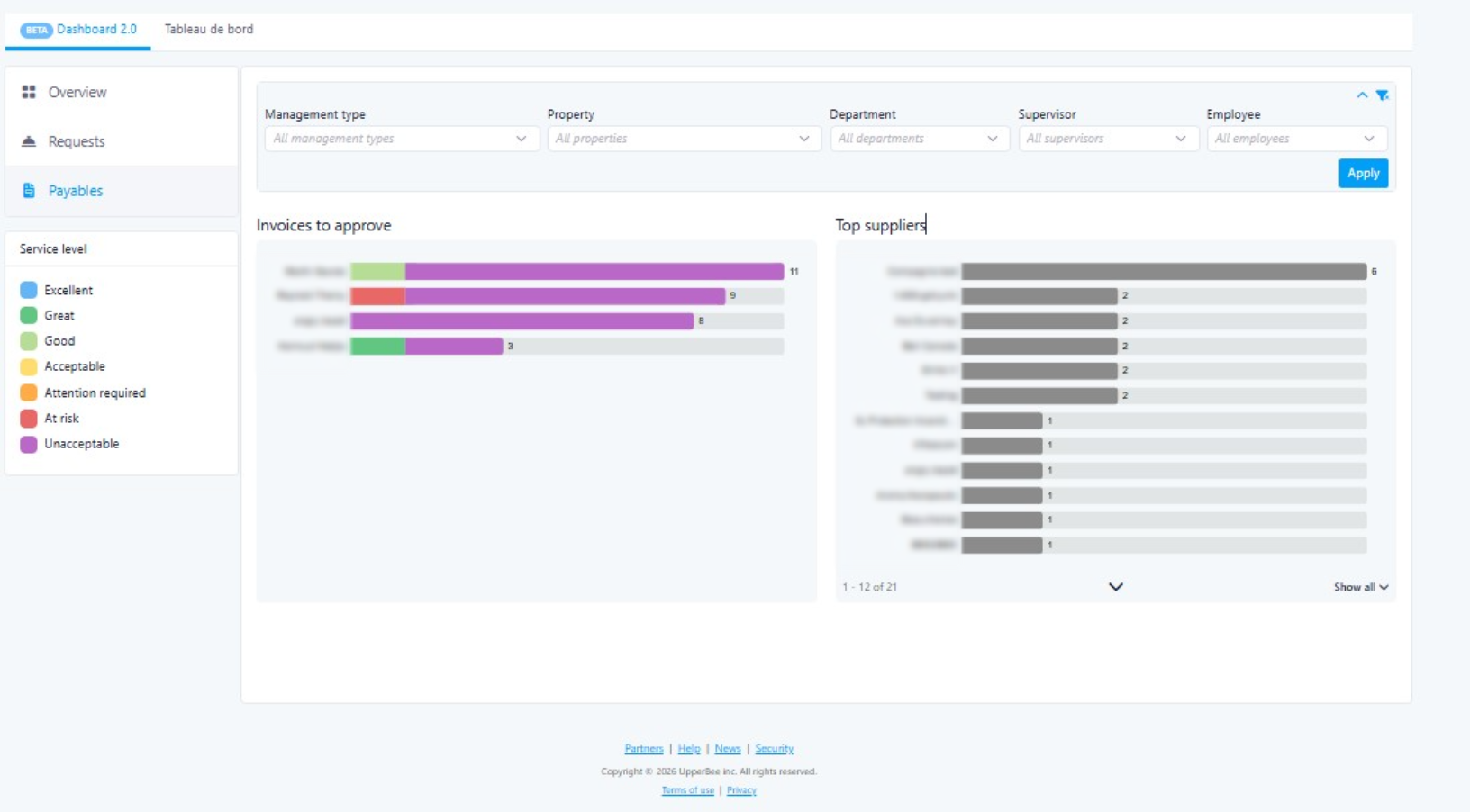
- Payables
Benefits:
Types of Dashboards in V1
Manager Dashboard:
Related to staff and operations across all properties. Staff Management is pre-filtered by the user to see which operations are due
- Overview of operations by group/individual per property. Can select one or multiple properties. Can filter by group of employees.
Benefit for users:
- Having specialized dashboards means each user sees a view relevant to their role — managers get staff performance insights, while all users get a clean property-level overview without clutter or irrelevant data.
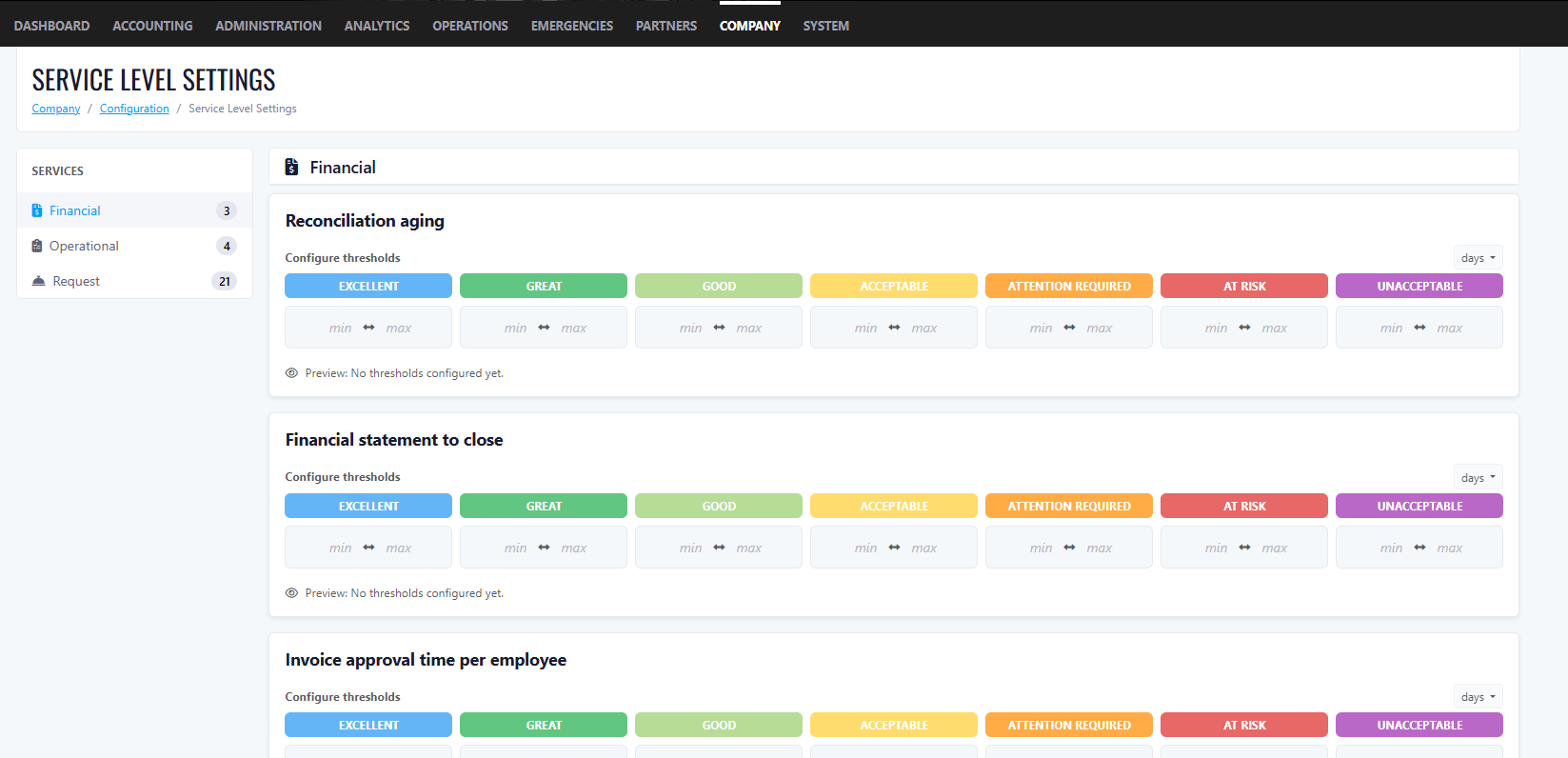
Service Level Settings (SLS):
- Values apply across all properties (universal settings)
- Values are numbers only. Units are Days or QTY; no letters allowed.
- The Company Owner must configure values from the configuration page
- Not all dashboard metrics require SLS numbers.
- If no SLS values are configured on first login, the dashboard will still display data but with only 1 colour
- Users can have a 0 value between ranges.
Benefit for users:
Overview Dashboard:
Default for all users.
- Users can filter by Property, which dynamically updates all numbers. Default shows all buildings.
Benefit for users:
Filter Options:
Rental KPIs (Boxes):
Condo KPIs (Boxes)
Benefit for users:
Bottom of Page (Both Rental & Condo):
Benefit for users:
Manager Dashboard:
Filters:
Benefit for users:
KPI Boxes:
Benefit for users:
Metrics:
Improvements
Merge Request Validation
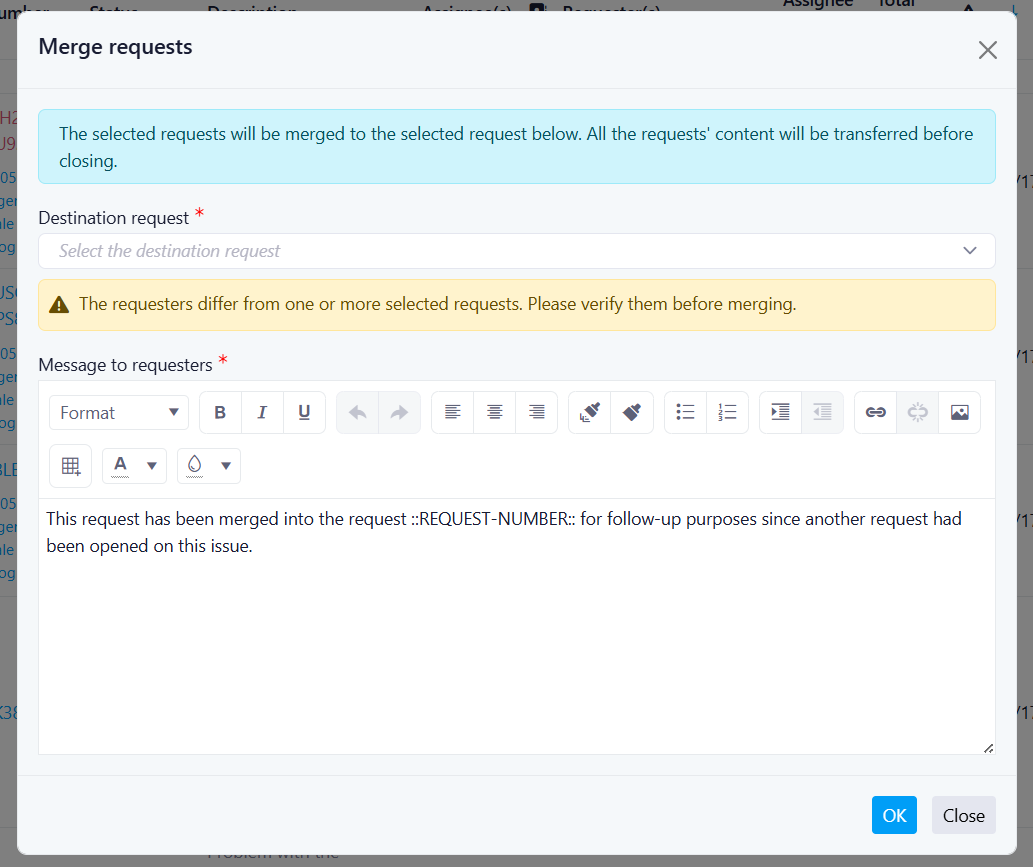
- The system now checks whether both requests belong to the same recipient (same unit and/or person).
- If the recipients are the same, the merge proceeds as usual.
- If the recipients are different, a warning message is displayed:
- “Are you sure you want to merge these requests? They belong to different recipients.”Yes → The merge proceeds.
- No → The action is canceled, and the user is returned to the previous screen.
Second Week Of The Month
New Features
Electronic Lease: Form Updates
New Features and Improvements
- Type of dwelling (residential only or mixed-use)
- Exterior and interior parking spaces
- Storage locker or storage space
- Included appliances (oven, microwave, dishwasher, refrigerator, dryer, washing machine)
- Furniture, services, and other accessories and dependencies
- It is now possible to add lessor representatives from the General Information tab using the + Representative button.
- The representative must be linked to one or more persons (lessors)
- An email address is required
- Limit: 2 lessor representatives per lease
- The representative's name appears on the electronic lease under the "If applicable, represented by" field, below the person(s) they represent
- It is also possible to add tenant representatives from the General Information tab using the + Representative button in the tenant section.
- The representative can be linked to multiple tenants
- Limit: 2 tenant representatives per lease
- The representative's name appears on the lease below the tenant(s) they represent
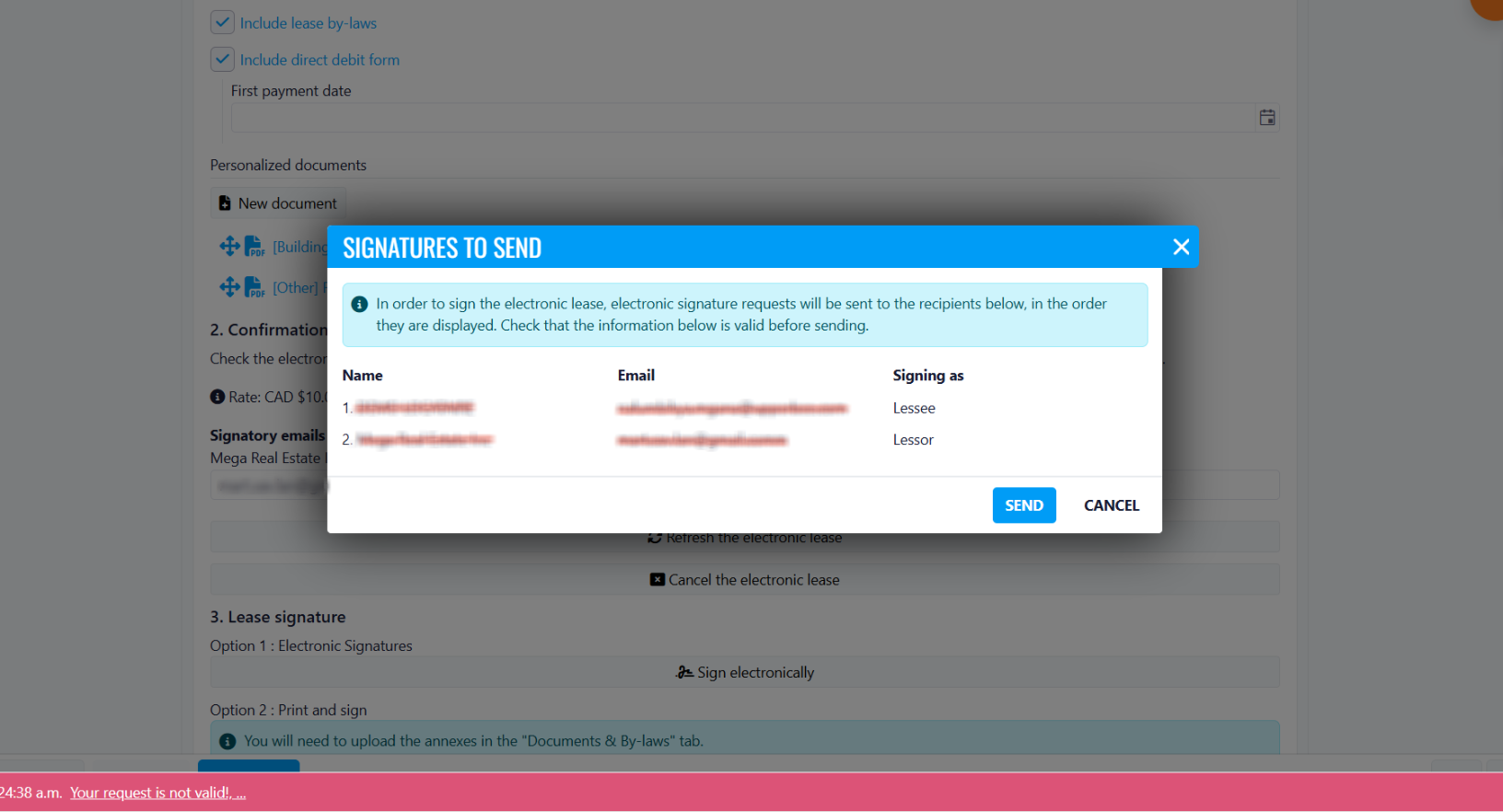
- Signatory emails (lessors and representatives) are displayed for validation before payment
- If a representative is present, they sign on behalf of the person(s) they represent
- The electronic signature request is sent to recipients in the order displayed, with the indicated role (e.g. Representative (Tenant))
Reminder Messages Add Count
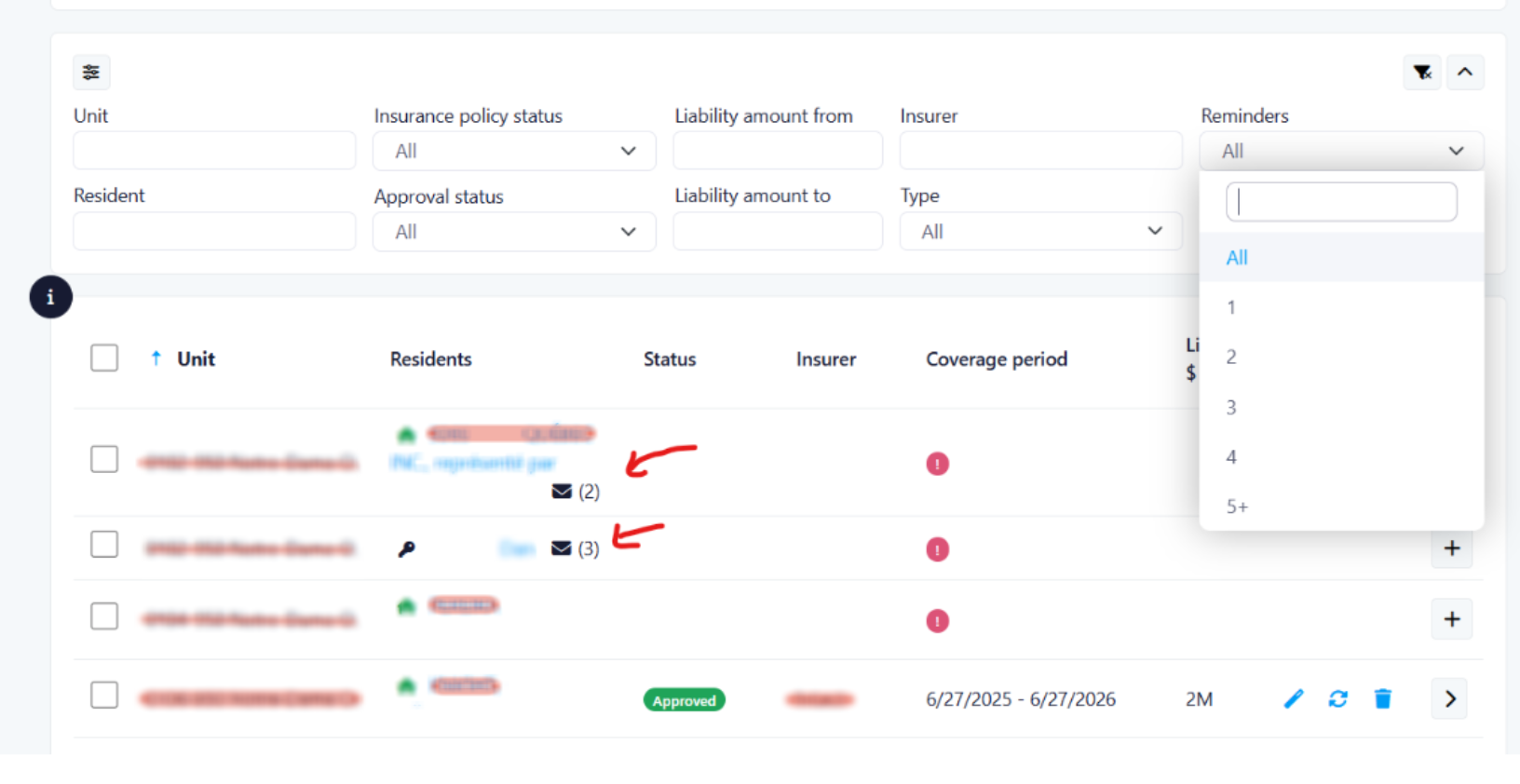
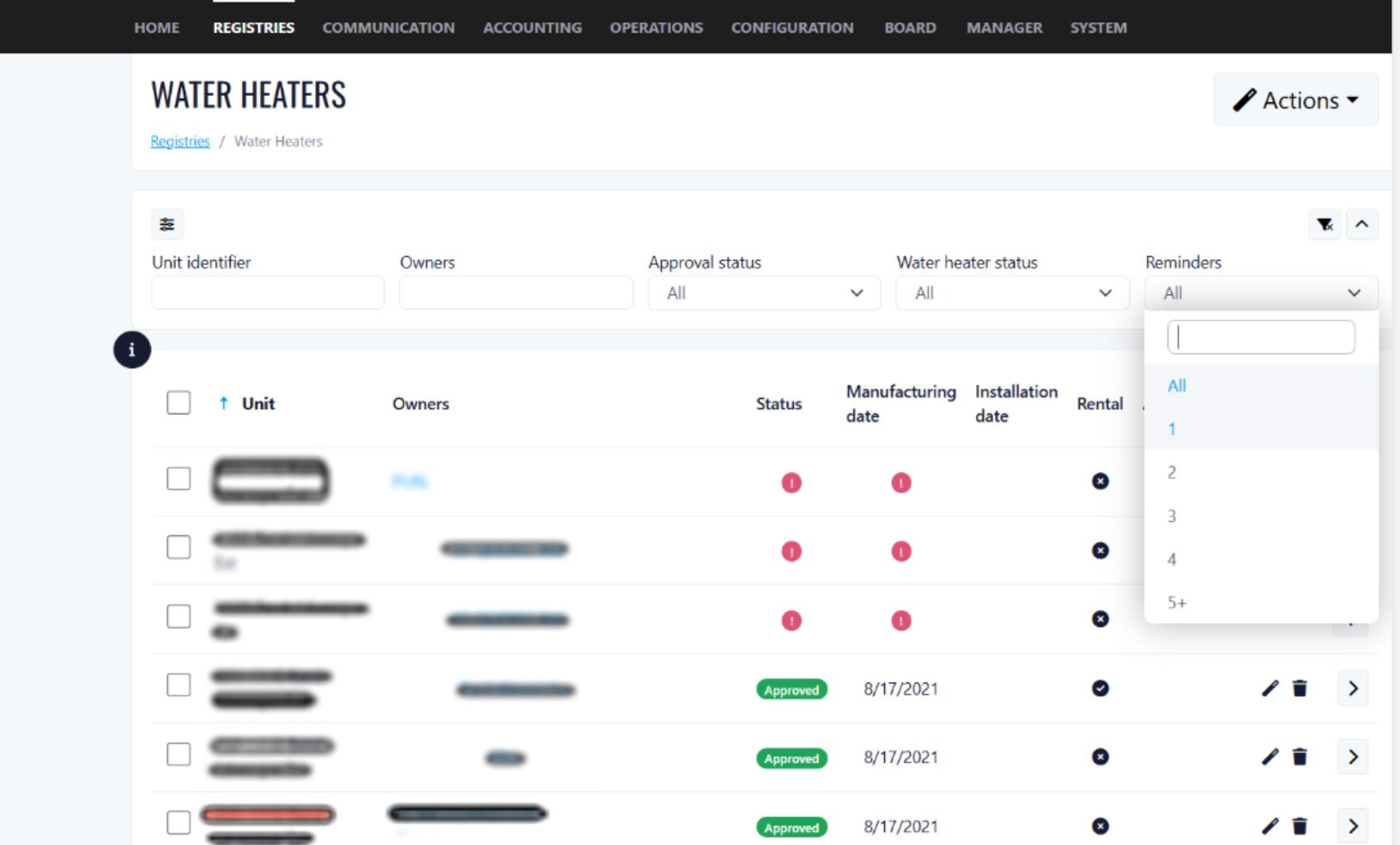
Reminder Counter
Filter by Reminders Sent
Automatic Counter Reset
Applies To
Benefits
- Property managers can see at a glance exactly how many reminders have been sent to each resident, eliminating guesswork and preventing double-sending or missed follow-ups.
- With reminder counts visible in the list view, managers can prioritize residents who have received multiple reminders without response, allowing for more targeted and escalated action.
- Since the feature applies to Insurances, Water Heaters, Mortgagees, and Tenant records, managers have a consistent tracking experience across every compliance-related module.
- The automatic reset to 0 upon approval ensures that data stays accurate and reflects only active, unresolved situations — no manual cleanup needed.
- The reminder count provides a lightweight audit trail, helping managers demonstrate due diligence when following up with residents on outstanding compliance requirements.
- By making reminder history visible, the feature reduces the risk of over-communicating with compliant residents or under-communicating with non-compliant ones.
MOVING RESERVATION MANAGEMENT

How the New Functionality Works
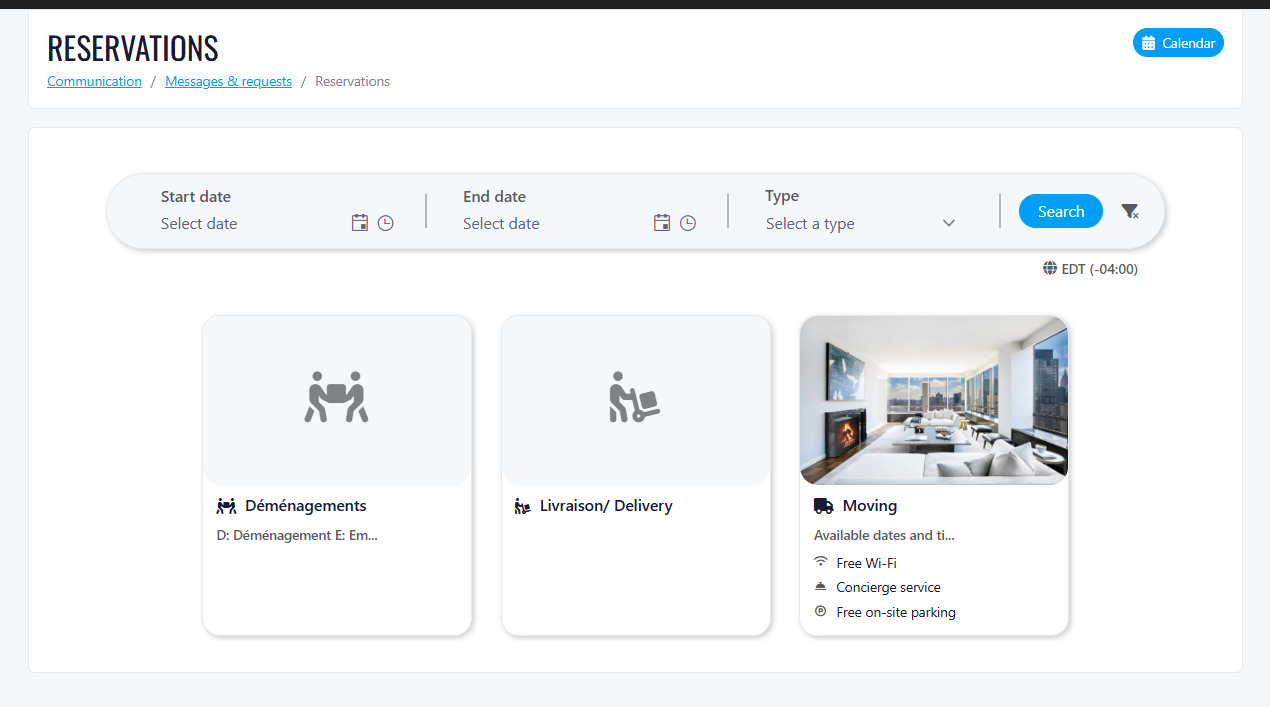
Centralized Moving Reservation Experience
- Clear visibility of available and unavailable time slots
- Predefined moving durations based on configuration
- Real-time availability updates
Template-Based Reservation Creation
- The reservation form is automatically pre-filled based on a predefined template
- Default moving duration
- Preconfigured instructions
- Required fields and conditions
Reservation Details & Confirmation
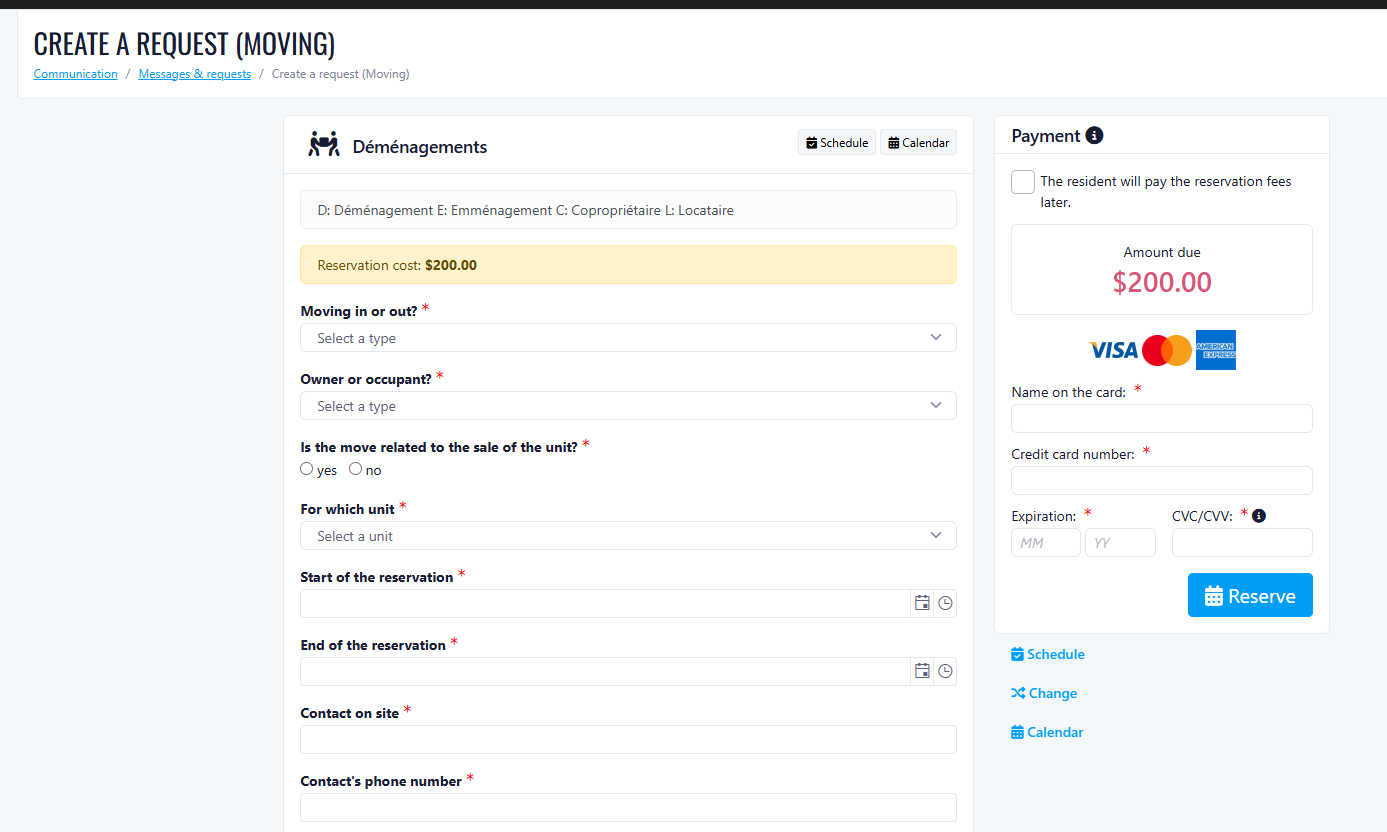
- Review pre-filled reservation details
- Complete any additional required information
- Review building rules and instructions
- Confirm their moving reservation
For Residents & Tenants
Key Features
- Real-time calendar availability
- Pre-filled reservation forms using templates
- Standardized moving instructions
- Guided booking flow
- Flexible payment options based on configuration
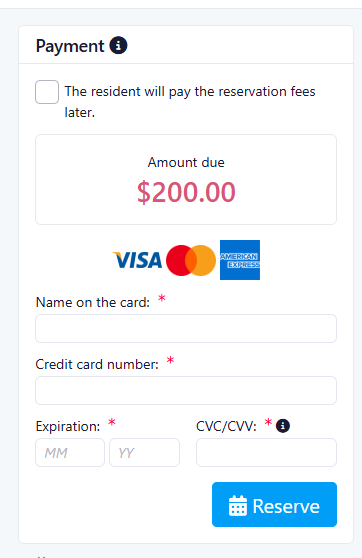
Payment Options
Available Payment Methods
- Credit Card
- Unit Billing
How It Works
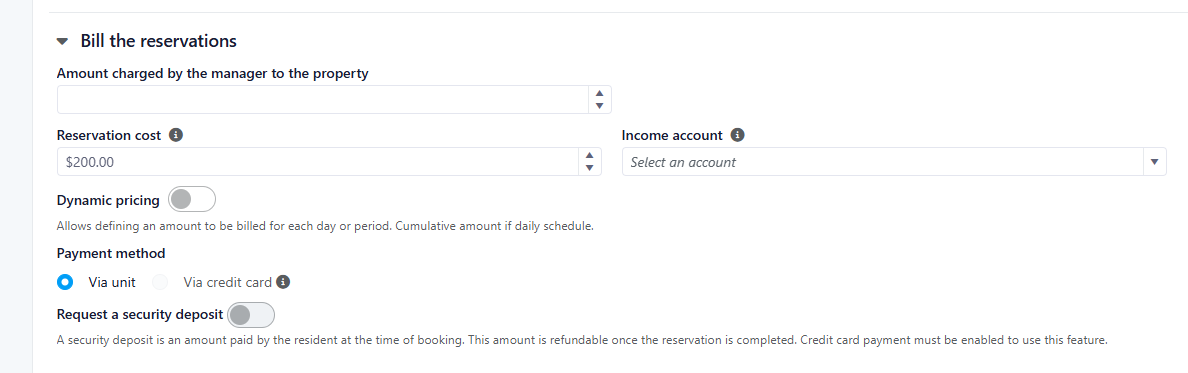
- Payment options are defined at the calendar level
- Depending on configuration, users may:
- Pay by credit card
- Charge the reservation to their unit
- Have access to both options
- If the user is an occupant/tenant, they may be restricted to credit card payments only, depending on system settings
Note:
Benefits
For Residents & Tenants
- Faster reservation process with pre-filled templates
- Reduced manual input and fewer errors
- Clear and guided booking experience
- Flexible and secure payment options
- Better visibility on availability
Overall Client Value
- Centralized moving reservation management
- Standardized booking process through templates
- Reduced manual effort for users
- Improved consistency across all reservations
- Flexible payment configurations aligned with property rules
- Enhanced user experience for residents and tenants
Special Charges Update
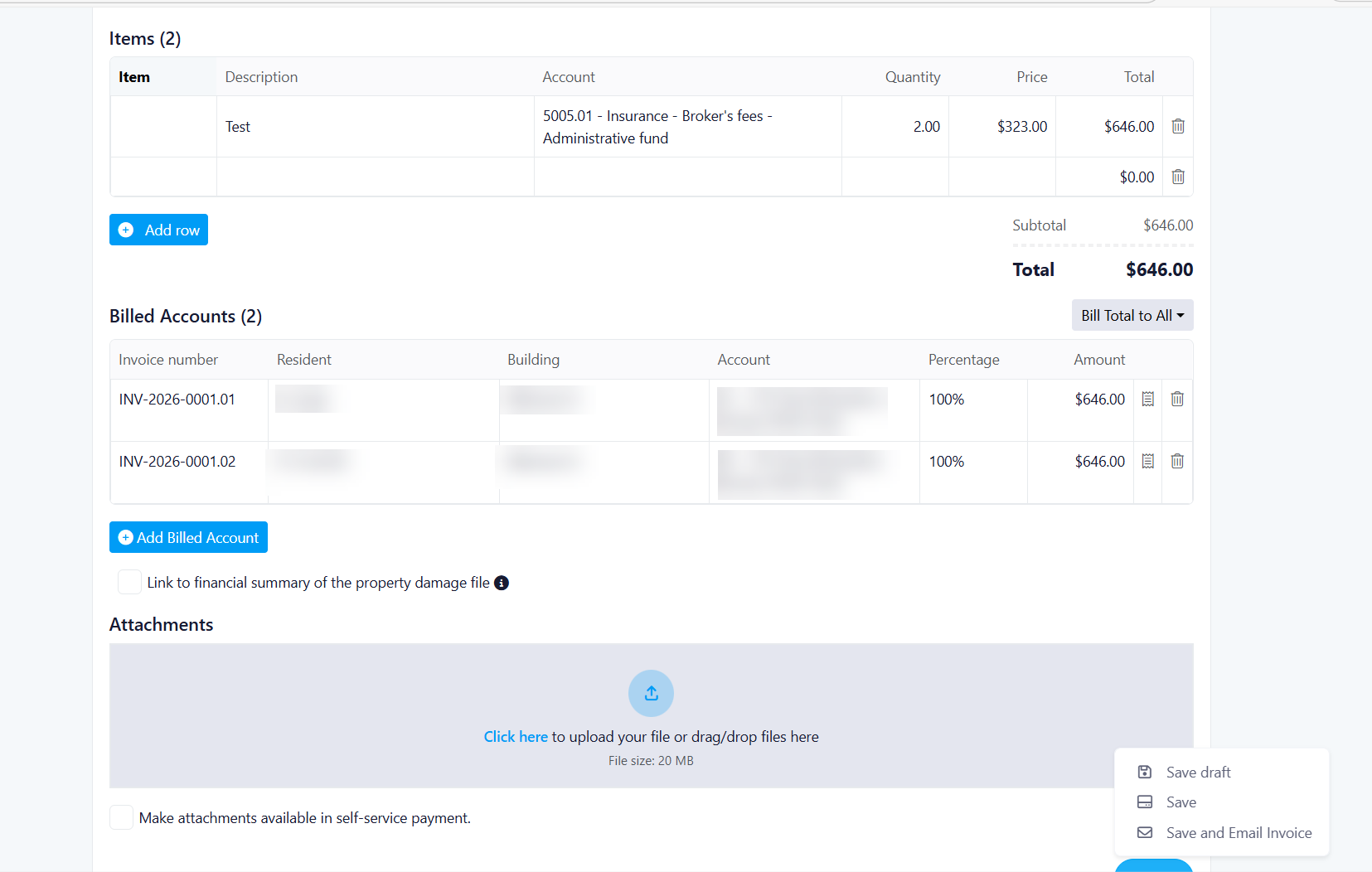
What’s new
Auto-generated invoice numbers with manual edit option
Editable issue date and identifier field
Up to 20 invoice line items
Custom items or reusable saved items
Creditor and tax selection for each line item
Support for third-party billing
Billing improvements
Bill one resident for the full amount
Split charges equally across selected residents
Enter custom amounts for each resident
Real-time validation confirms totals are correct
Small rounding differences are applied automatically to the first billed account
Invoice tools
Real-time invoice preview before sending
Unique invoice number for each billed resident
Invoice PDF export after saving
Attachment support using existing business rules
Save options
Save as Draft
Save without email
Save and Email with confirmation popup
Benefit
This update gives property managers more flexibility, better visibility, and improved accuracy when managing special charges.
Benefits:
- Flexibility: Support for multiple billing scenarios (single, equal split, custom split)
- Transparency: Clear preview of invoices before sending
- Accuracy: Real-time validation ensures correct charge allocation
- Efficiency: Draft saving allows work-in-progress management
- Control: Property managers can customize amounts per resident
- Visibility: Enhanced preview functionality for better decision-making
Special Charges Update : Support UpperBee
Improvements
Third Week Of The Month
New Features
Request Rules To Close - Auto-Close & Self-Close Feature
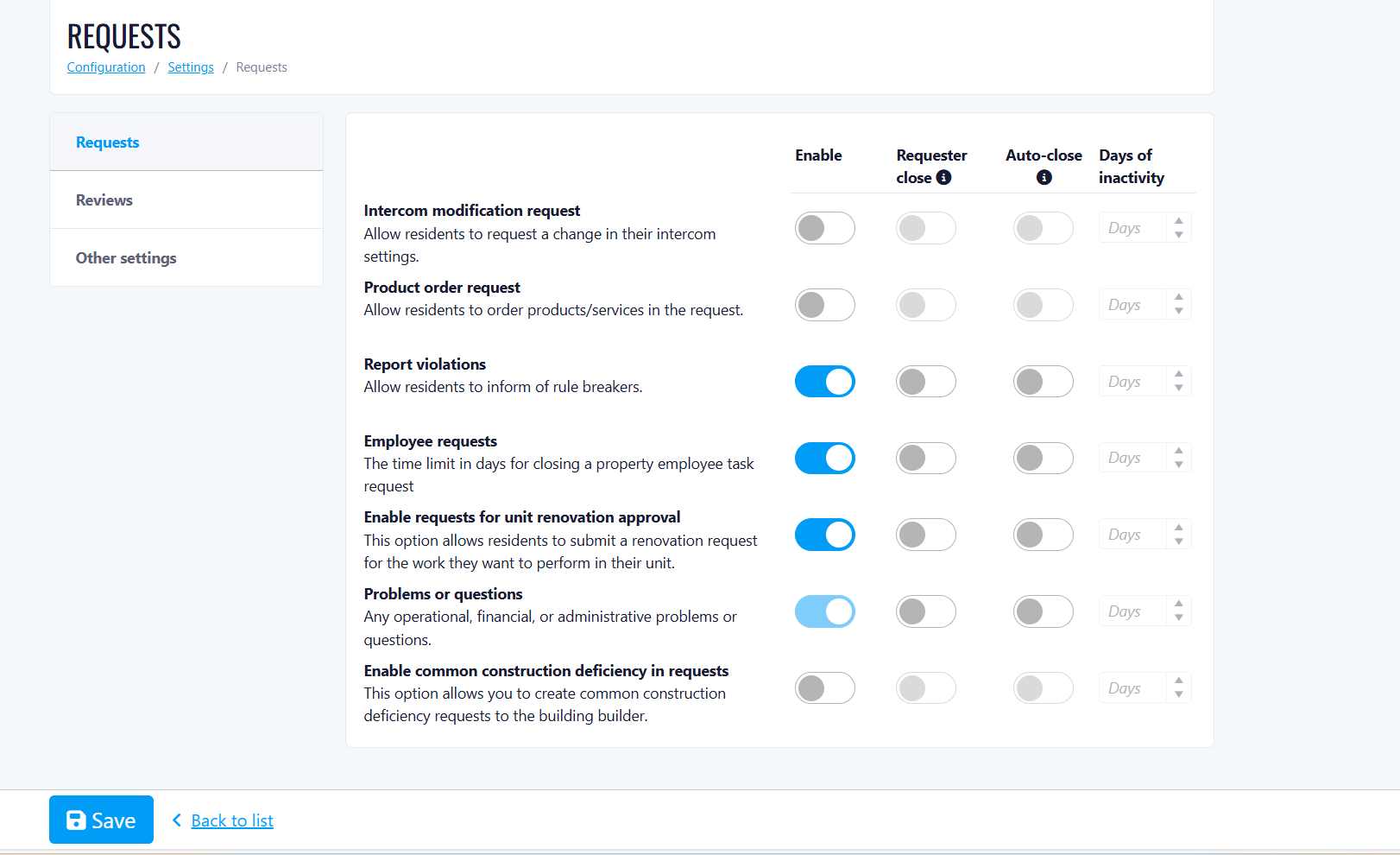
Where to Find It:
What's New
Part 1 - Updated Request Type Labels
Renamed Request Types (Before → After)
- Enable displaying requests in tabs → Display request in tabs (Show requests in tabs based on what is most important)
- Enable intercom modification requests → Intercom modification request (Allow users to request a change in their intercom settings)
- Enable products order requests → Product order request (Allow residents to order products/services in the request)
- Enable requests to report violations → Report Violations (Allow residents to inform of rule breakers)
- Enable employee's requests → Employee requests (Allow the board to send internal requests to property staff)
- Show incoming project requests to the Board → Incoming project request (Show new project requests to the board)
- Show current project requests to the Board → Current project requests (Show ongoing project requests to the board)
- Enable requests for unit renovation approval → Unit renovation approval (Allow residents to ask for permission to renovate or make architectural changes to their unit)
- Enable common construction deficiency in requests → Common area construction deficiency requests (Let people report building problems to the builder)
Part 2 - New Configuration Options per Request Type
- Enable - Activates or deactivates the request type
- Self-close - Request can be closed manually by the requester
- Auto-close - Request will automatically close after the defined number of days without any new actions or updates. If the ticket receives an update, the timer resets
- Days of inactivity (Auto-close) - Field to specify how many days of inactivity will trigger automatic closure. This field is mandatory when Auto-close is enabled. If left blank, the request will close shortly after being created
- Alert User When Auto Close - Sends an email to the user when a request is auto-closed
Validation Rules
- If Auto-close is selected, the Days of inactivity Auto-close field becomes mandatory
- If Self-close is selected, the Days of inactivity Auto-close field is disabled or ignored
Default Values
- Auto-close is disabled by default for all request types
- Self-close is disabled by default for all request types
Special Rules - Warranty Calls (Construction Deficiency)
Special Rules - Operations / Financial / Administrative Requests
- The Enable (activate/deactivate) option is LOCKED/Disabled — meaning it is always active and the user cannot disable it. No activate/deactivate management is created for these request types
- All other switches function normally: Self-close (on/off), Auto-close (on/off), Days to configure if auto-close is On
Purchase Orders Available for Self-Managed Companies
What’s New
- Purchase Orders for Self-Managed Properties Board members (Role 6) can now create and edit purchase orders in self-managed properties.
- A new Purchase Orders menu item is now visible for self-managed companies.
Key Behaviors & Features
- Create/Edit Purchase Orders Managed properties: No changes (existing functionality remains the same).
- Self-managed properties: New capability to create and edit POs.
- Access Control Board members (Role 6) can access PO features in self-managed properties.
- Feature Availability Differences The following options are hidden for self-managed properties:
- "Use Manager Address"
- Call for bids
Enhancements & Integrations
- Linked Purchase Orders Linking between purchase orders works for both managed and self-managed properties.
- Invoice Integration Purchase Orders can be accessed directly from invoices.
- PO links open in a new tab.
- Contract Integration Users can create a purchase order from a contract page with pre-populated details.
- Ticket Integration Purchase Orders are now visible in the Ticket Detail page for self-managed properties.
- Accessible via the "Purchase Orders" tab above Notes.
Unchanged Functionality
- The Company Purchase Orders page for managed properties continues to function as before.
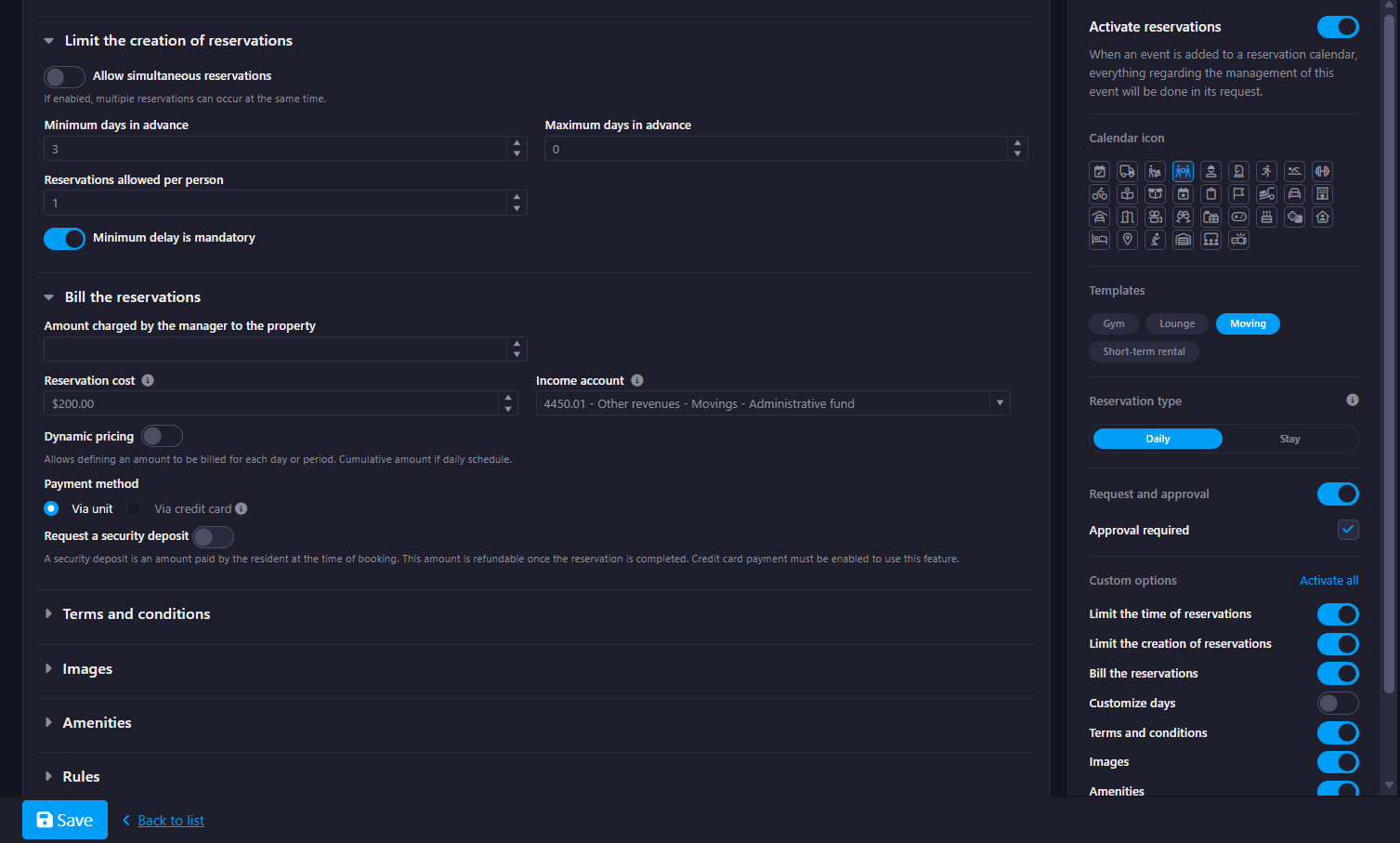
Calendar Templates
- Moving
- Short-term rental
- Gym
- Lounge
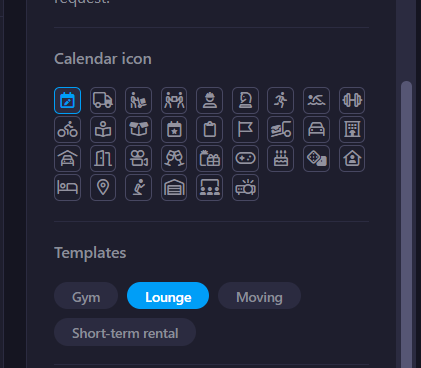
New: Calendar Templates
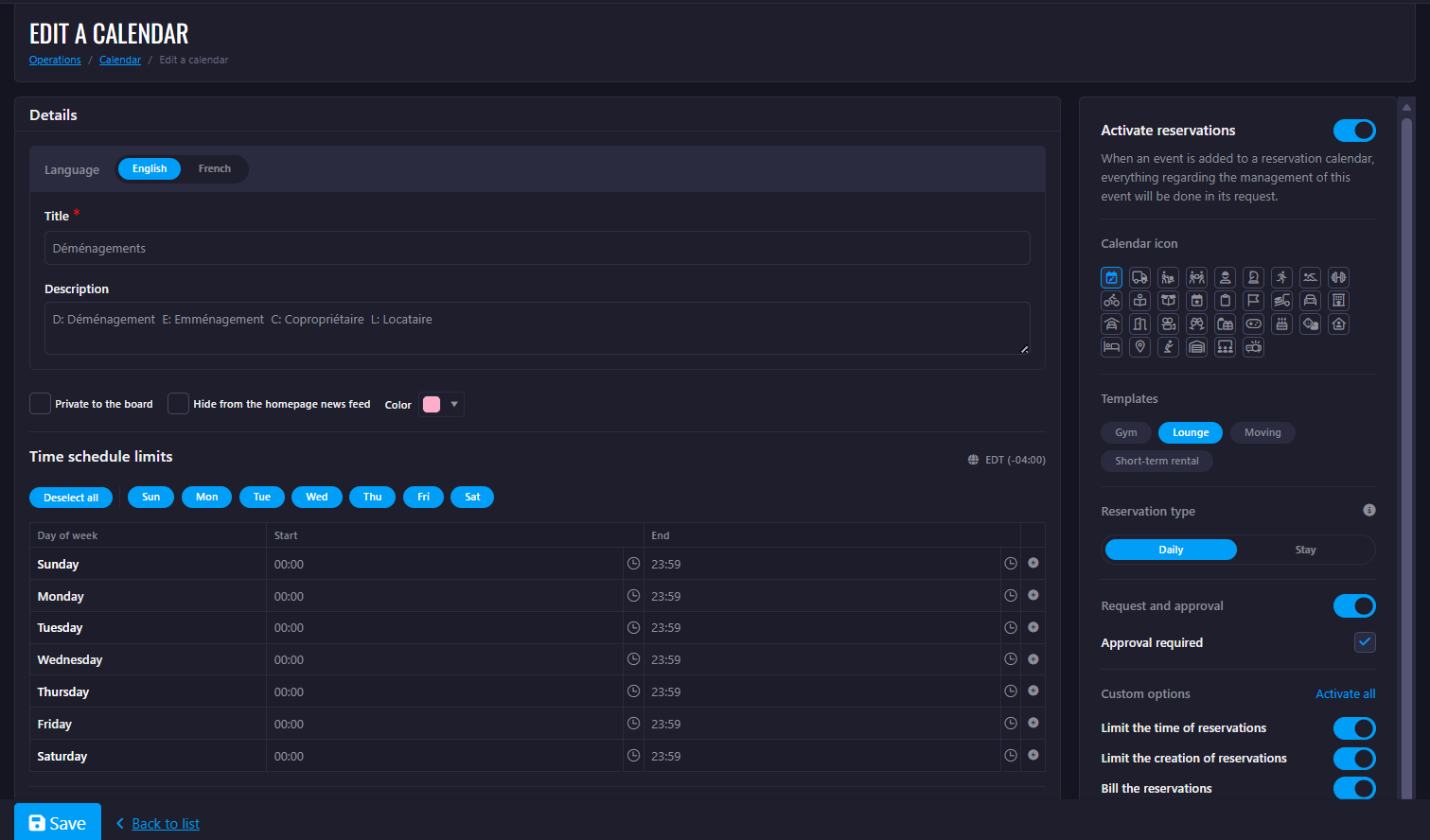
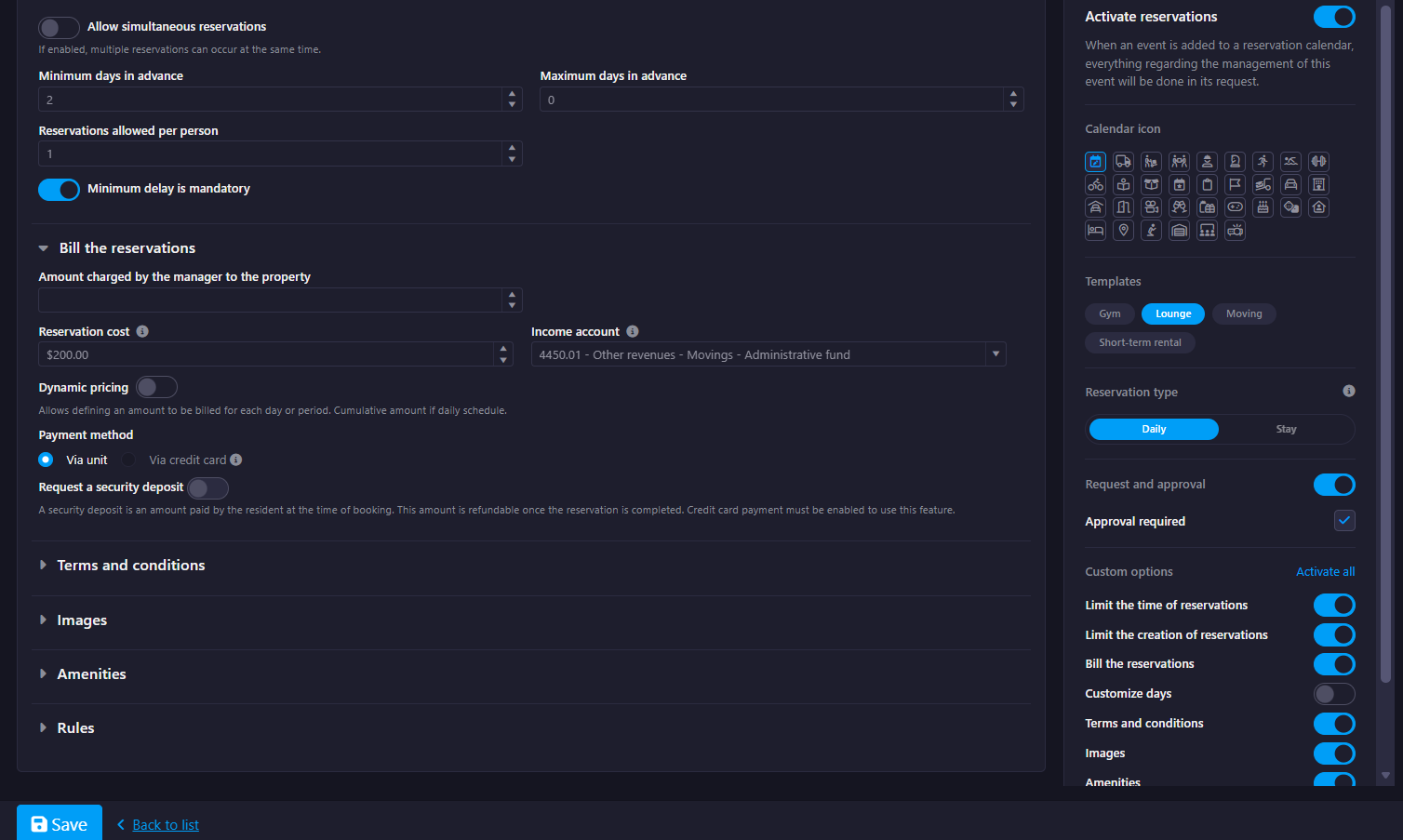
Lounge Template
- Preconfigured time slots (15-minute increments, max 2 hours)
- No simultaneous reservations allowed
- Minimum booking delay: 2 days (mandatory)
- Reservation type: Daily
- Approval flow depends on credit card activation:
- With credit card → no approval required
- Without credit card → approval required
- Payment configuration:
- Credit card enabled → online payment + security deposit
- Credit card disabled → billed to unit
- Terms & conditions enabled by default
- Optional calendar elements (Images, Amenities, Rules) enabled if feature is active
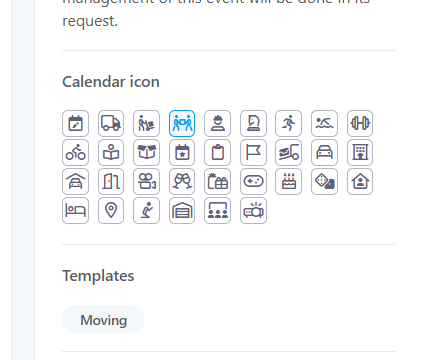
- Calendar icon automatically set to edit-calendar
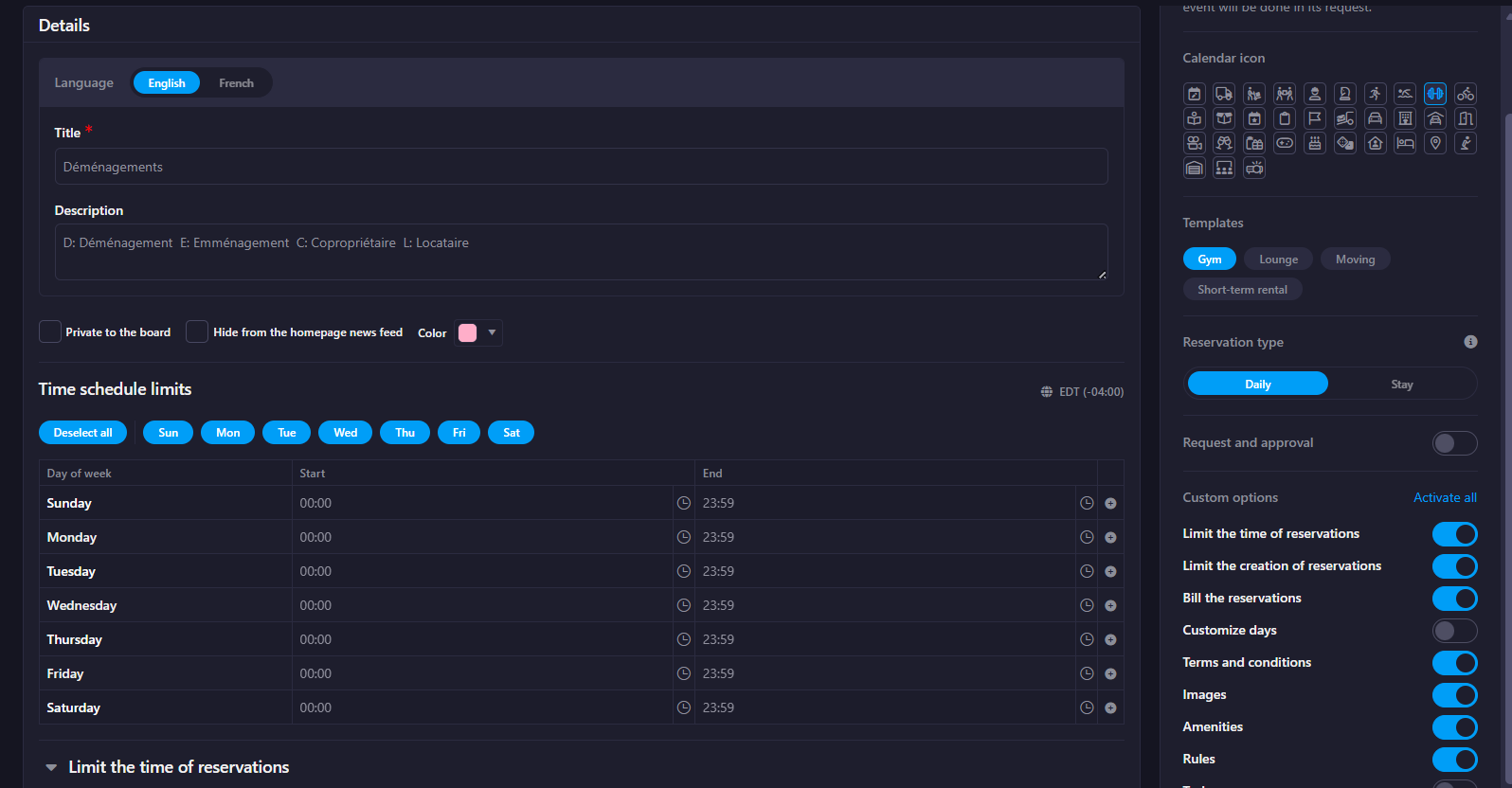
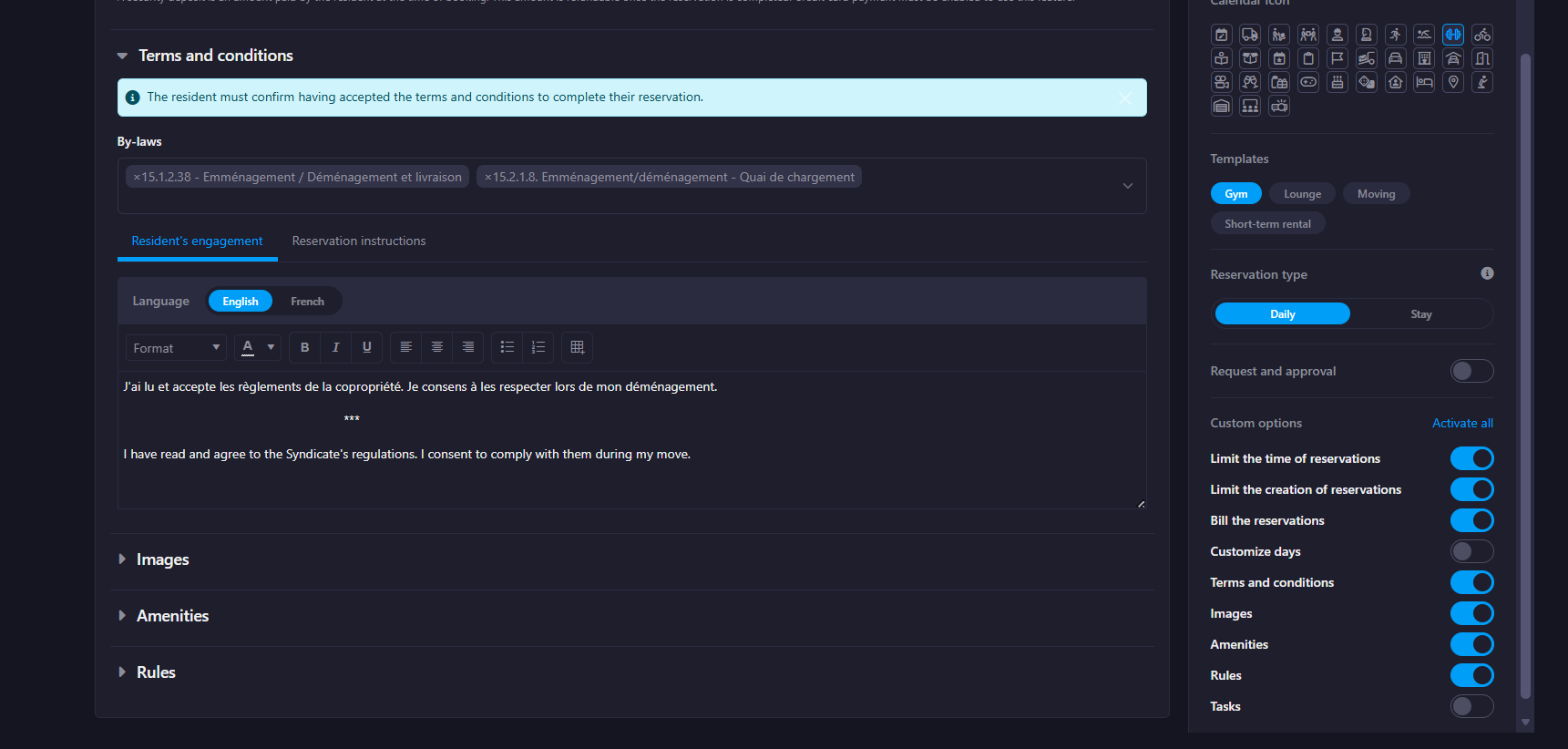
Gym Template
- Short reservation slots (15-minute increments, max 2 hours)
- Allows simultaneous reservations (up to 20 users)
- Same-day reservations only (no advance booking)
- Limit: 1 active reservation per resident
- No approval required
- Reservation type: Daily
- Terms & conditions enabled by default
- Calendar icon automatically set to dumbbell
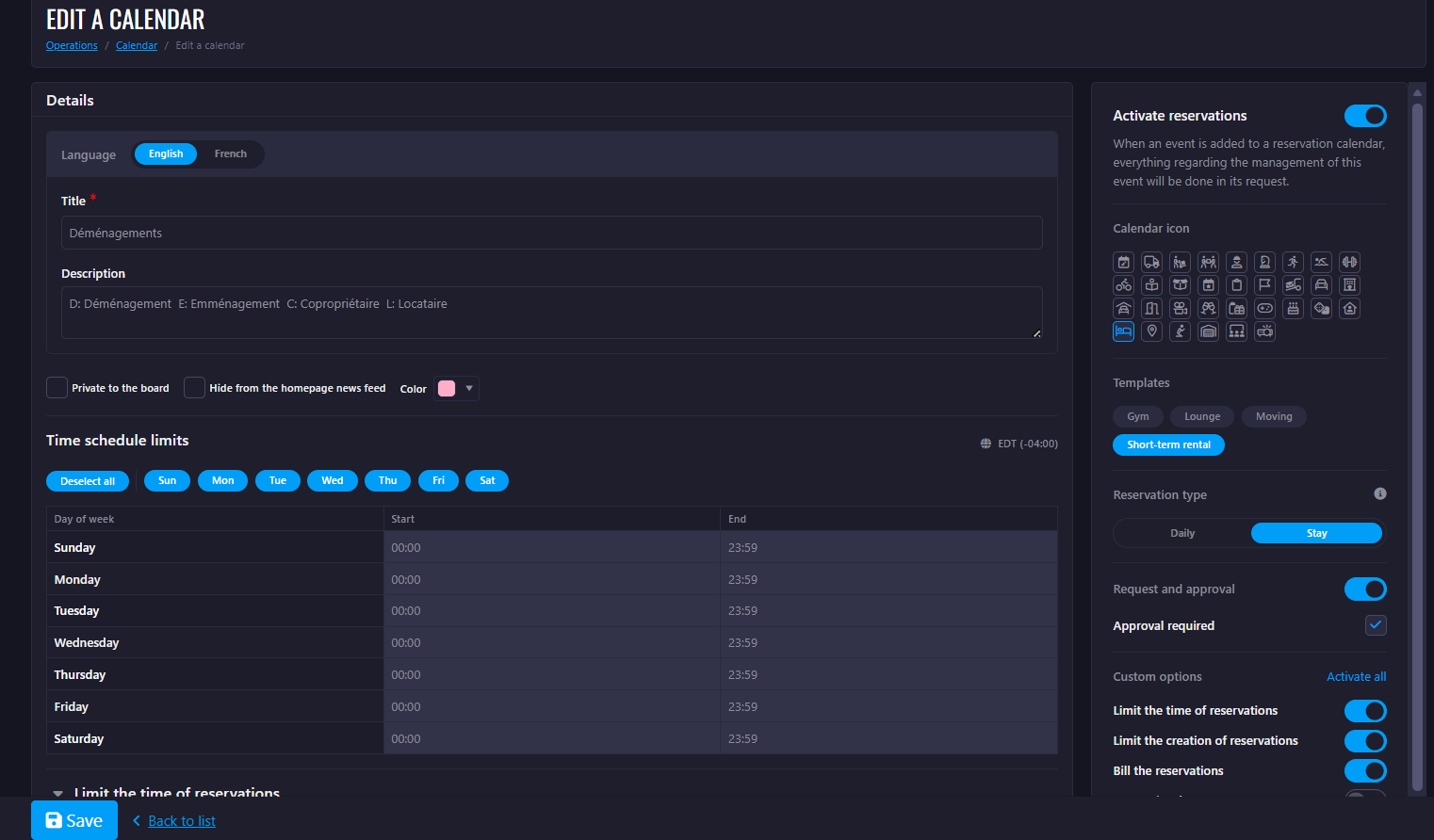
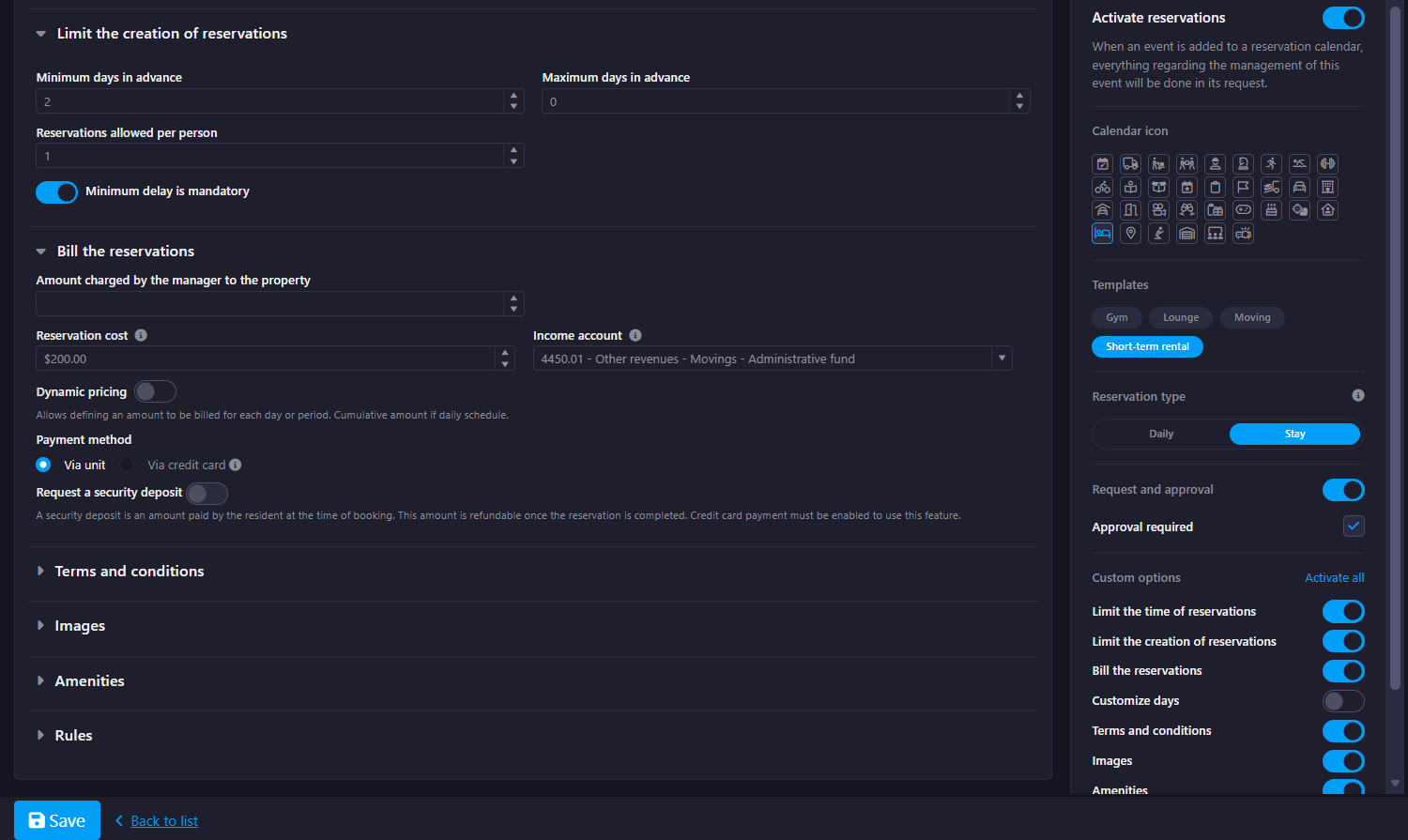
Short-Term Rental Template
- Reservation type: Stay (multi-day bookings)
- Maximum stay duration: 7 days
- No simultaneous reservations allowed
- Minimum booking delay: 2 days (mandatory)
- Approval flow depends on credit card activation:
- With credit card → no approval required
- Without credit card → approval required
- Payment configuration:
- Credit card enabled → online payment + $500 security deposit
- Credit card disabled → billed to unit (no deposit)
- Terms & conditions enabled by default
- Optional calendar elements (Images, Amenities, Rules) enabled if feature is active
- Calendar icon automatically set to bedroom
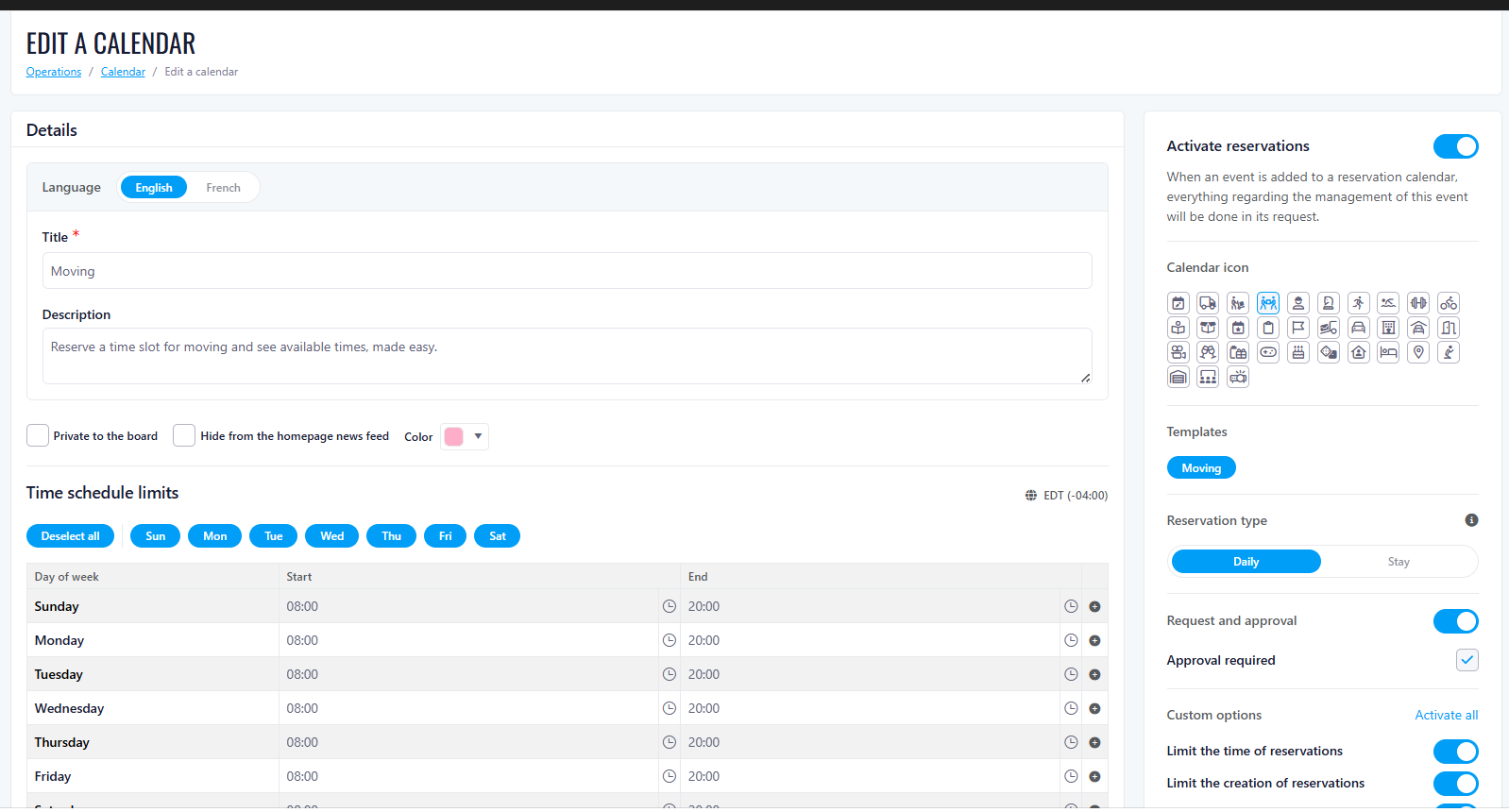
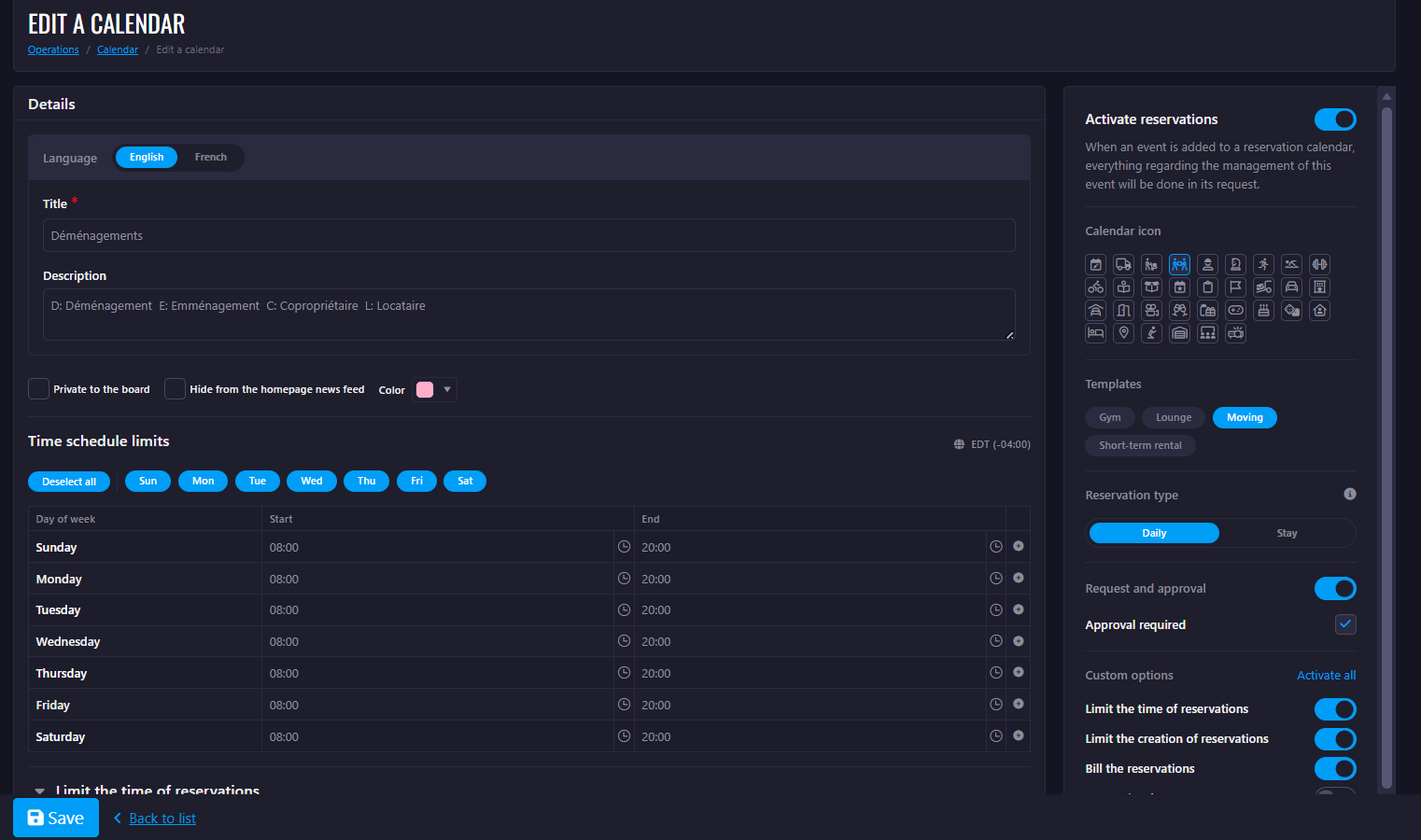
Moving Template
- Only visible when:
- Calendar type is set to Moving
- At least one related feature (resident or manager moving reservations) is enabled
- Predefined schedule: 8:00 AM – 8:00 PM
- Maximum reservation duration: 4 hours
- No simultaneous reservations allowed
- Minimum booking delay: 3 days (mandatory)
- Reservation type: Daily
- Approval flow depends on credit card activation:
- With credit card → no approval required
- Without credit card → approval required
- Payment configuration:
- Credit card enabled → online payment
- Credit card disabled → billed to unit
- Calendar icon automatically set to ticket-moving
Additional Notes
- Applying a template requires confirmation and will automatically populate all configuration fields.
- Existing custom day configurations are preserved (templates do not override them).
- Approval behavior and payment settings dynamically adapt based on the property’s credit card configuration.
Manager Dashboard Update
Update Type: UI/UX improvements & report restructuring
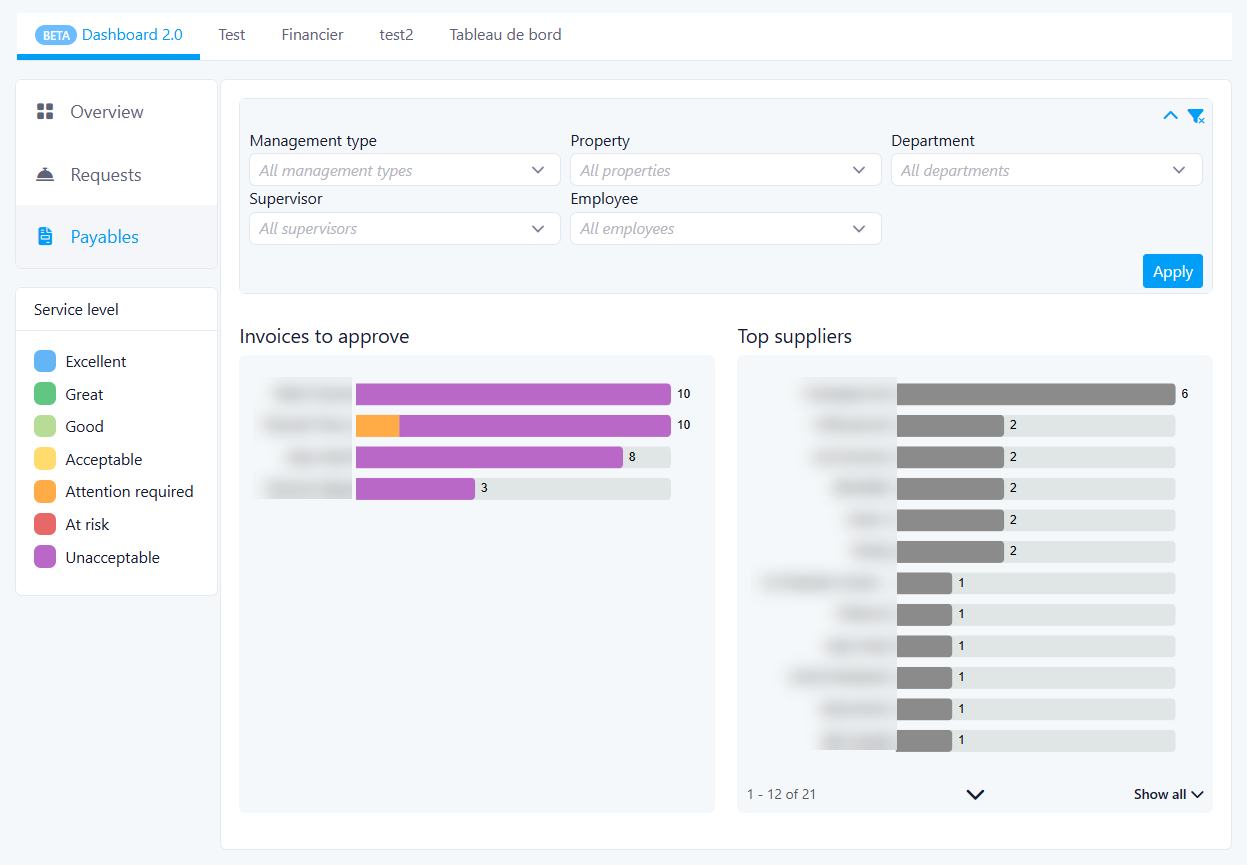
Part 1 – Invoices:
- Remove invoices from the main dashboard.
- New topic created: A new section called Invoices has been added to the right-hand side of the dashboard.
- Report reorganization: Existing invoice reports have been moved to the new Invoices section and split into two separate reports for clarity.
- Filter placement: A filter has been added at the top of the page. The “Apply” button will be disabled.
Part 2 – Requests:
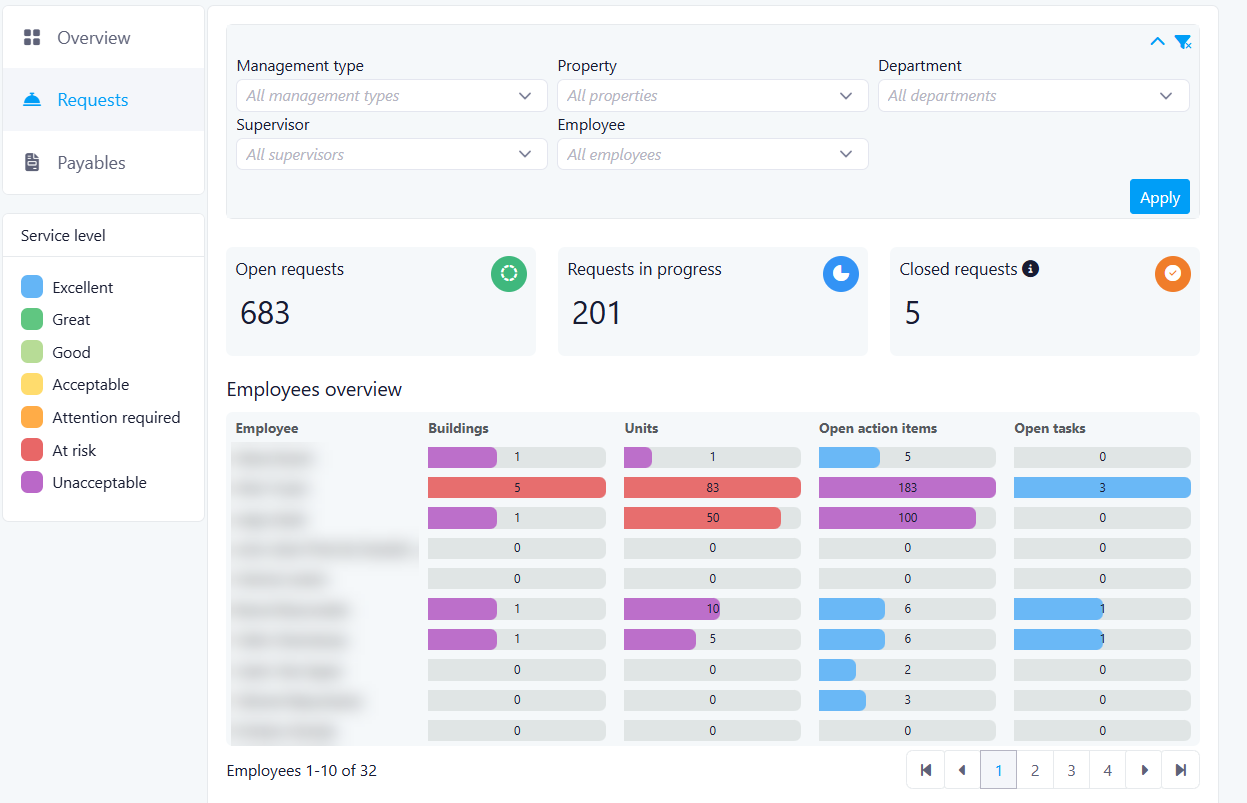
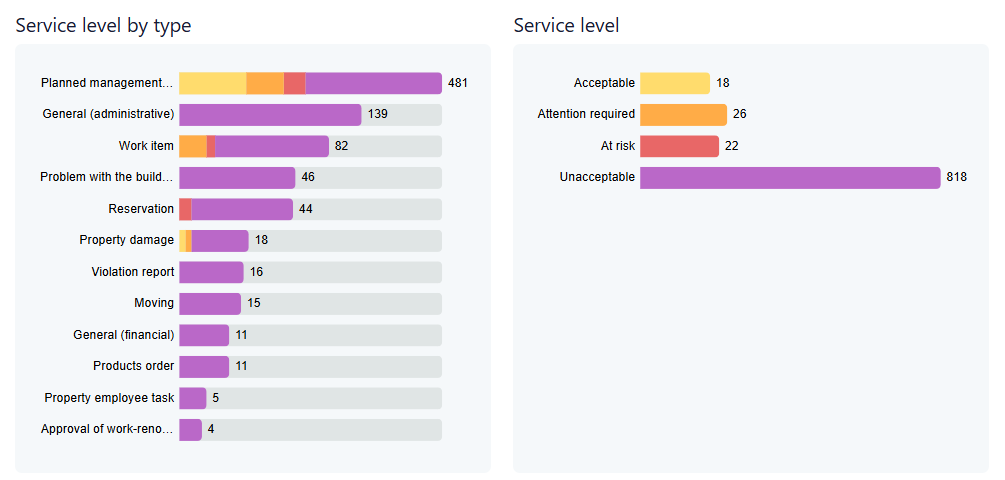
- Dashboard renaming: The Manager Dashboard is now renamed to Requests.
- Request reports expansion: The Requests section now includes four distinct reports generated from the request topic, providing more detailed insights for managers.
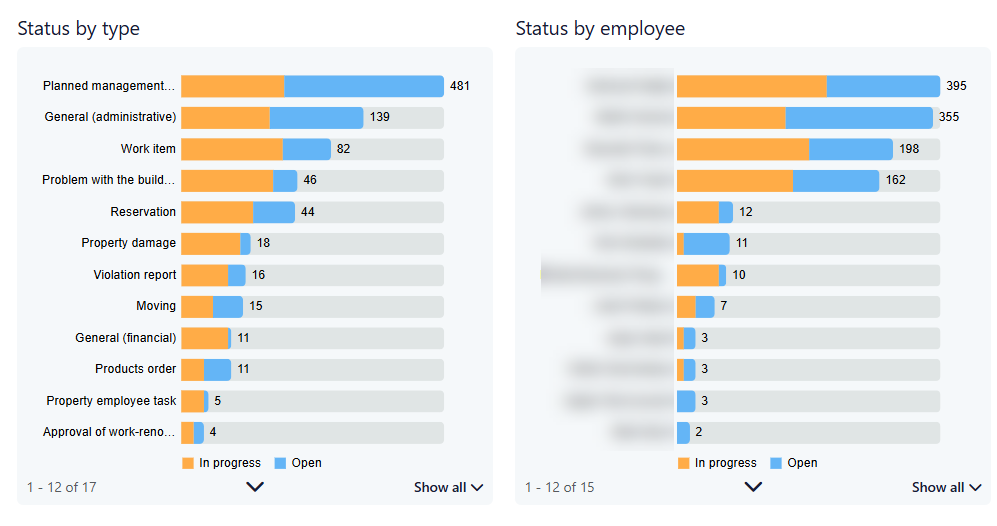
Impact:
Reservation Creation By Managers
We are pleased to introduce enhancements to the Reservation Management functionality for Property Managers.
How the New Functionality Works
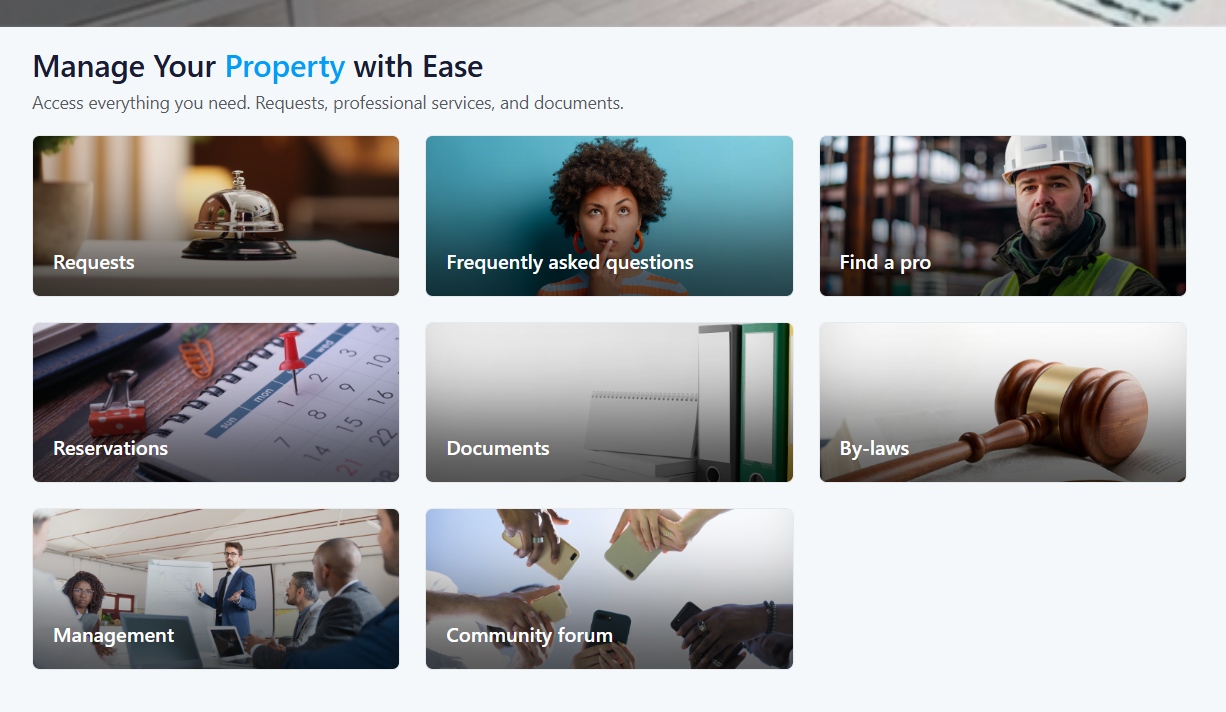
Centralized Reservation Experience
- Reservation type filters (Stay or Daily — both selected by default)
- A calendar-based date selector
- Real-time availability results that update dynamically
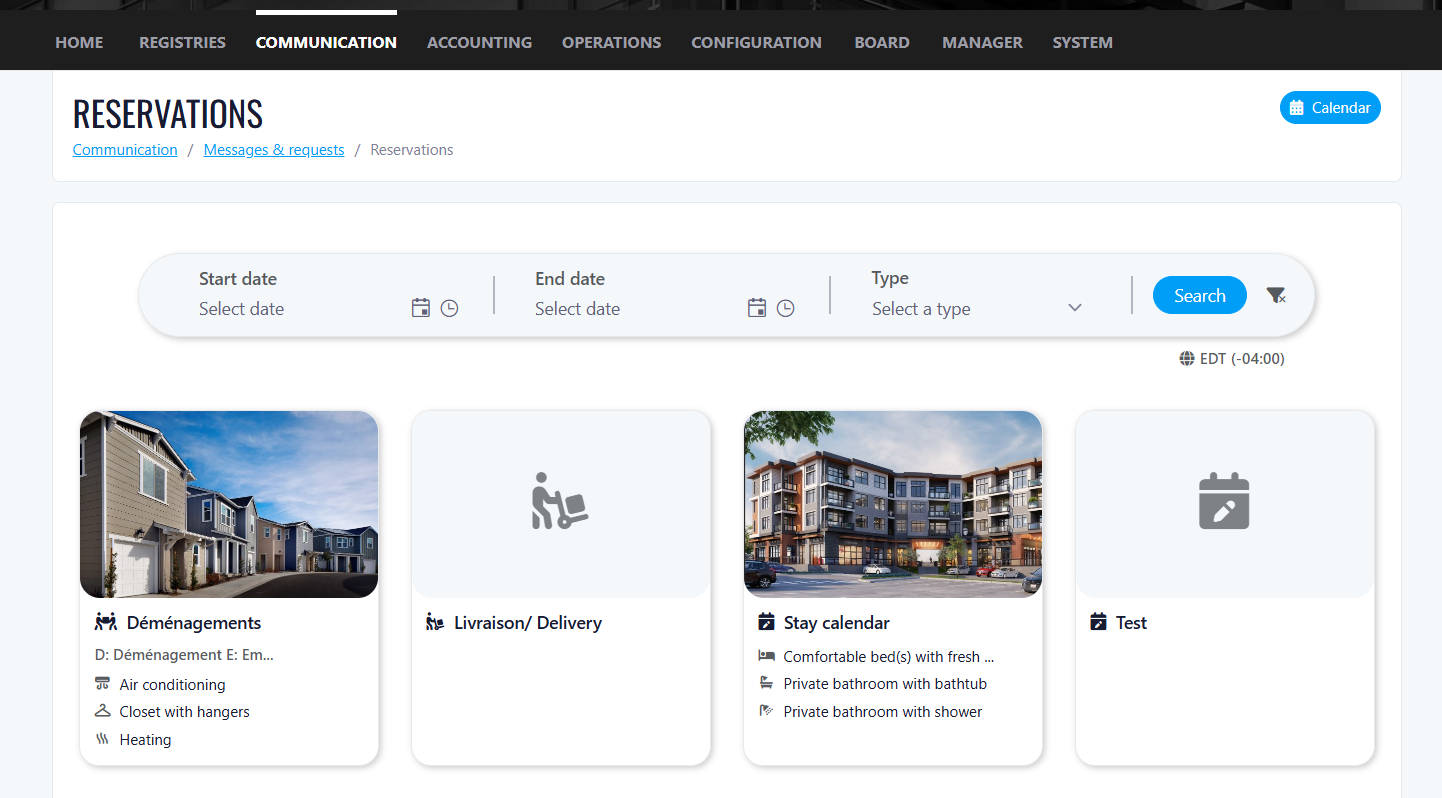
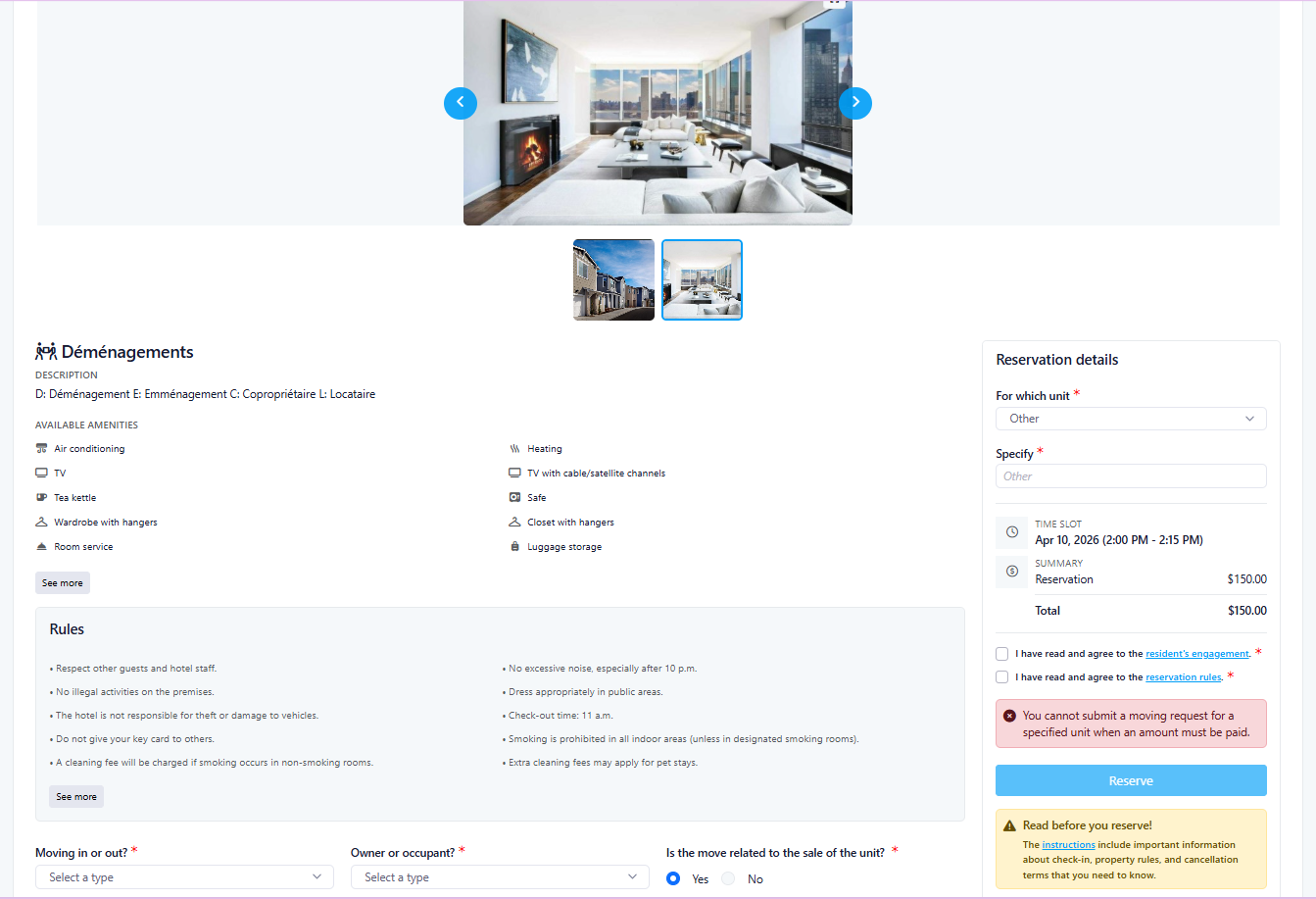
- Unit name and description
- Default image (or “Coming Soon” placeholder if no images are uploaded)
- Dynamic pricing based on selected dates
- Check-in and check-out times
- Review a detailed price breakdown
- View all images
- Review rules and amenities
- Confirm availability
- Complete the reservation and payment
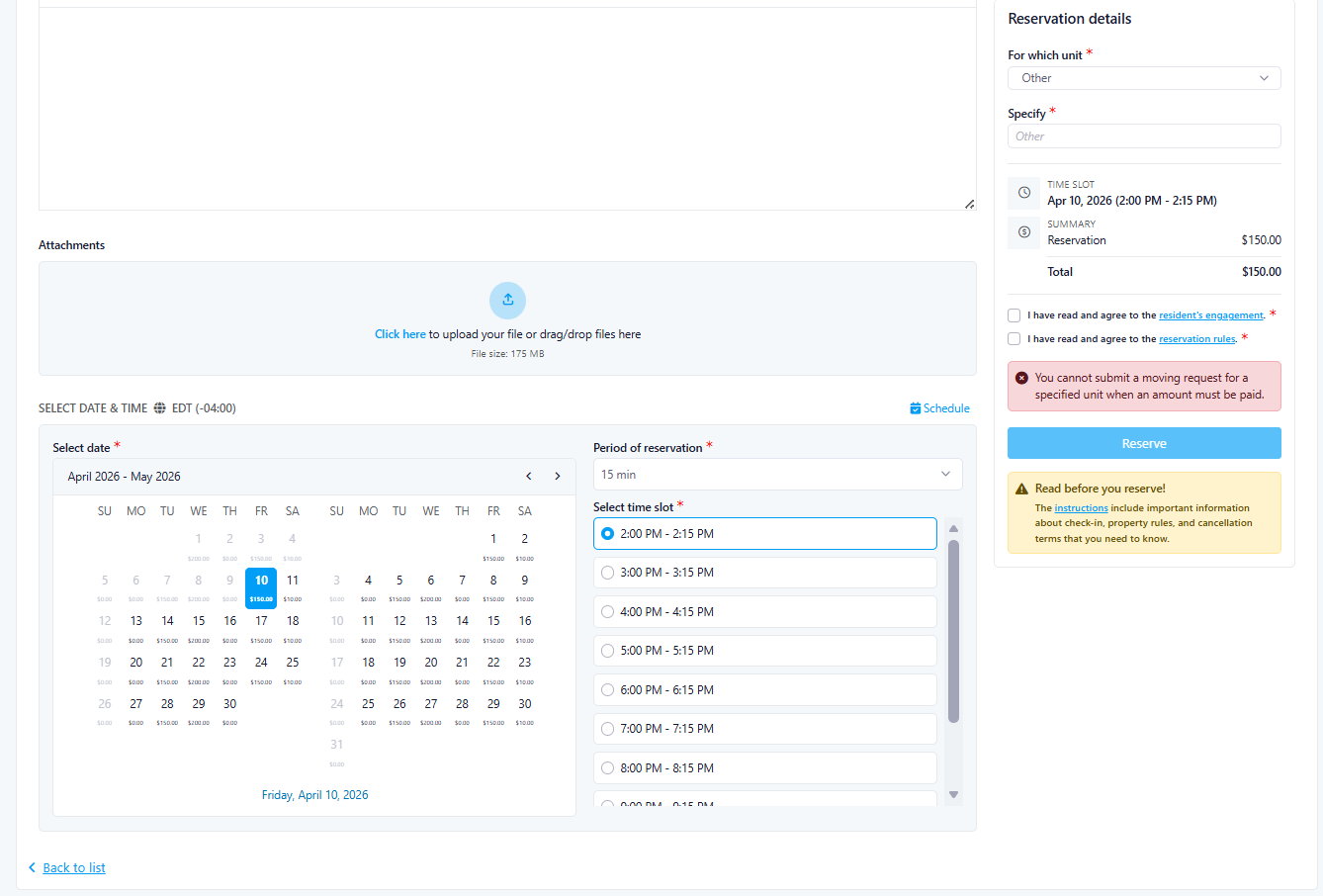
Manager-Specific Access & Permissions
- Only users with rights to create requests for others can access this functionality
- Reservations can be created on behalf of residents or tenants
- Residents and tenants cannot access this page unless explicitly granted permission
- Controlled access to reservation creation
- Reduced risk of unauthorized bookings
- Clear separation between Manager and Resident workflows
Payment Options
- Credit Card
- Unit Billing
How It Works
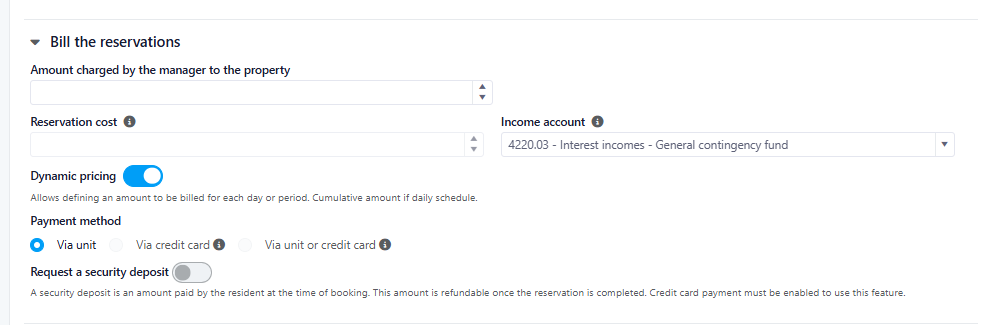
- Payment options are configured at the calendar level
- Managers can enable:
- Credit card payments
- Unit billing
- Or both options
- When creating a reservation, Managers can select the appropriate payment method based on configuration
Resident & Tenant Considerations
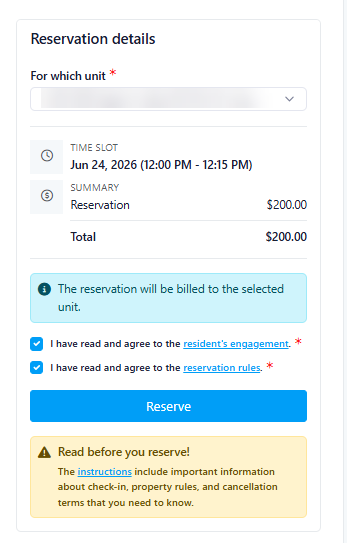
- If Unit Billing is enabled → charges can be applied directly to the unit
- If Credit Card is required → payment must be completed by card
- If the user is an occupant/tenant, they may be restricted to credit card only, depending on system settings
For Property Managers
Key Features
- Centralized reservation management
- Ability to create bookings on behalf of residents and tenants
- Real-time availability and dynamic pricing
- Full reservation detail visibility
- Configurable and flexible payment options
Benefits
For Property Managers
- Streamlined booking process for multiple users
- Improved control over reservation creation and permissions
- Flexible payment handling aligned with property rules
- Reduced manual coordination with residents
- Increased operational efficiency
Overall Client Value
- Centralized and controlled reservation management
- Role-based access for improved governance
- Flexible and configurable payment options
- Reduced manual processes for booking coordination
- Improved efficiency for property management teams
- Consistent and professional reservation workflow
- Receive monthly electricity consumption reports from RVE.
- Pay the total electricity bill to Hydro-Québec without clear visibility of individual usage.
- Manually match charging stations to parking spaces and condo owners.
- Create manual Special Charge invoices for reimbursement.
- Automatically retrieve EV charging units and their consumption data.
- Map RVE charging units to UpperBee parking spaces.
- Link parking spaces to the appropriate condo owners.
- Automatically calculate reimbursement amounts.
- Generate prefilled Special Charge invoices.
- Track exactly which owner used how much electricity.
- Access detailed consumption data per charging unit.
- Maintain accurate records for transparency and auditing.
- Eliminate manual matching between RVE reports and parking spaces.
- Automatically calculate charges using the configured cost per kWh.
- Prefill Special Charge invoices with accurate consumption data.
- Significantly reduce administrative workload.
- Generate charges in just a few clicks.
- Avoid repetitive manual invoice creation.
- Minimize human error in consumption calculations.
- Ensure consistent rate application.
- Automatically associate charges with the correct unit owner.
- Residents are billed strictly based on their own usage.
- Each invoice is generated individually.
- Residents cannot view other residents’ usage or billing information.
- Enter and save an RVE API key.
- Validate credentials instantly.
- Invalid → A warning message is displayed (e.g., “Invalid credentials. Please check your key.”)
- Expired or revoked → The system alerts the user to re-authenticate.
- The API key expires or is rotated.
- The integration is manually disconnected.
- The token is revoked.
- RVE enforces new permission scopes.
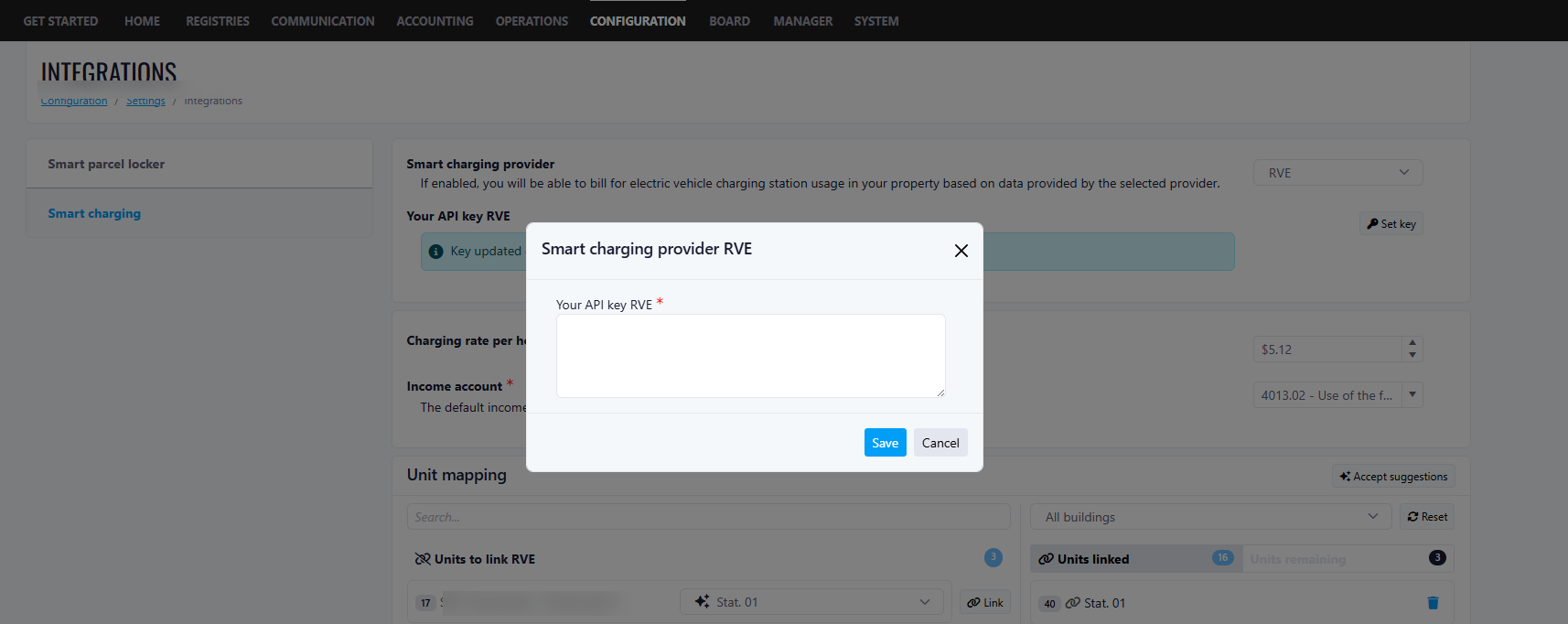
- The system retrieves parking space and charging unit data from RVE.
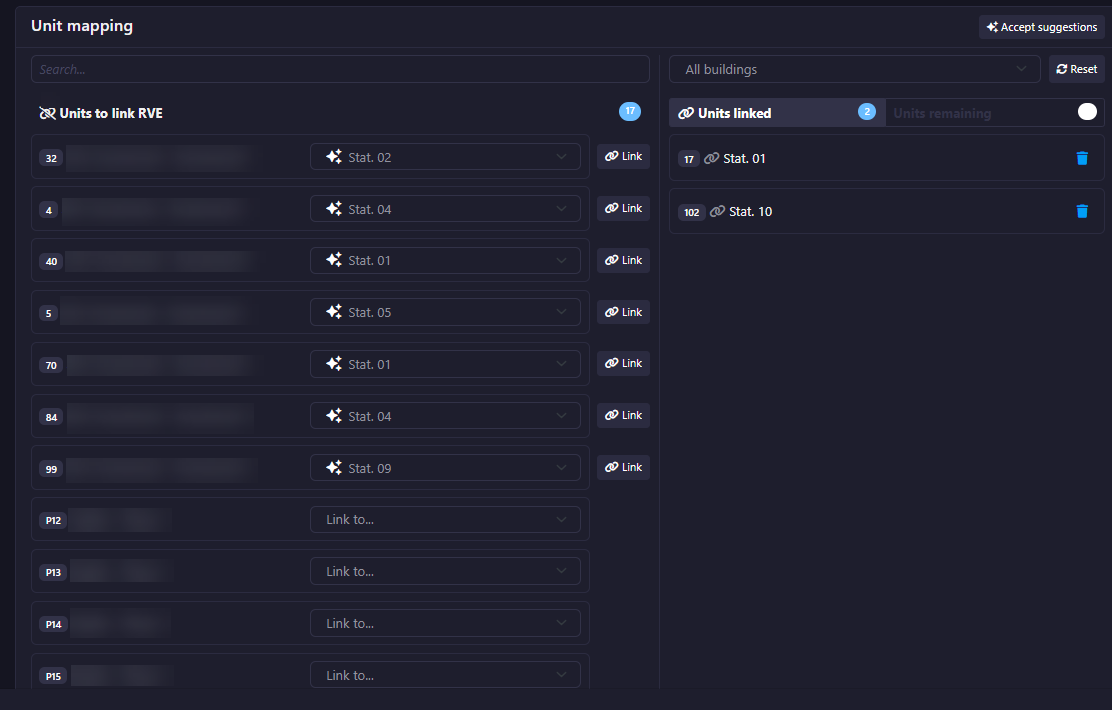
- The Property Manager maps each RVE charging unit to an UpperBee parking space.
- Each parking space is linked to a specific condo unit owner.
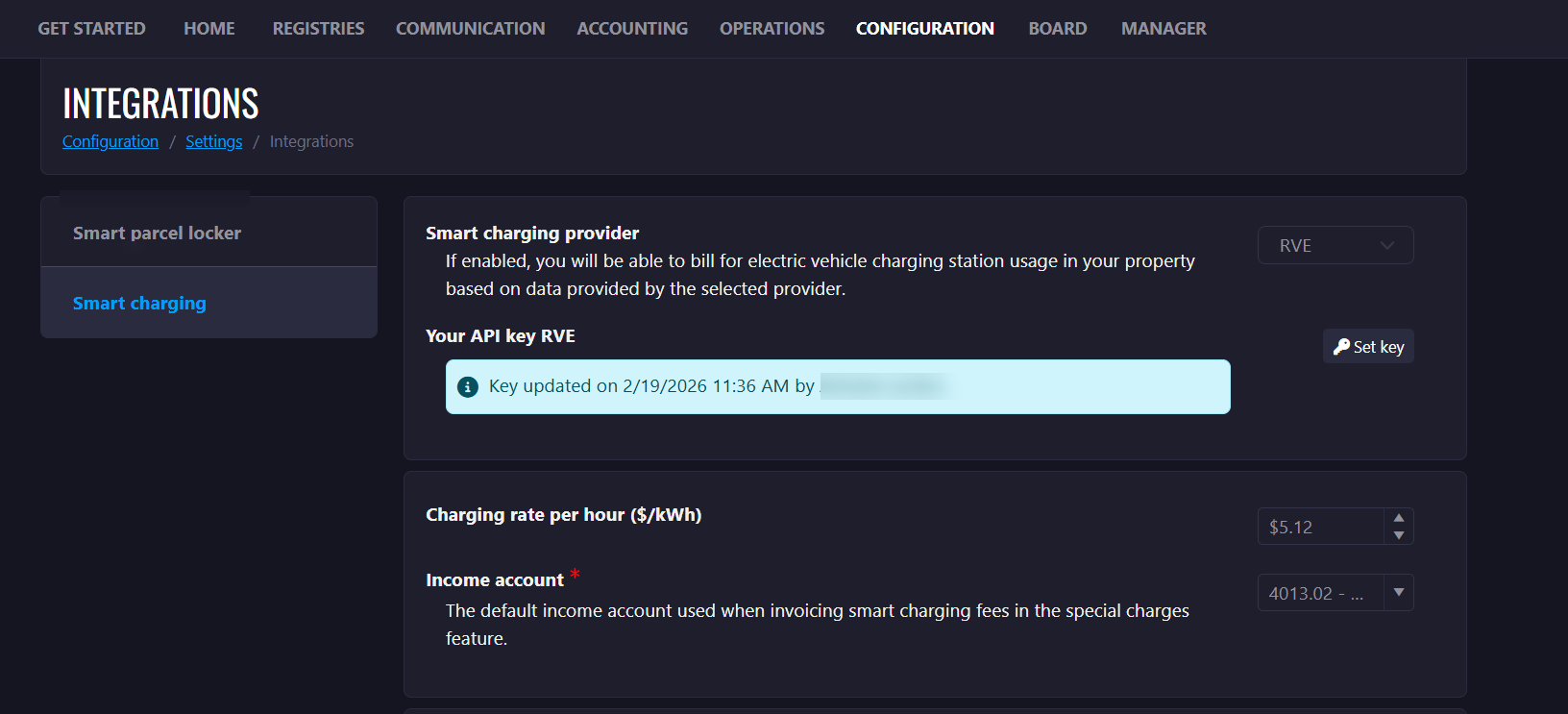
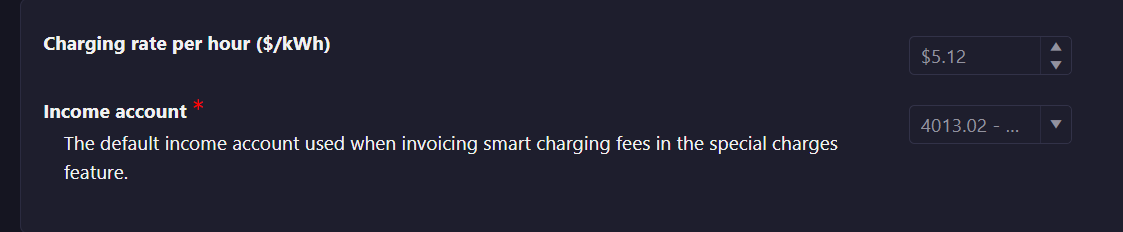
- A global cost per kWh can be configured (one price applied to all units).
- Charging Unit Name / ID
- Building Name
- Consumption data
- Searching users by name or unit number.
- Manual mapping and reassignment when necessary.
- Manual update checks for new charging units.
- Provides more accurate and transparent energy-based billing
- Allows managers to easily update the price per kWh when needed
- Supports flexible pricing strategies based on real energy consumption
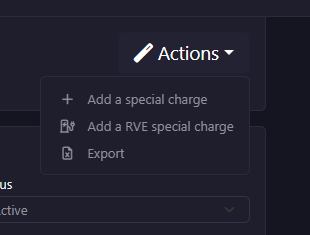
- The system checks for newly added charging units since the last sync.
- If new units are detected:
- The Property Manager is notified.
- They are redirected to the RVE Settings page to complete the configuration.
- If no new units are found:
- A popup allows optional date range selection.
- The system retrieves usage data from RVE for the selected period.
- Resident Name
- Parking Unit Number
- Building Information
- Consumption data
- Billing status (if already billed for the selected date range)
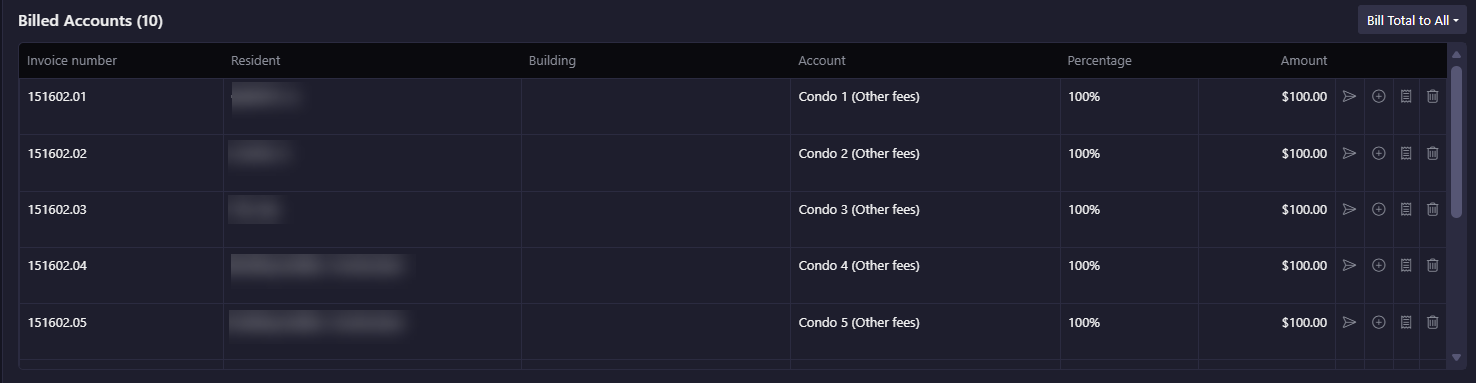
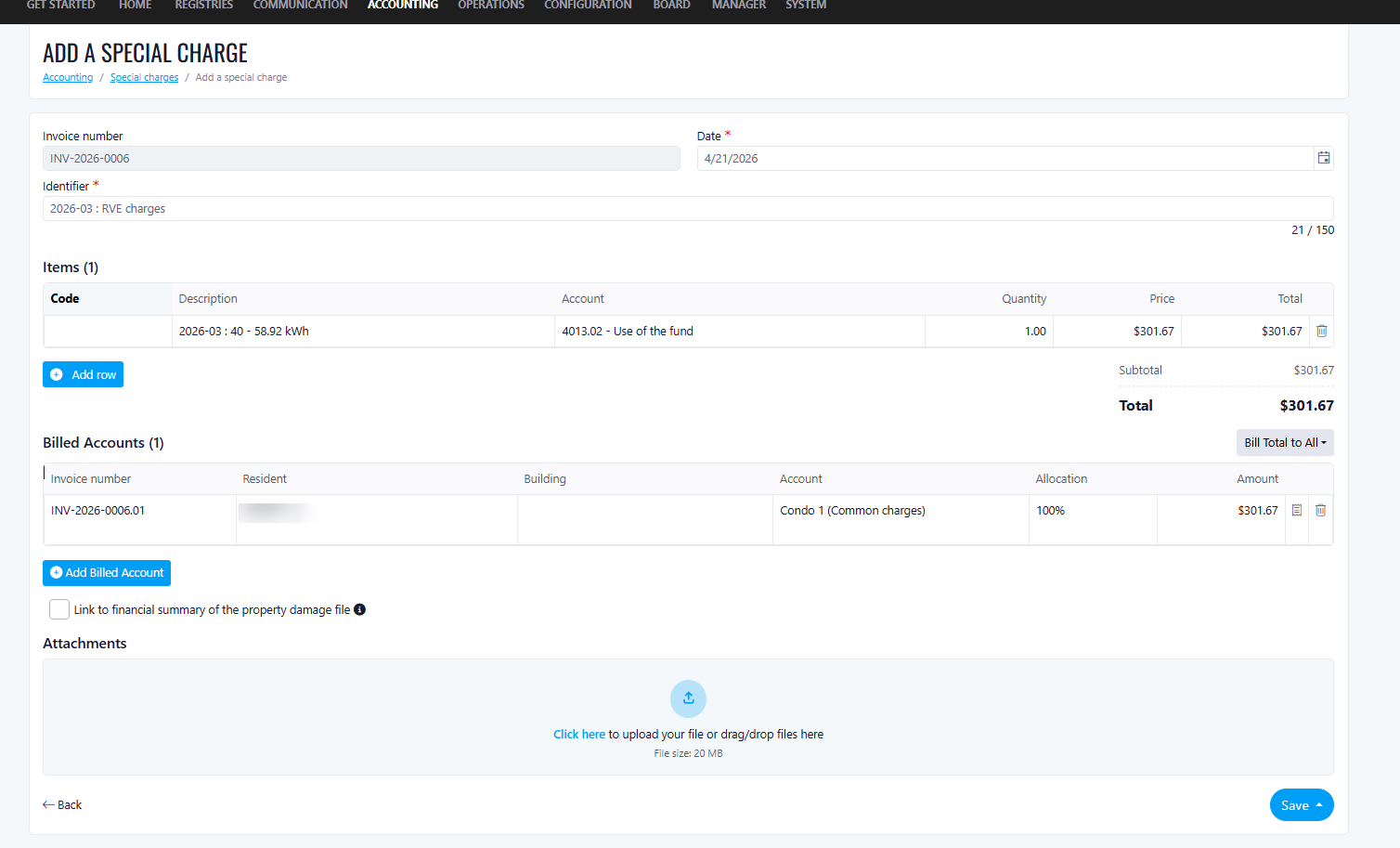
- Date: Automatically set to the current date
- Invoice Number: Automatically generated
- Identifier: “RVE Charges”
- Description: Prefilled with RVE ID, charging unit name, usage amount, and date range
- Quantity: Set to 1 by default
- Price: Automatically calculated (kWh × configured price per kWh)
- Total Price: Automatically calculated
- Billed Account: Automatically loads the unit account associated with the selected user
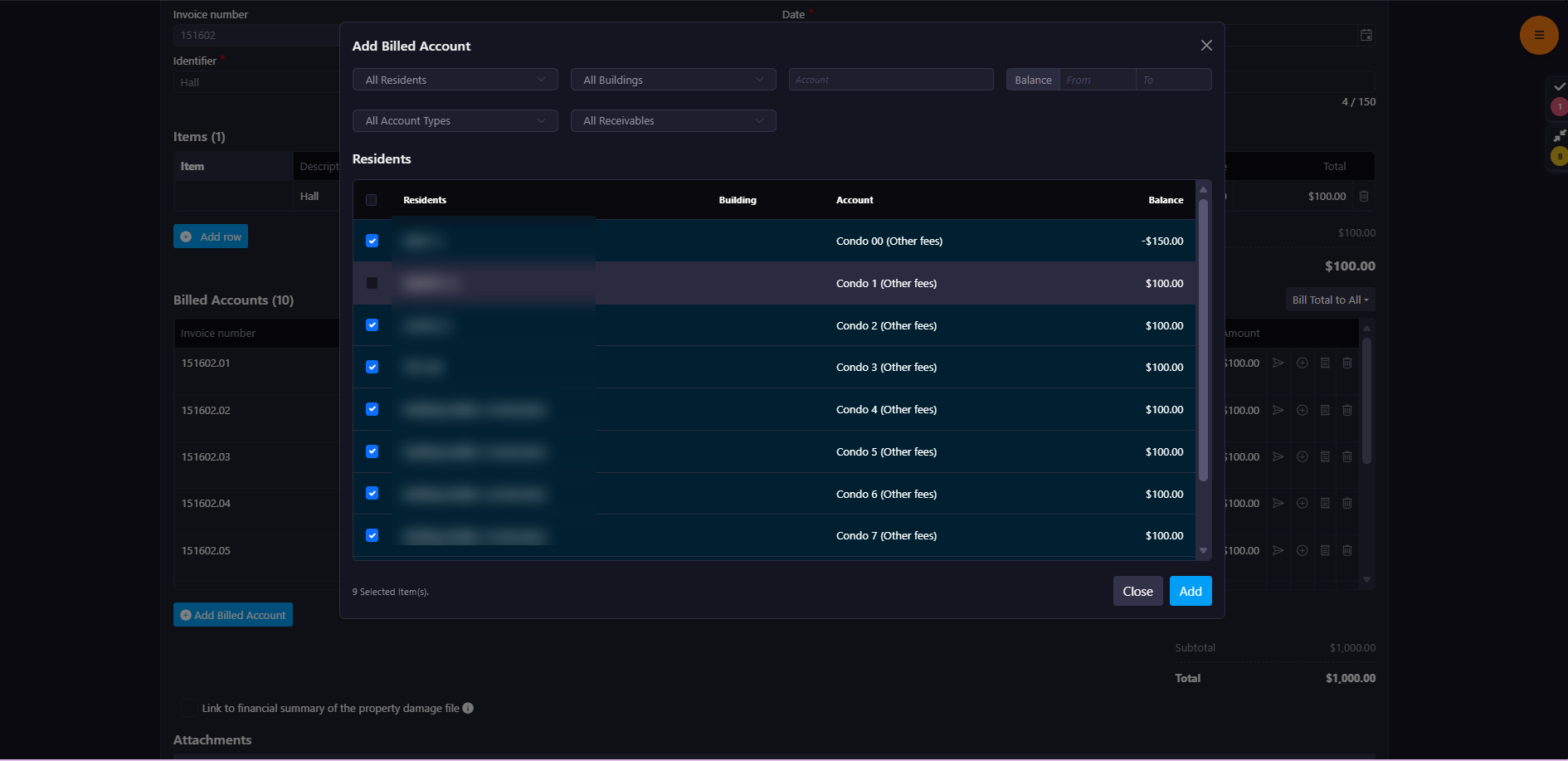
- If errors occur during the RVE API call, they are displayed in a prompt window.
- A direct link allows the user to navigate to the RVE Mapping section to resolve the issue.
- The system prompts the Property Manager to enter their RVE credentials.
- A direct link redirects them to the RVE Mapping setup page.
- Reduced operational overhead
- Faster billing cycles
- Improved financial accuracy
- Transparent and fair cost distribution
- Increased owner satisfaction
Improvements
Notes – Improved Visibility & Naming
What’s new
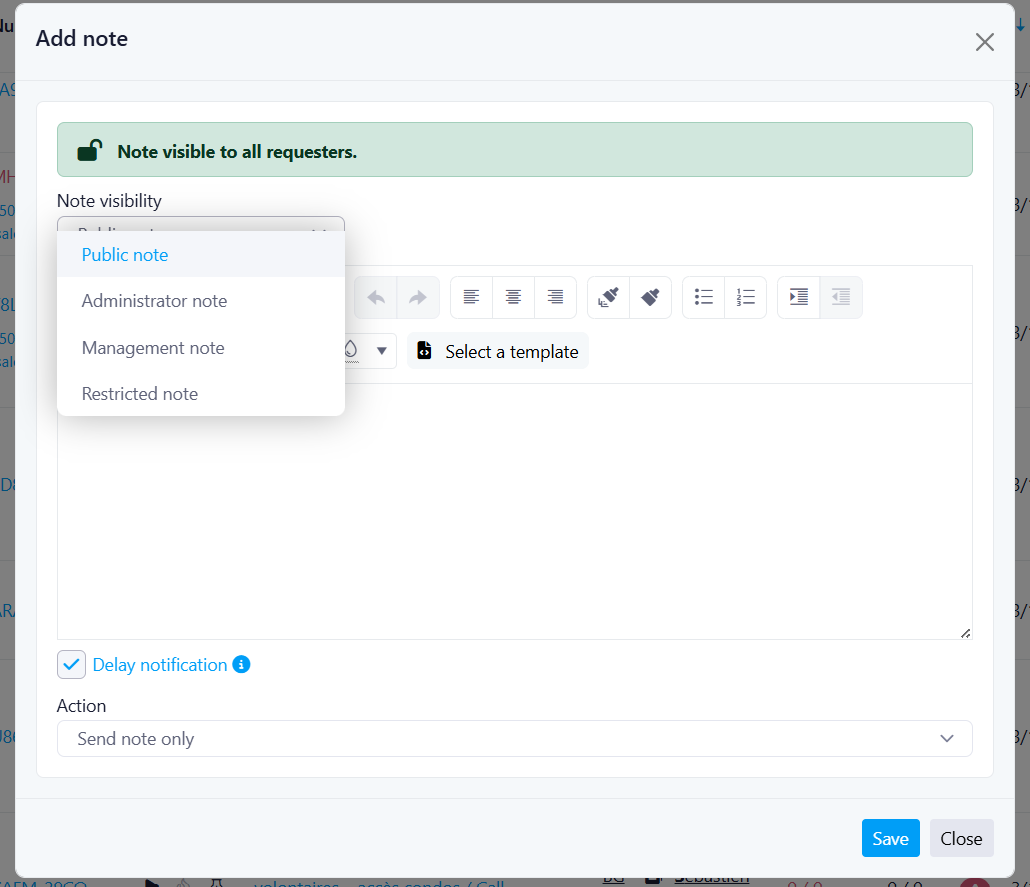
- Administrator Note
- Used for internal governance and administrative context (visible to board members and managers).
- Restricted Note
- For operational communication shared with specific users (managers and recipients).
- Management Note
- For internal coordination between staff and field teams.
- Public Note
- Visible to everyone for full transparency on the ticket.
What changed
- Clearer naming in both English and French
- Improved consistency across the application
- Better alignment between note purpose and visibility
Important
Last Week Of The Month
New Features
Improvements
Was this article helpful?
That’s Great!
Thank you for your feedback
Sorry! We couldn't be helpful
Thank you for your feedback
Feedback sent
We appreciate your effort and will try to fix the article