Release Notes
First Week Of The Month
New Features
Addition of “Net Interfund FA Liquidity” Field
We introduced a new calculated field, Net Interfund FA Liquidity, designed to provide a more accurate representation of available liquidity for the Administration Fund (FA), in alignment with updated CPA guidance for attestation reporting.
This enhancement supports the calculation required for the section “Total liquidity available to pay current expenses” in financial attestations.
Benefits
- Improves accuracy of liquidity calculations for financial reporting
- Aligns with CPA guidelines for attestation production
- Provides clearer visibility into real available funds after interfund adjustments
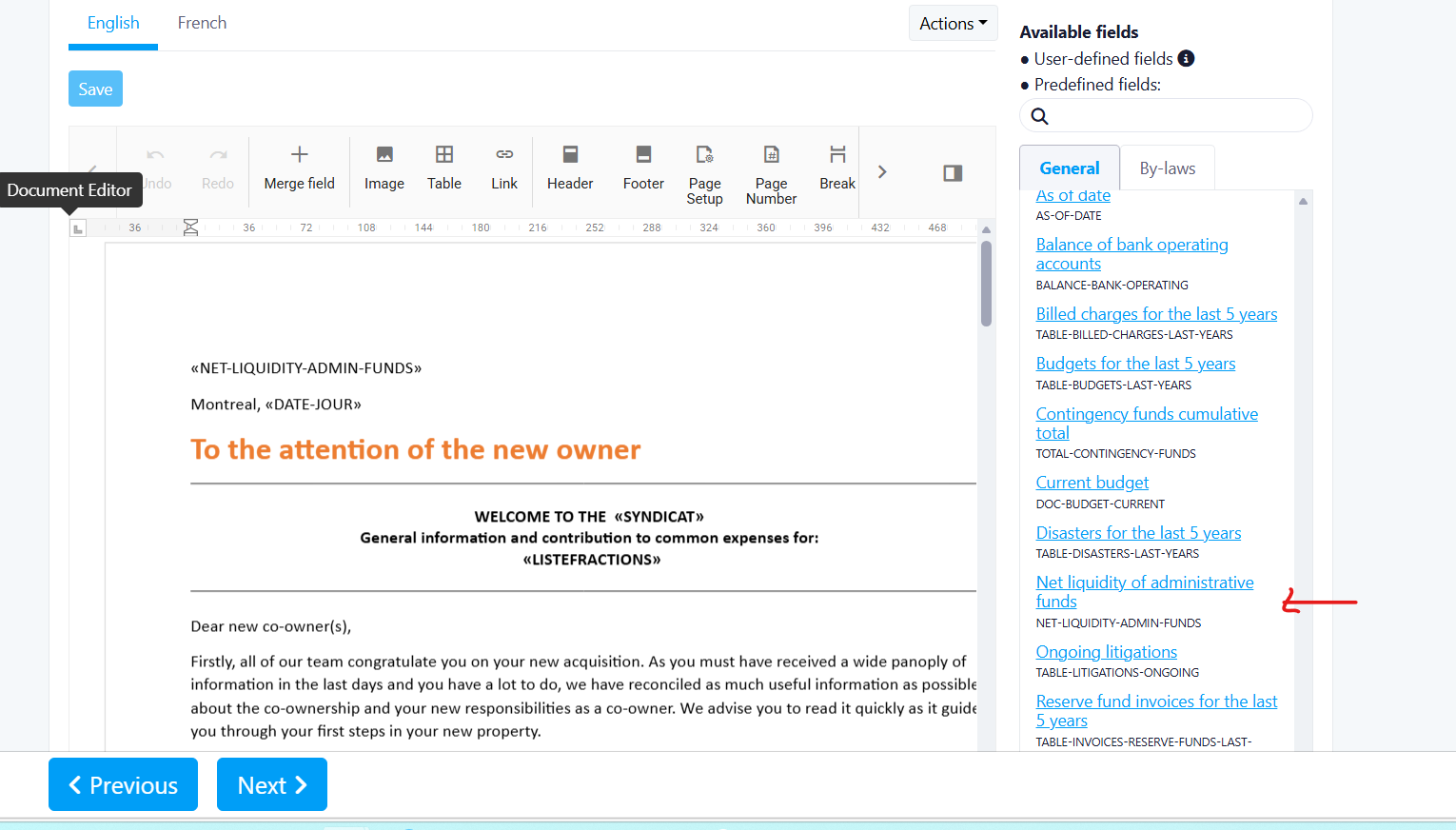
Where to Find It
Mail Merge / Mail Merge Templates / Fields / "NET-LIQUIDITY-ADMIN-FUNDS"
To access it:
- Navigate to Mail Merge
- Open a mail merge template or create one
- Insert the new field Net Interfund FA Liquidity alongside existing liquidity fields
How It Works
The field is calculated as follows:
Net Interfund FA Liquidity = Total Bank + Interfund Receivables – Interfund Payables
This value is used in the attestation text to reflect available liquidity:
“As of [date], the interim financial statements show a cash balance for the Administration Fund of [$ amount] (i.e., Total Bank + Interfund Receivables – Interfund Payables).”
What’s New / What’s Changed
- Added new calculated field: Net Interfund FA Liquidity
- Integrated this calculation into the attestation text (section 2.4)
- Updated liquidity logic to comply with CPA attestation guidance
Important Notes
- This change impacts attestation outputs and financial summaries
- Values depend on accurate interfund receivable and payable data
- Ensure underlying financial data is up to date for correct calculations
Feature Request Form
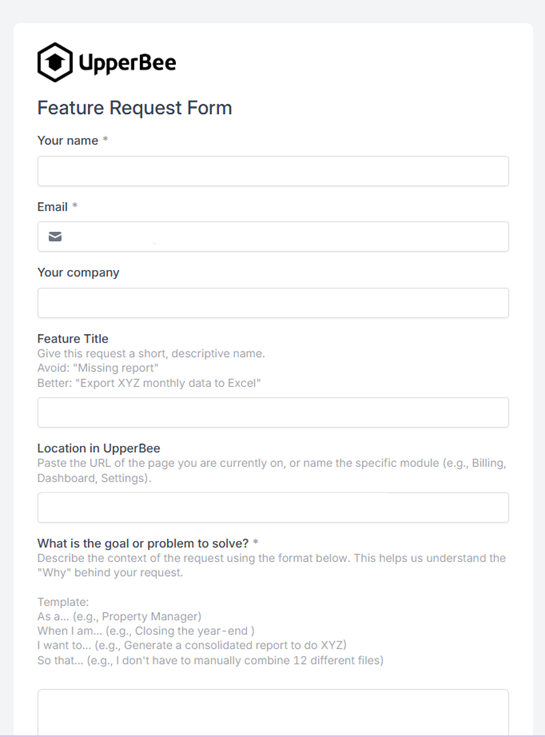
We introduced the Feature Request Form, designed to allow users to submit ideas, improvements, or issues directly from within the application.
This form helps centralize user feedback and automatically sends requests to Jira for review and prioritization.
Benefits:
- Streamlined way for users to submit feature requests
- Automatic capture of user and context information
- Improved visibility and prioritization through Jira integration
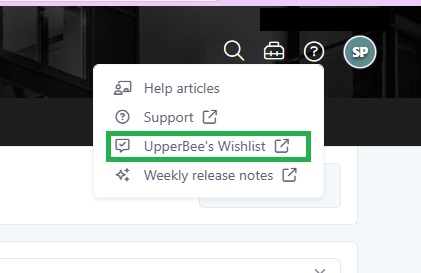
Where to Find It
Accessible from the help section, selecting "UpperBee's Whishlist"
To access it:
- Navigate to "help" on the top right of the screen, then select "UpperBee's Whishlist"
- Open the Feature Request Form
- The form will automatically reflect your current context (location)
How It Works:
- The form is partially auto filled with user information:
- Name
- Company
- Location (based on where the user is in the application)
- Users must complete the required fields:
- Goal or problem to solve
- Who is affected and the impact
- Optional fields include:
- Feature title
- Proposed solution or idea
- Supporting documents or screenshots
- Upon submission:
- A Jira ticket is automatically created
- All provided information and attachments are transferred
Improvements
Change Period
New Feature
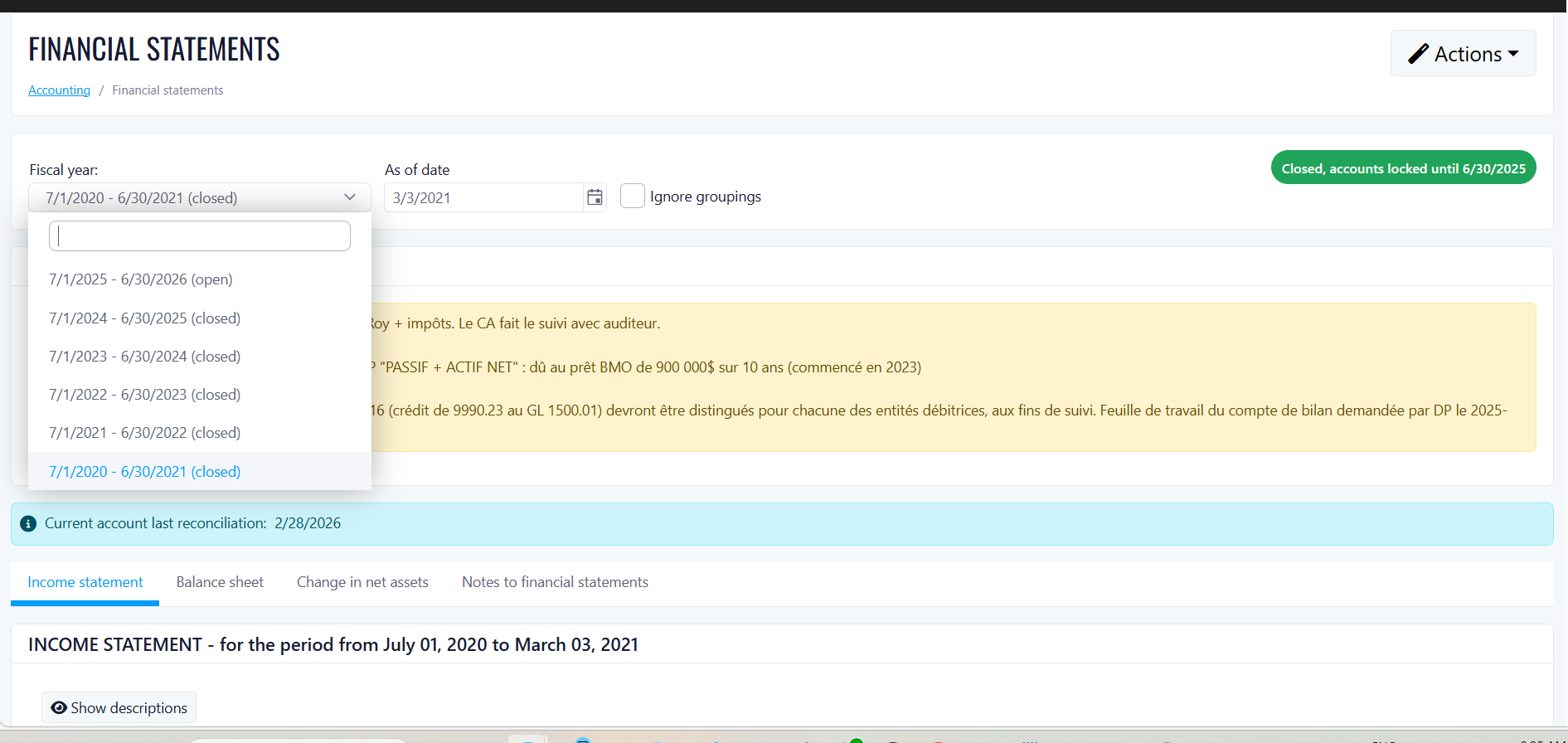
Title of New Feature: Change Period - Fiscal Year Date Management
Overview
This release introduces the Change Period feature, designed to allow authorized users to adjust the start and end dates of fiscal year periods directly within the application.
Benefits
Modify the end date of the last fiscal year to align with your business calendar
First-year period allows start date adjustments for additional flexibility
Permission-based access ensures only authorized users can make date changes
Where to Find It
Available within Fiscal Year settings, on the last (non-closed) fiscal year period.
To access it:
- Navigate to Fiscal Year settings
- Select the last fiscal year period
- Click the Edit End Date action (visible only on the last fiscal year)
How It Works
Users with Financial Statement Edit permission can change the end date of the last fiscal year to a valid future end-of-month date. The new date must be after the current start date, cannot be more than 2 years forward, and must not create a gap between fiscal years. If the same end date is submitted, no changes are applied. For the first fiscal year only, a start date change is also available. Middle fiscal years and closed fiscal years do not permit date changes. Note that transactions dated before a new start date will be blocked.
What's New / What's Changed:
Users can now modify fiscal year period dates with built-in validations to ensure continuity and data integrity across fiscal
years.
Important Notes
The Edit End Date action is hidden for non-last fiscal years, closed fiscal years, and users without FinancialStatement Edit permission.
Common Charges Export Now Includes Tax Breakdown
Overview
This release introduces an enhancement to the Budget Export function, designed to include complete tax and subtotal details in the exported Common Charges spreadsheet.
Past State
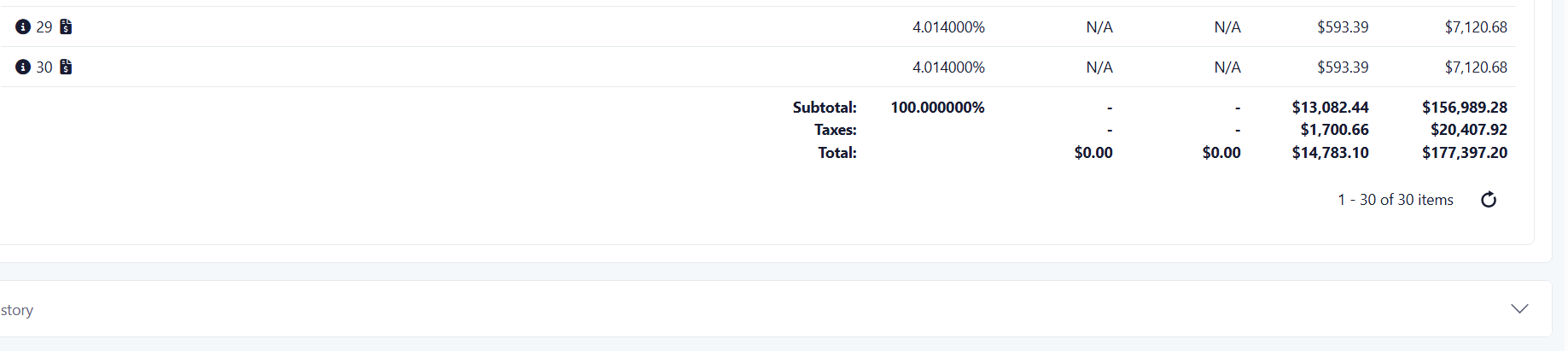
Previously, when users exported the budget from the Accounting/Budget module using the "Export Budget" dialog, the resulting spreadsheet only included line-item charges. The Subtotal, Taxes, and Total rows visible in the UI were absent from the export, requiring users to manually calculate or cross-reference these figures from the application screen.
What's New
With this release, the exported spreadsheet now includes the full financial summary rows — Subtotal, Taxes, and Total — matching exactly what is displayed in the Common Charges tab of the Accounting/Budget module.
How It Works
When a user exports the budget with "Include common charges" selected, the system now appends three summary rows at the bottom of the Common Charges section in the spreadsheet. These rows reflect the aggregated subtotal across all unit shares, the calculated tax amount, and the combined total, consistent with the on-screen values.
Where to Find It
You can find this feature in: Accounting / Budget → Common Charges Tab → Export Budget
To access it:
Navigate to Accounting/Budget
Select the Common Charges tab
Click "Export Budget"
Check "Include common charges" and click OK
Open the downloaded spreadsheet and scroll to the bottom to view the Subtotal, Taxes, and Total rows
Benefits
Eliminates the need to manually calculate tax totals outside the system
Ensures exported reports match on-screen data for audit and reconciliation purposes
Saves time for accounting staff preparing financial reports and statements
Screenshot

Important Notes
Existing exports generated prior to this release will not retroactively include the tax breakdown. Users should re-export any reports that require the complete summary figures.
Second Week Of The Month
New Features
Accounting Activity Dashboard
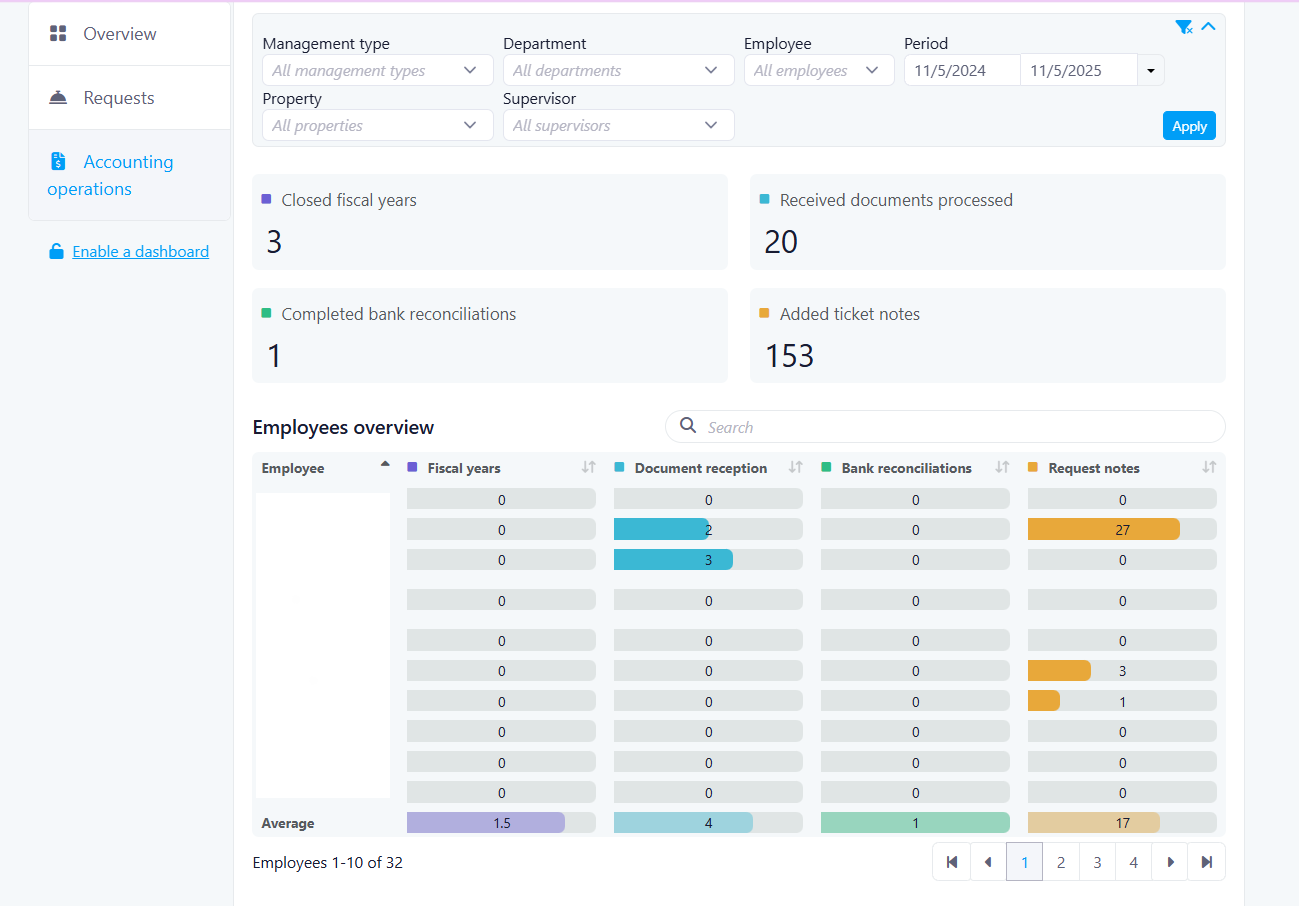
We’re pleased to introduce the Accounting Activity Dashboard, designed to provide clear visibility into accounting operations and team performance. This dashboard allows management to monitor activity across key accounting tasks, with the ability to drill down by manager and employee.
Benefits
- Gain a centralized view of accounting activity across all properties
- Monitor team performance by manager and individual employees
- Identify trends and workload distribution with daily breakdowns
Where to Find It
Accounting > Dashboard (adjust if needed based on your actual menu)
To access it:
- Navigate to the Accounting module
- Open the Dashboard section
- Apply filters as needed (Property, Supervisor, Management Type, Date Range)
How It Works
The dashboard provides three main levels of analysis:
1. Overall View (Last 30 Days by Default)
Displays total activity across all selected properties, including:
- Closing Fiscal Year (Closed)
- Document Reception (Completed)
- Bank Reconciliations (Completed)
- Notes / Requests (Answered or updated, minimum 10 characters)
Filters (Property, Supervisor, Management Type) apply to this view.
2. Overall by Manager
Allows deeper analysis of activity by manager and their teams:
- Filter by date range (up to 90 days)
- Search by employee name
- Sort data by column (availability may vary)
- View averages and progress indicators per category
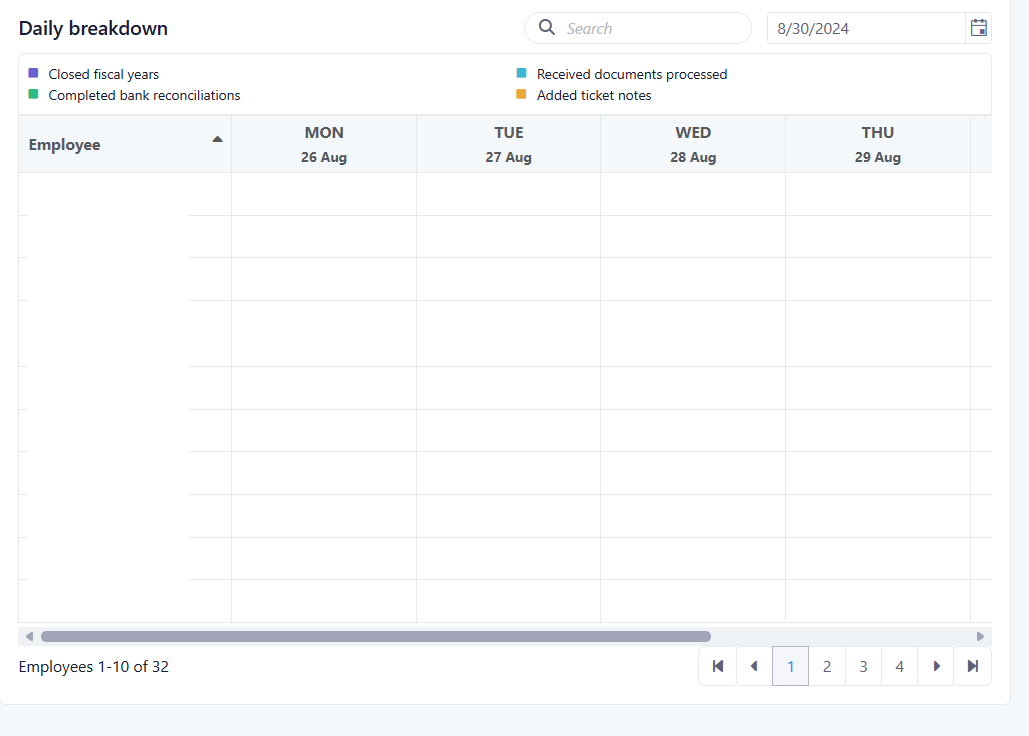
3. Daily Breakdown
Provides a detailed view of daily activity:
- Data grouped in 5-day intervals
- Graphical representation of activity per day
- Totals calculated per category over the selected period
- Sorting available by totals
What’s New / What’s Changed
- New dashboard to track accounting operations across multiple categories
- Drill-down capability from overall data to manager and employee levels
- Introduction of daily activity tracking with visual graphs
- Advanced filtering options (Property, Supervisor, Management Type, Date Range)
- Search and sorting functionality for improved data analysis
- Average calculations with visual progress indicators
Important Notes
- Default view displays data from the last 30 days
- Maximum date range for manager view is up to 90 days (subject to validation)
- Sorting may not be available for all categories (e.g., Notes / Requests)
- Notes / Requests require a minimum of 10 characters to be counted
Improvements
Proxy Assigned Person Email Display
Overview
This release introduces an update to the proxy template, designed to help managers validate that the proxy has been assigned to the correct legal person.
Past State
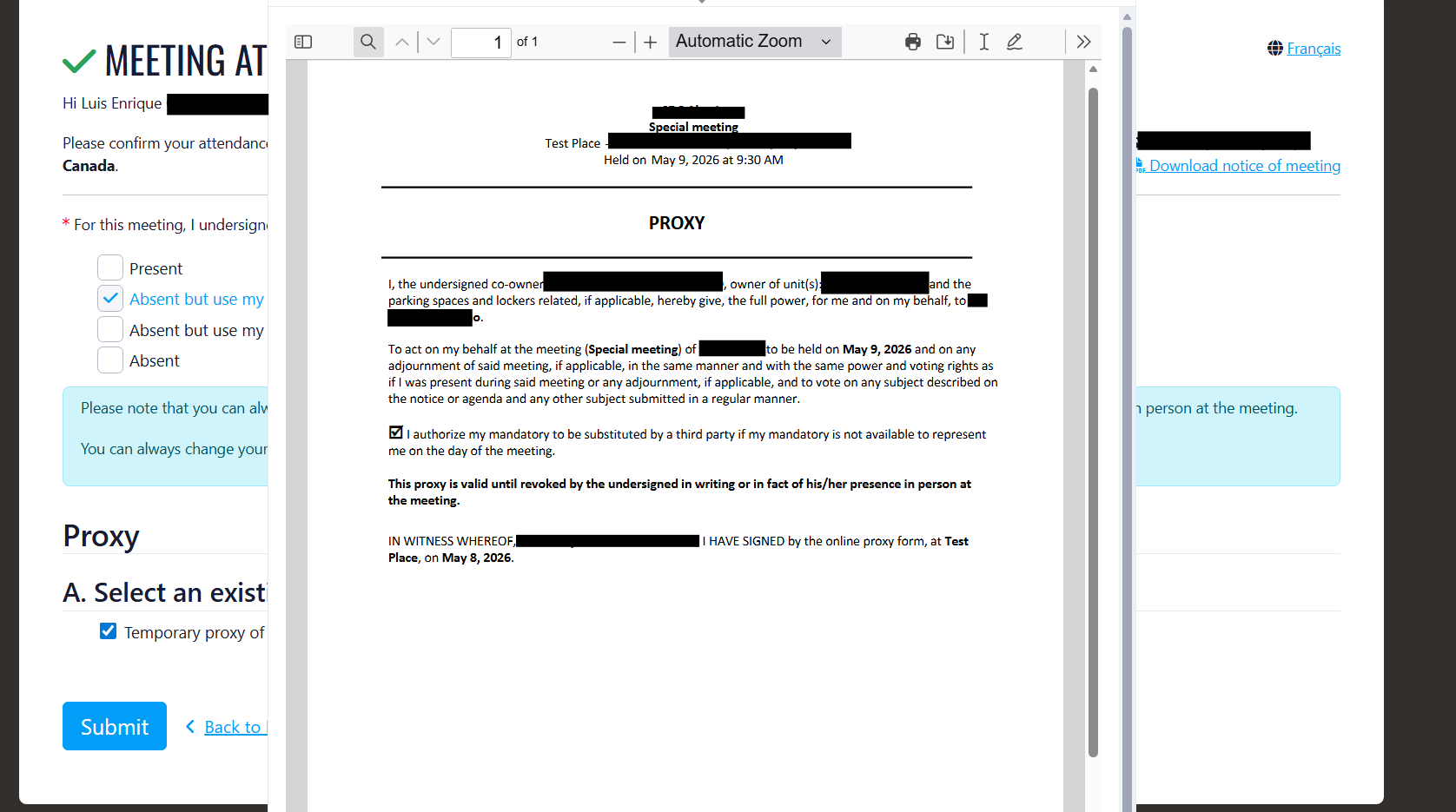
Previously, when a proxy was assigned to an “Other” person, only the full name of the assigned individual appeared in the generated proxy document. The associated email address existed in the database but was not visible in the document.
What’s New
With this release, the email address of the assigned “Other” person is now displayed beside the full name in parentheses within the generated proxy document.
How It Works
When a proxy is assigned to an “Other” person and the proxy document is generated, the system retrieves the email address from the
GivenToEmail field and displays it beside the assigned person’s full name.Example:
- Johanne Jette (
example@email.com)
Where to Find It
You can find this feature in: Communication > Meetings
To access it:
- Go to Communication
- Select Meetings
- Edit a meeting
- Generate the meeting notice
- Preview the notice
- Send by email
- Open the email
- Assign a proxy
Benefits
- Improves legal verification of proxy assignments
- Provides better visibility of assigned proxy information
- Helps managers confirm the identity of the assigned person
Screenshot
Third Week Of The Month
New Features
Service Review Dashboard
Overview
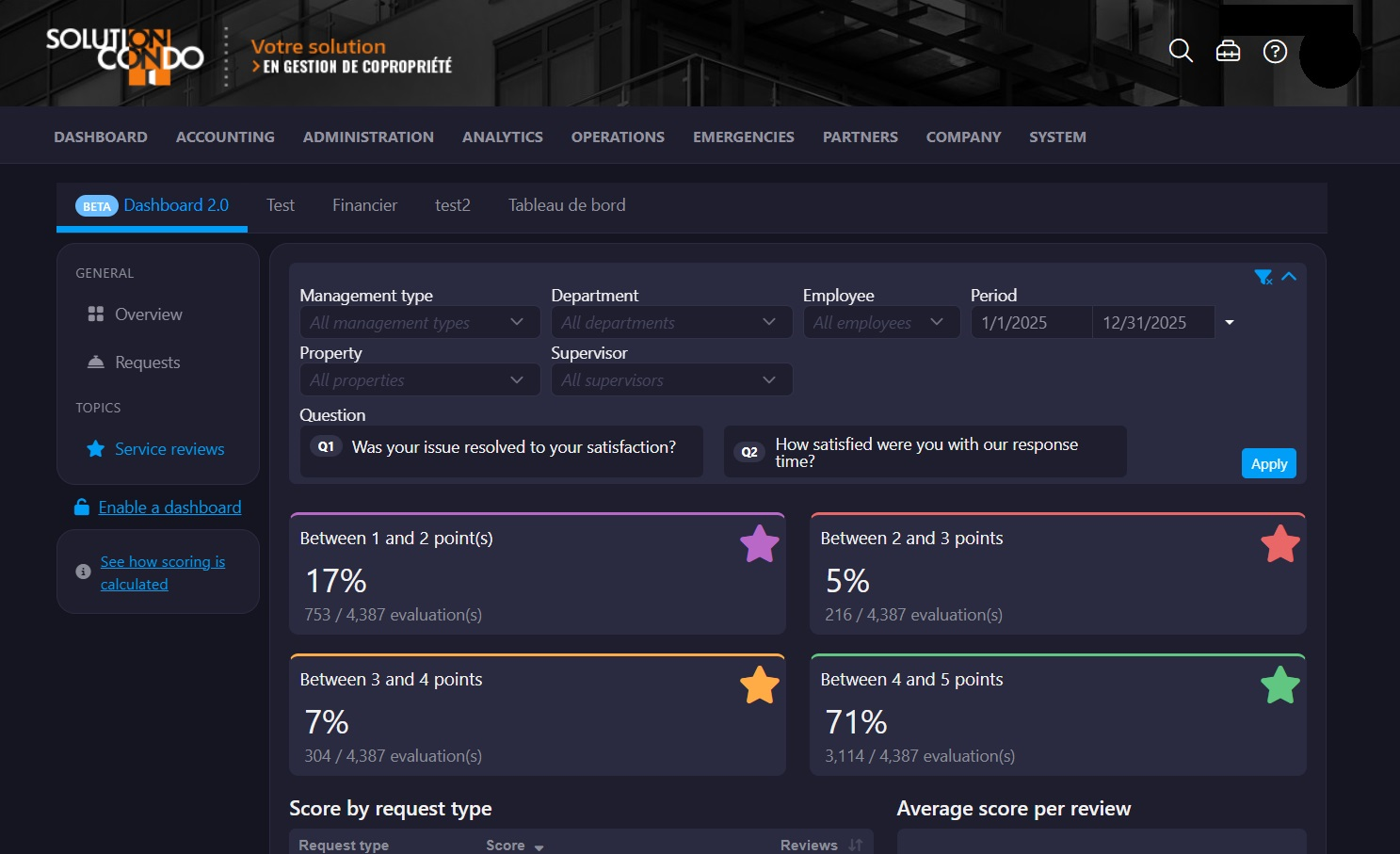
This release introduces the Service Review Dashboard, designed to provide supervisors and managers with a centralized view of client satisfaction metrics related to closed tickets.
Past State
Previously, users had limited visibility into client feedback trends and performance metrics. Review data was not centralized, making it difficult to analyze employee, building, or request type performance efficiently.
What’s New
With this release, users can now:
- View client feedback statistics in a centralized dashboard
- Filter results by property, supervisor/department, employee, and date range
- Analyze feedback by specific survey questions (Q1/Q2)
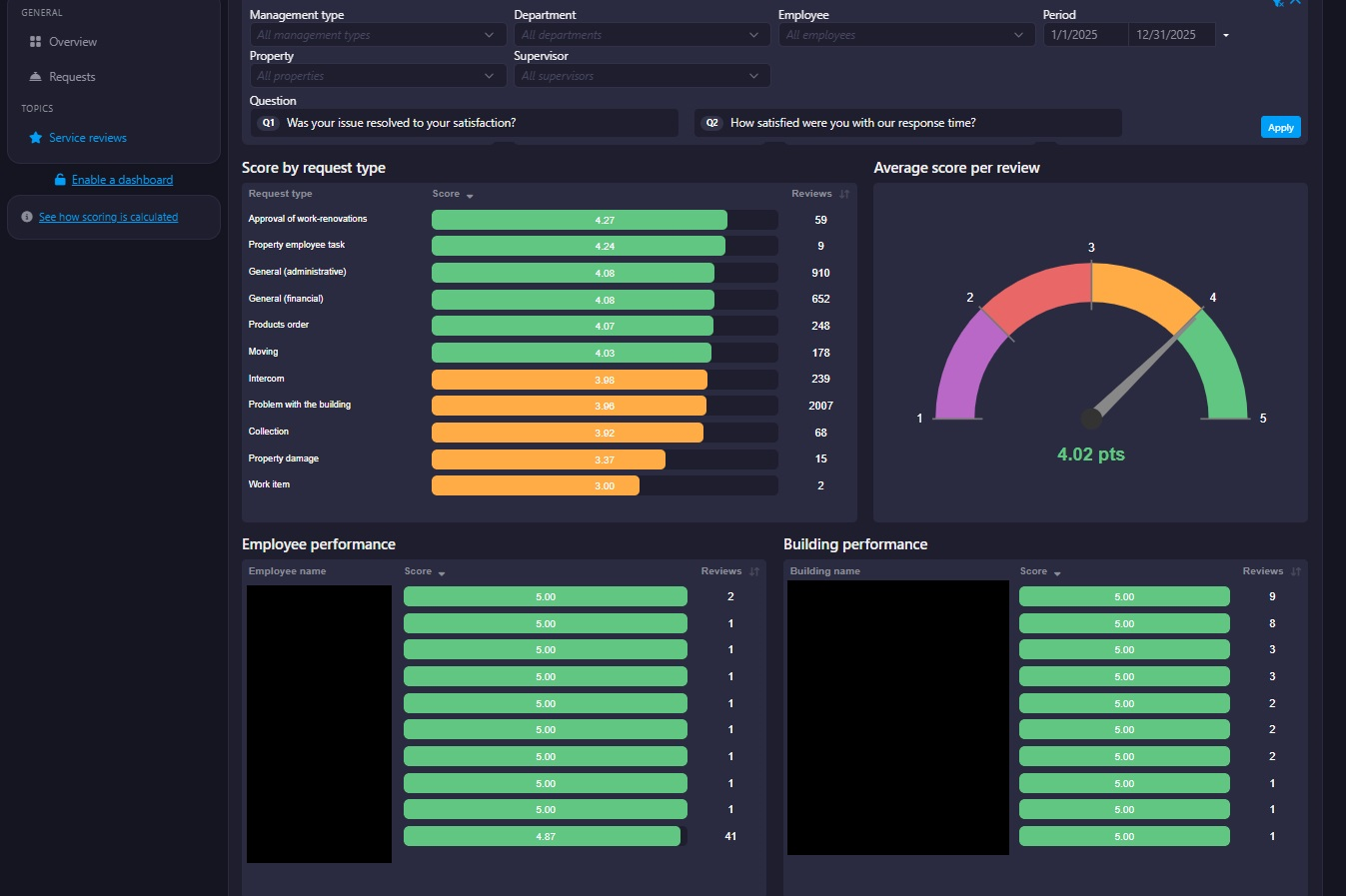
- View employee and building performance rankings
- Access request type scoring and review breakdowns
- Sort and paginate large result sets for easier analysis
How It Works
The dashboard automatically displays feedback data from closed tickets for the last 90 days by default. Users can apply filters to narrow results and switch between question-specific metrics or combined survey results. Performance sections dynamically update based on selected filters and sorting preferences.
Where to Find It
You can find this feature in: Company - Dashboards - Service Reviews Dashboard
To access it:
- Proceed to Company
- Navigate to Dashboards - Service Reviews Dashboard
- Apply filters or select review questions to analyze results
Benefits
- Improved visibility into client satisfaction trends
- Easier performance tracking for employees and buildings
- Faster identification of service improvement opportunities
Important Notes
- The default dashboard range displays data from the last 90 days.
- Employee results dynamically update based on selected property and supervisor filters.
- Pagination is automatically enabled for large result sets.
Improvements
Feature update: Priority Filter Addition – Dashboard Requests
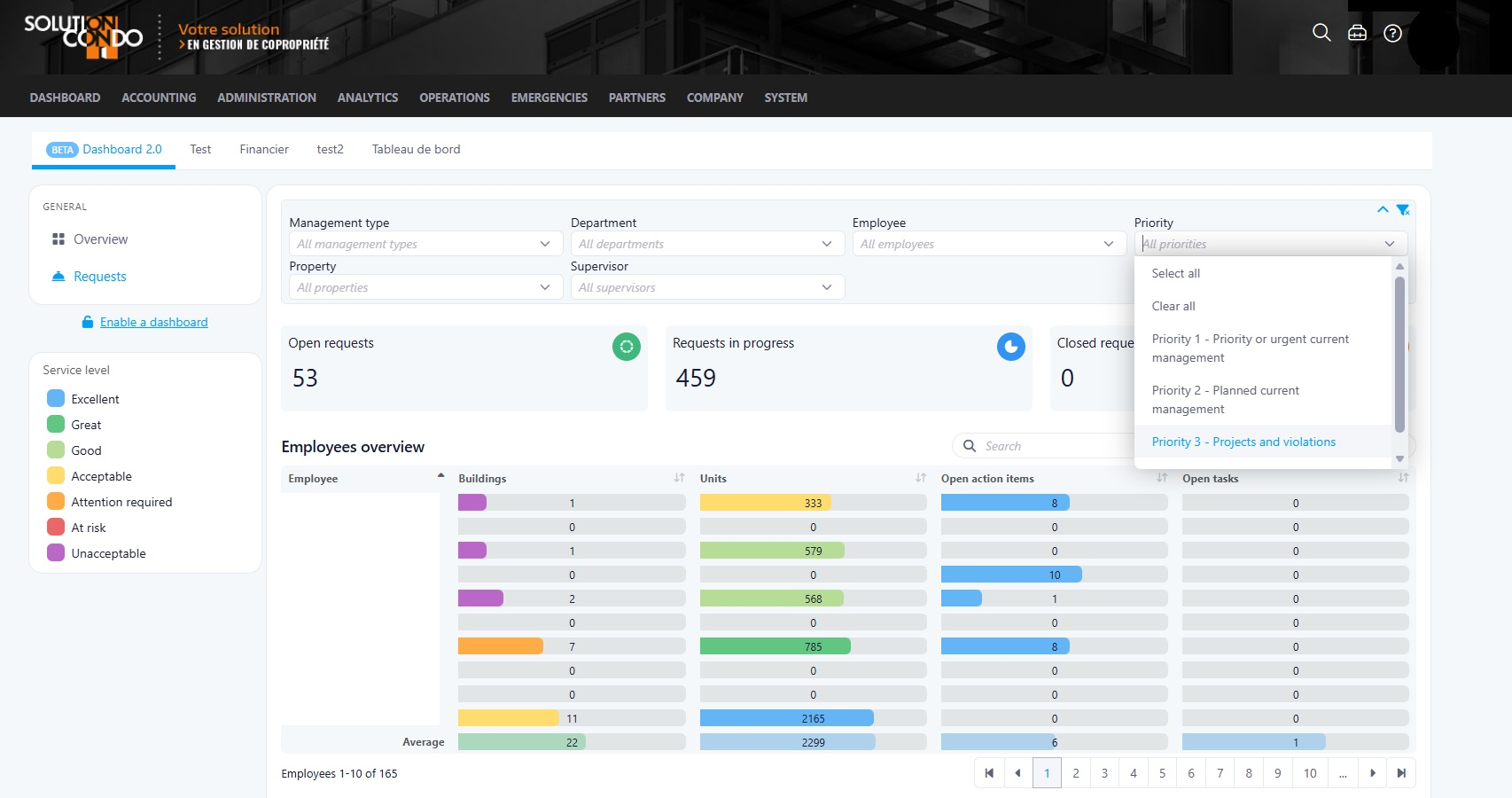
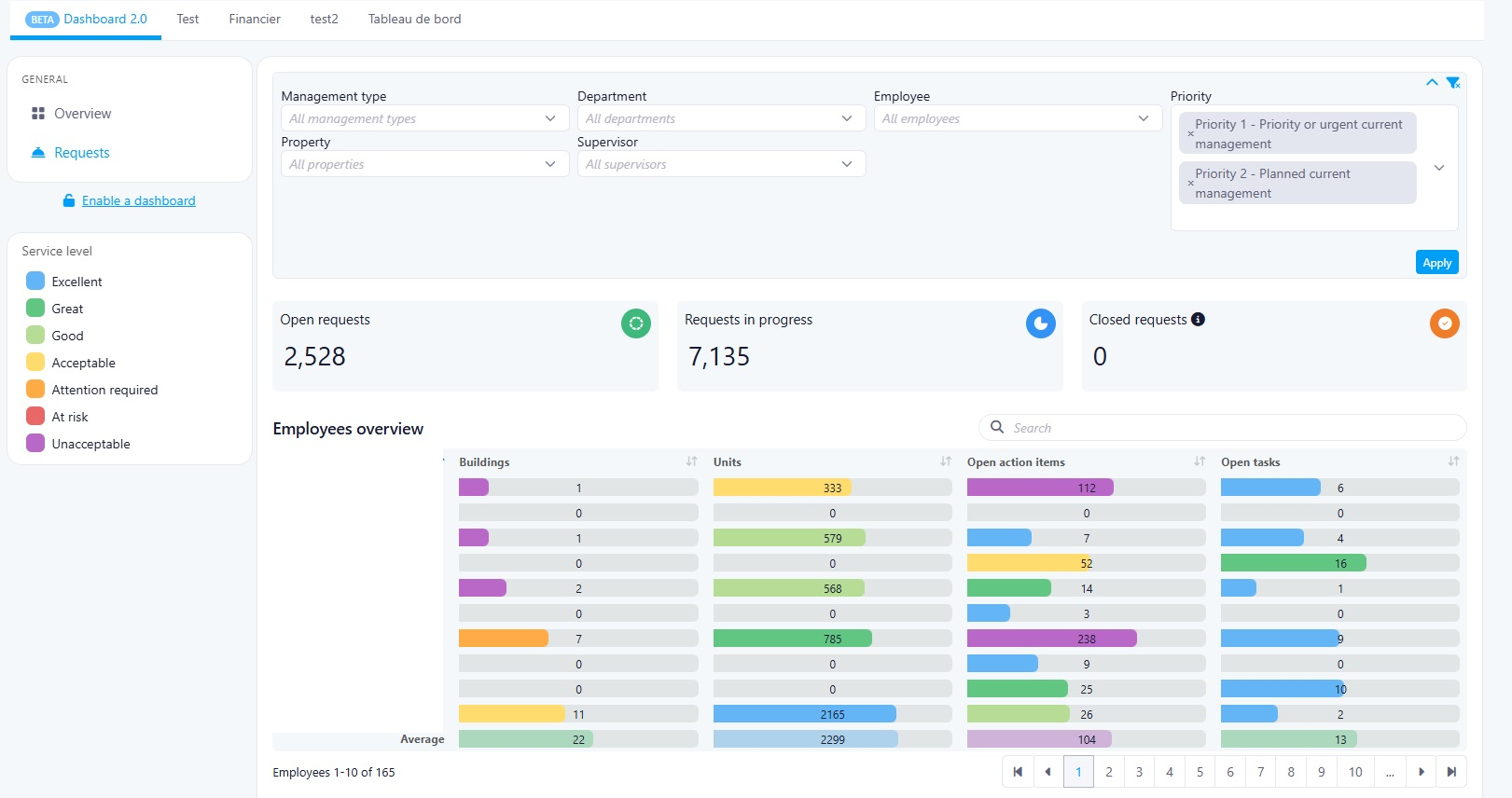
This release introduces a new Priority filter in the Dashboard – Requests module, designed to help users better analyze and manage request data based on request urgency levels (P1 to P4).
Past State
Previously, users could filter Dashboard – Requests data using the following filters:
- Management Type
- Department
- Employee
- Property
- Supervisor
However, requests were always displayed regardless of their assigned priority level. This could negatively impact dashboard indicators and operational visibility, since low-priority requests may remain open for extended periods without requiring immediate action.
What’s New
With this release, a new Priority filter has been added to the existing dashboard filters.
Users can now filter request data based on request priority levels:
- P1
- P2
- P3
- P4
This allows users to focus on higher-priority operational items and obtain a more accurate representation of active workload and urgency.
How It Works
- A new Priority filter is now available in Dashboard – Requests.
- Users can select one or multiple priority levels.
- Dashboard data and indicators will dynamically update based on the selected priorities.
- The new filter works alongside the existing filters:
- Management Type
- Department
- Employee
- Property
- Supervisor
Where to Find It
You can find this feature in:
Dashboard → Requests
To access it:
- Open the Dashboard module
- Navigate to the Requests section
- Use the new Priority filter available with the existing dashboard filters
Benefits
- Improves visibility of urgent requests
- Provides a more realistic operational overview
- Helps reduce the impact of long-standing low-priority requests on dashboard metrics
Important Notes
- By default, all priority levels remain selected unless filters are applied.
- The Priority filter can be combined with all existing dashboard filters.
Last Week Of The Month
New Features
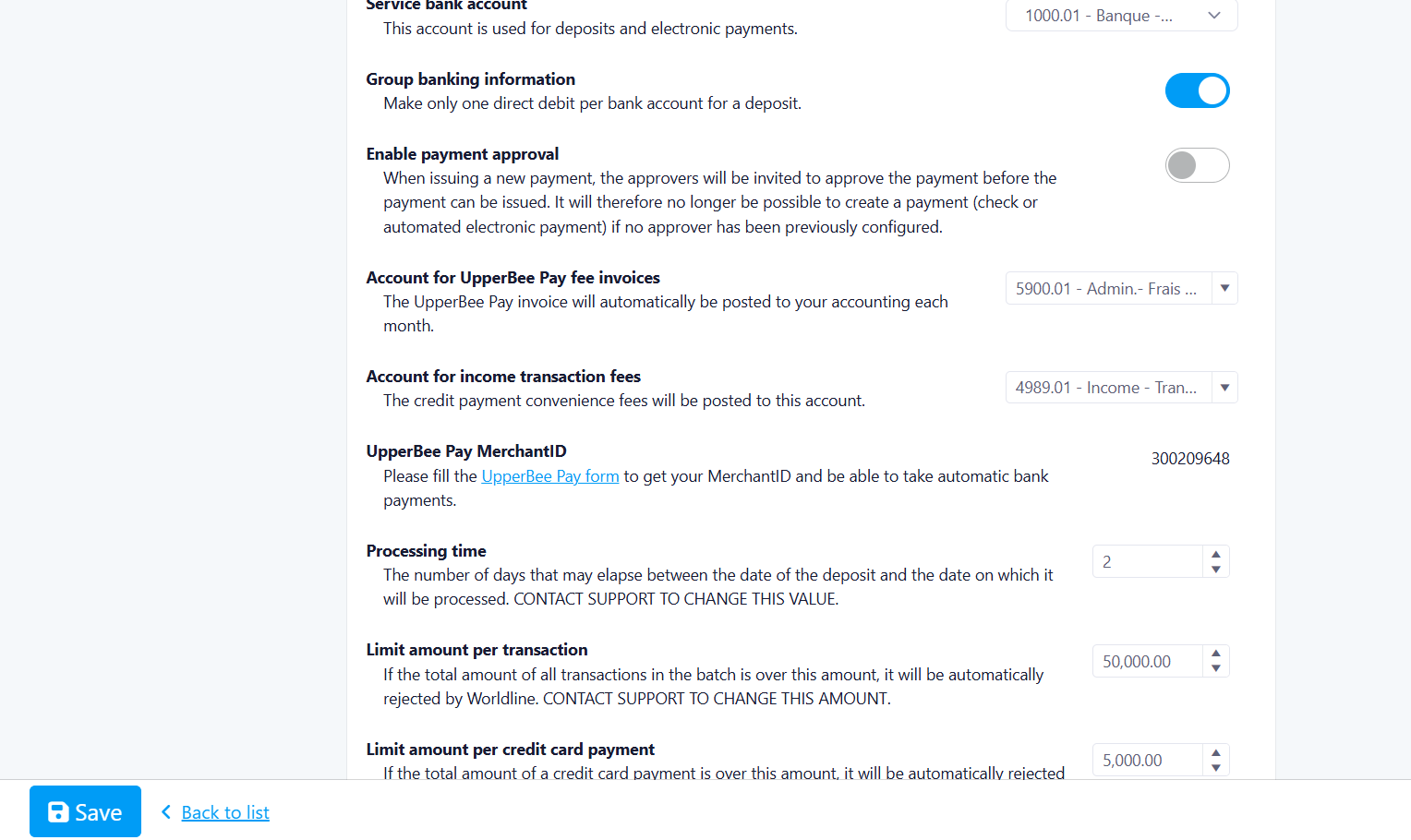
UpperBee Pay : Bank Account Modification Restriction for Service-Linked Accounts
Overview
This release introduces a protection mechanism for service-linked bank accounts in UpperBee Pay, designed to prevent accidental or unauthorized modification of banking information on accounts tied to the payment service.
Past State
Previously, users could freely edit the banking information of any financial account — including accounts configured as the service-linked bank account in UpperBee Pay — directly from the edit account page. This created a risk of disrupting electronic payments and deposits processed through Bambora, as all transactions are routed through that specific account.
What's New
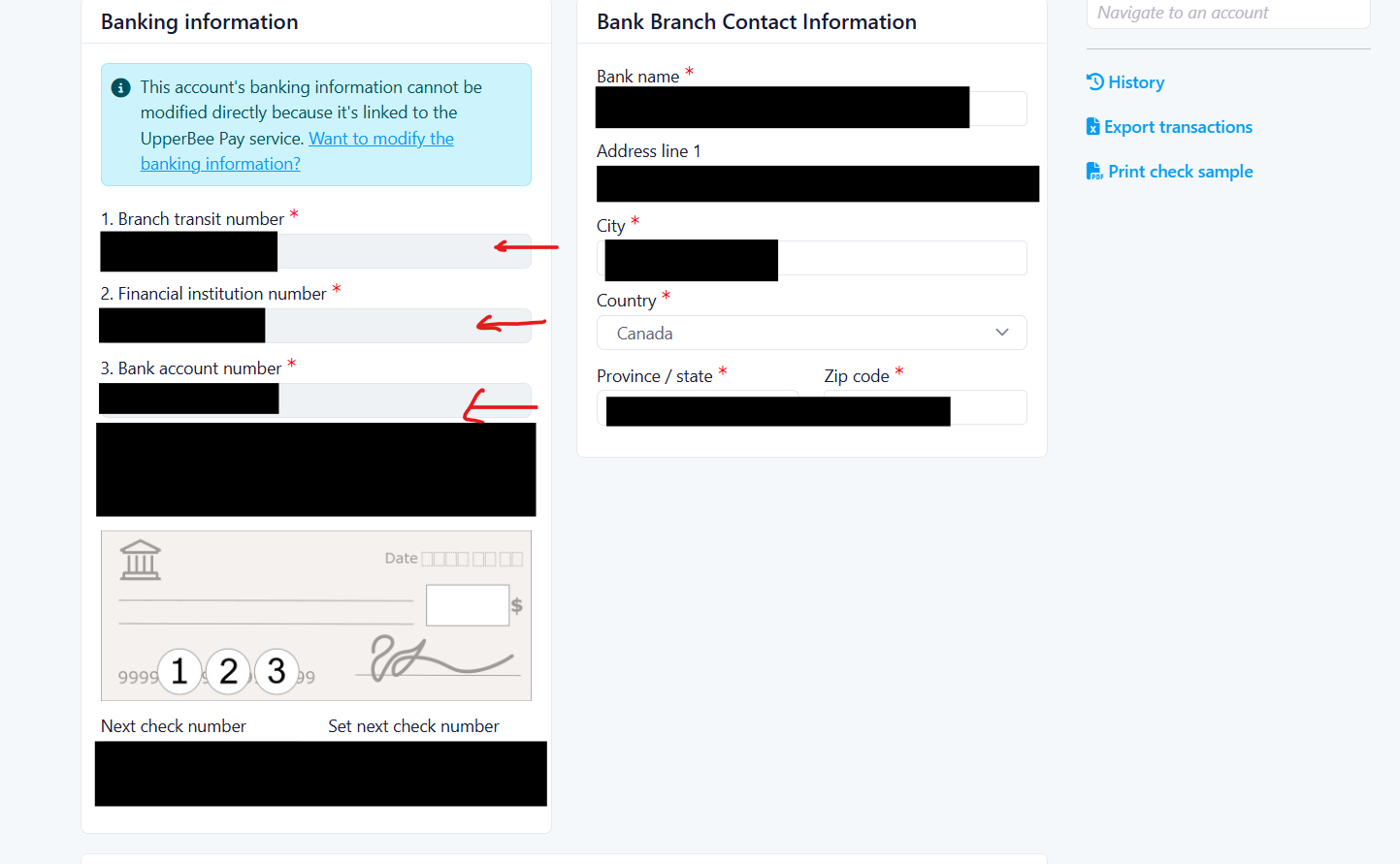
With this release, banking information fields on the edit account page are now disabled when the account is configured as the service-linked bank account in UpperBee Pay. A link is displayed inviting users to submit a formal request if they need to modify that information.
How It Works
When a financial account is designated as the service-linked bank account in UpperBee Pay settings, the system automatically locks the banking information fields on the corresponding edit account page. Users who need to change the banking details must follow the provided link, which redirects them to the UpperBee Pay configuration page under the Modify Account section. This change is enforced both at the UI level (disabled fields) and at the backend level (API-level validation), ensuring that no modifications can bypass the restriction.
Where to Find It
You can find this feature in: Financial Accounts → Edit Account
To access it:
Go to Settings → UpperBee Pay → Financial and verify that a bank account is set as the service-linked account.
Navigate to Financial Accounts and open the edit page for the linked account.
Observe that banking information fields are disabled and that the redirection link is displayed.
Benefits
Prevents accidental modification of the bank account used for all electronic payments and deposits.
Ensures the banking configuration in Bambora remains consistent with the account data in UpperBee.
Guides users toward the correct, controlled process for requesting a bank account change.
Screenshot
Important Notes
This restriction applies only to accounts currently designated as the service-linked bank account. Accounts not linked to the service remain fully editable. Any attempt to modify the banking information via direct API call will also be rejected by the backend.
Cheque Specimen Validation on UpperBee Pay Onboarding
Overview
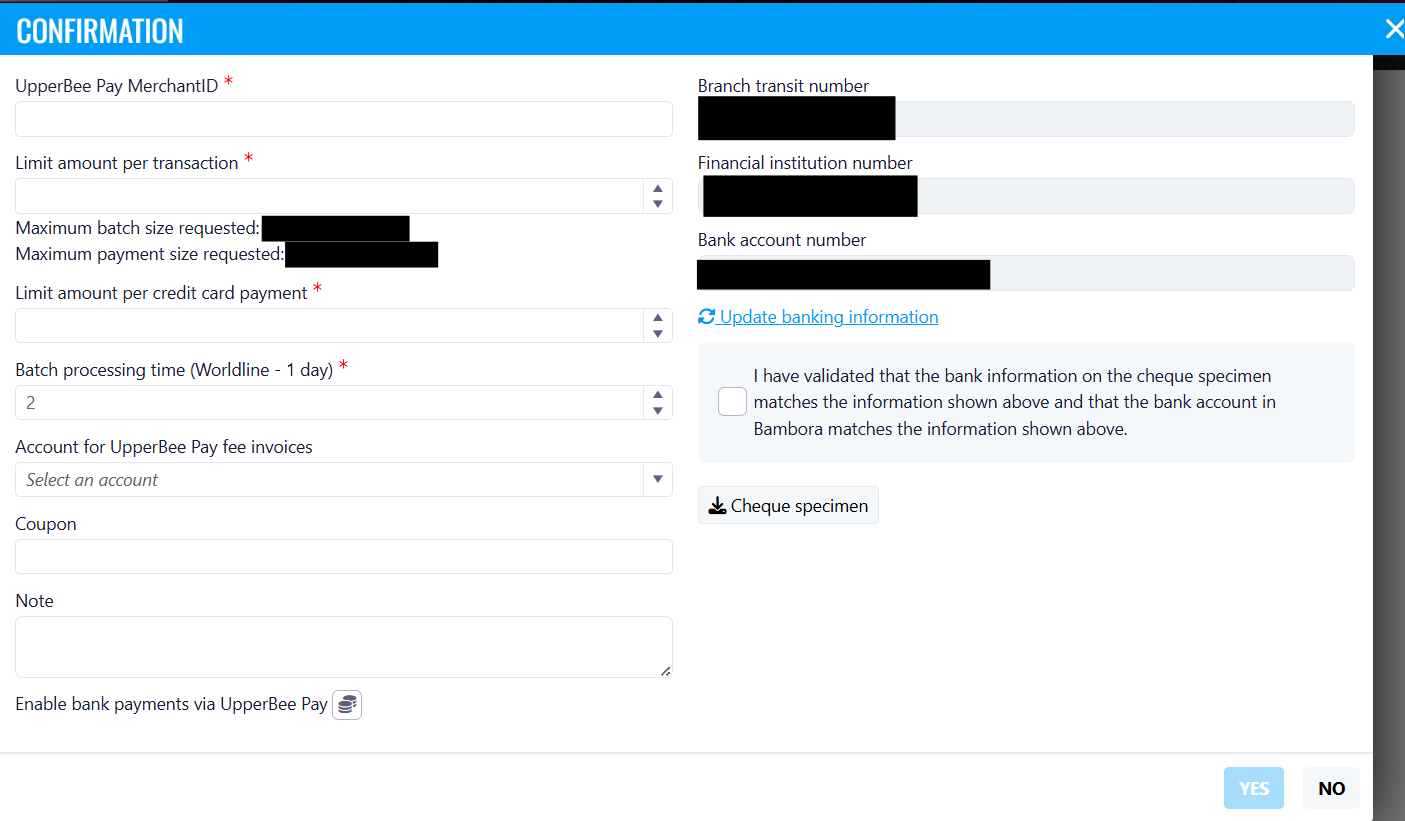
This release introduces the Cheque Specimen Validation Checkbox, designed to ensure administrators explicitly confirm that the banking information on the submitted cheque specimen matches the details entered in the system and registered in Bambora before completing an onboarding integration.
How It Works
When an administrator opens the "Accepter l'intégration" confirmation modal for a pending UpperBee Pay onboarding, a new checkbox is displayed alongside a link to download the cheque specimen. The admin must download the specimen, verify that the transit number, financial institution number, and bank account number match the values shown in the modal and in Bambora, then check the box to confirm validation. The integration cannot be accepted until this checkbox is checked.
Where to Find It
You can find this feature in: UpperBee Pay Onboarding — Configuration / UpperBee Pay → Accepter l'intégration (Confirmation modal)
To access it:
Navigate to Admin > Configuration > UpperBee Pay > Onboarding
Select a pending onboarding and click "Accepter l'intégration"
In the Confirmation modal, locate the checkbox just above the "Mettre à jour les infos bancaires" link
Benefits
Reduces the risk of onboarding being accepted with incorrect or mismatched banking information
Creates an explicit, auditable confirmation step before banking data is applied
Provides direct access to the cheque specimen for side-by-side verification without leaving the modal
Screenshot
Important Notes
The "YES" button remains inactive until the validation checkbox is checked — the integration cannot be accepted without it
The checkbox resets to unchecked every time the modal is reopened; confirmation must be repeated each session
This change applies only to the acceptance flow; the rejection path ("NO") is unaffected
Rental Date Added to the Rental Report
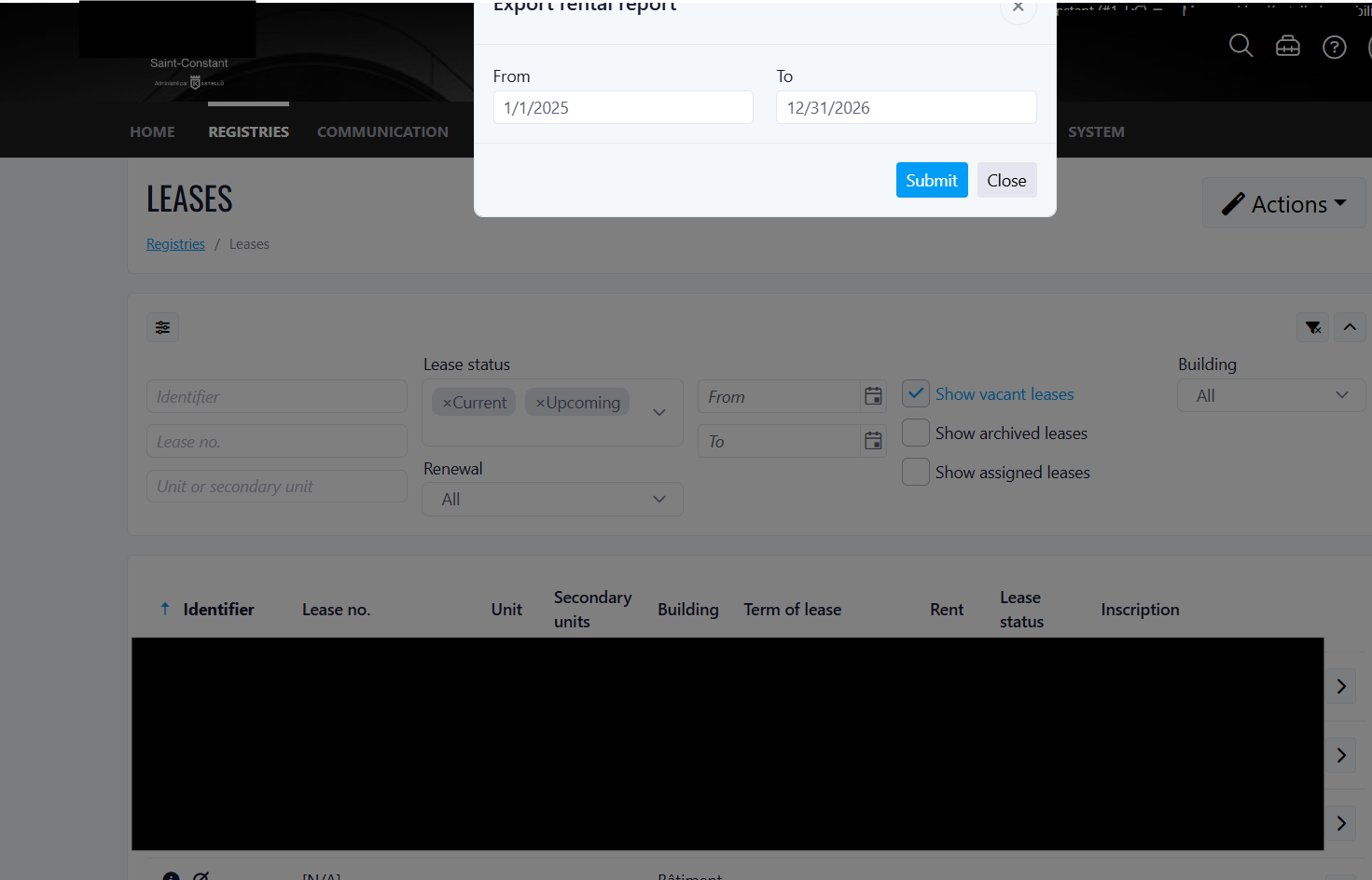
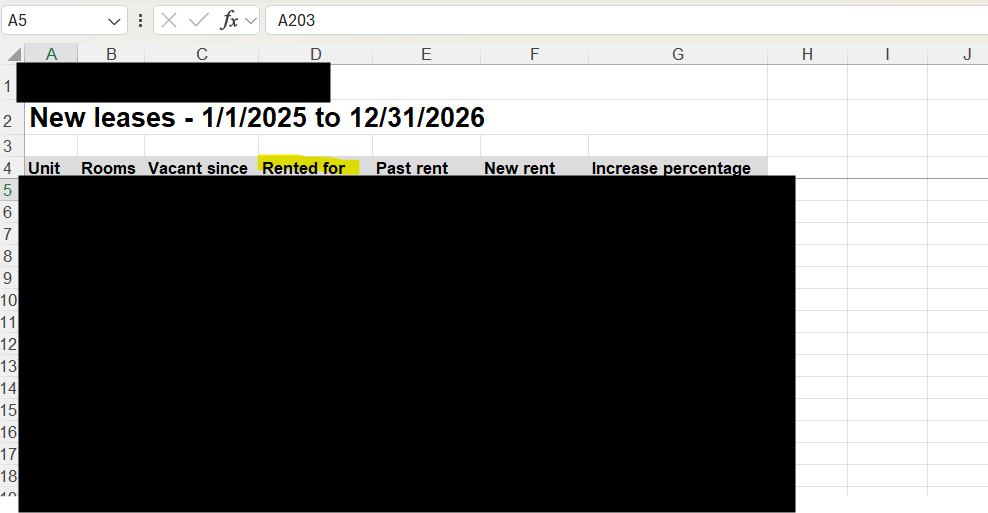
This release introduces the "Rented For" column, designed to display the lease signature date directly in the rental location report, enabling managers to track when each unit was rented and facilitating accurate compensation of leasing agents.
How It Works
When a lease is signed and saved in the system, the signature date is now captured and linked to the corresponding unit. When the rental report is exported to Excel, the new "Rented For" column is automatically populated with that date for each active lease. Units without an active lease will show a blank value. The exported file also includes AutoFilter dropdowns on all column headers and auto-sized column widths for easier readability.
Where to Find It
You can find this feature in: Leases module → Actions menu → Exporter le rapport de location
To access it:
Navigate to the Leases list for a property.
Click the Actions dropdown button.
Select Exporter le rapport de location to download the updated Excel report.
Benefits
Leasing agents and managers can now see exactly when each unit was rented, directly in the rental report.
Simplifies the compensation and commission tracking process for leasing agents.
AutoFilter headers allow quick filtering and sorting by rental date or any other column.
Auto-sized columns eliminate manual formatting, making the report immediately readable upon export.
Screenshot
Important Notes
The "Rented For" date reflects the lease signature date, not the move-in or lease start date.
This column applies to the Nouvelles locations (New Rentals) report only.
Existing exports generated before this release will not include the new column — re-export to get the updated format.
Improvements
Occupant Registry – Summary View & Enhanced Filters
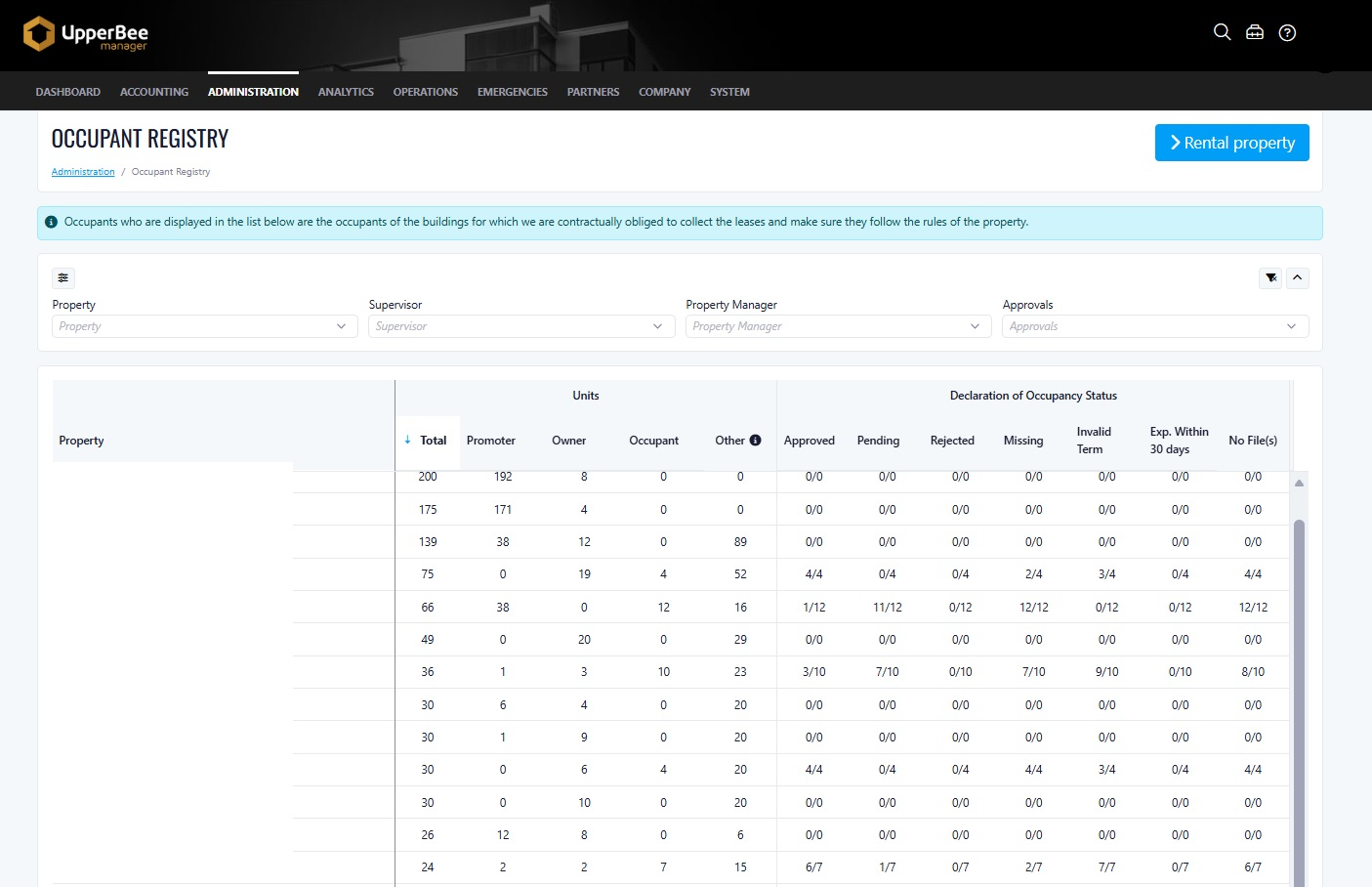
This update enhances the Occupant Registry by introducing a summary view and improved filtering capabilities, designed to give Managers a clearer and more actionable overview of property occupancy status.
Benefits:
- Improved visibility of occupancy status across properties
- Faster identification of missing, pending, or expiring declarations
- More efficient data analysis with enhanced filtering options
Where to Find It
Administration → Leases and Declarations of Occupancy → Occupant Registry
To access it:
- Navigate to Administration
- Select Leases and Declarations of Occupancy
- Open the Occupant Registry page
How It Works:
The Occupant Registry now includes a summary view grouped by property, displaying key metrics such as:
- Total units
- Owner-occupied units
- Rented units
- Other occupancy types
It also provides detailed declaration of occupancy statuses, including:
- Approved
- Pending
- Rejected
- Missing
- Invalid term
- Expiring within 30 days
- No attachment
Users can apply filters (Property, Supervisor, Property Manager, Approvals) to refine results and focus on specific data.
What's New:
- Added summary view grouped by property
- Enhanced filtering capabilities:
- Property (multi-select)
- Supervisor (multi-select)
- Property Manager (multi-select)
- Approvals toggle
- Introduced detailed occupancy status tracking
- Improved visibility of data gaps and required actions
Important Notes:
- The Approvals filter behavior may depend on system configuration (document approval settings)
- Performance may vary when applying multiple filters on large datasets
Service Satisfaction Survey Setting Moved to Company Configuration
This release introduces a relocated service satisfaction survey setting, designed to give company administrators direct control over service evaluation surveys without requiring super admin or support intervention.
Past State
Previously, the option to enable satisfaction surveys for managed requests was embedded in the management plan configuration page — a page accessible only to super admins and software support staff. Company users had no way to manage this setting on their own and had to contact support to make any changes.
What's New
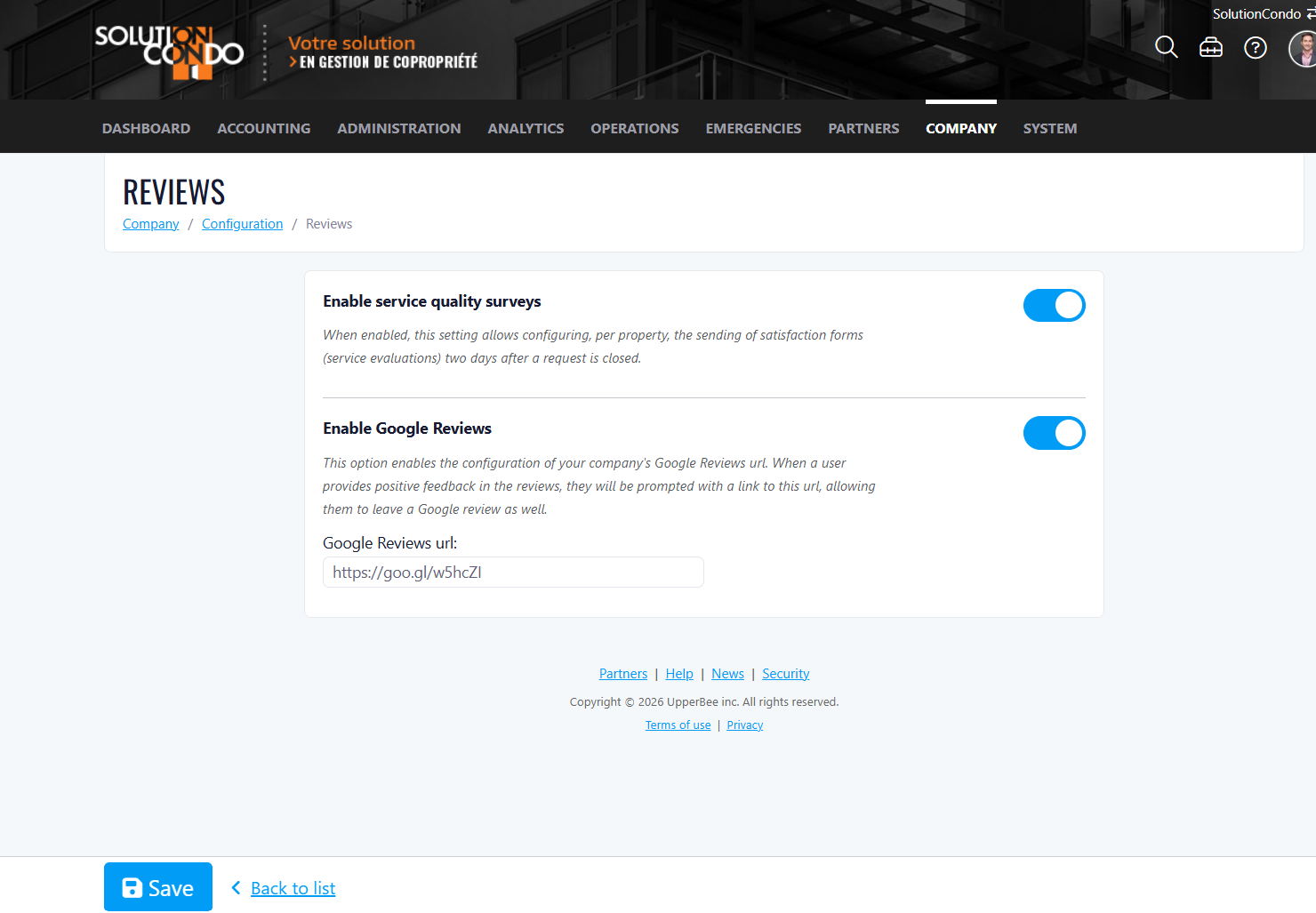
With this release, the satisfaction survey toggle has been moved to the company configuration page, under Company → Configuration → Service Quality Evaluations, displayed above the "Activer les avis Google" option. The setting description has also been updated to accurately reflect the current behavior.
How It Works
When the toggle is enabled at the company level, the system will automatically send a satisfaction form to requesters two days after a service request is closed. This setting can now be managed independently by company administrators. If the setting was previously enabled in any management plan, it will automatically be carried over and set to enabled at the company level following the migration.
Where to Find It
You can find this feature in: Company → Configuration → Service Quality Evaluations
To access it:
Log in as a company administrator
Navigate to Company, then open Configuration
Select Service Quality Evaluations
Toggle "Activer les sondages de satisfaction" on or off as needed
Benefits
Company administrators can manage satisfaction survey settings autonomously, without contacting support
The setting is no longer tied to the management plan, making it easier to maintain across multiple plans
The updated description clearly communicates the 2-day post-closure survey behavior
Screenshot
Important Notes
This change includes a database migration: the column has been moved from the management plan table to the company settings table.
If the satisfaction survey was enabled in any management plan for a company prior to migration, it will automatically be set to true at the company level.
The satisfaction survey setting also exists independently at the building portal level and is not affected by this change.
Resident Move-Out and Reservation Description Field
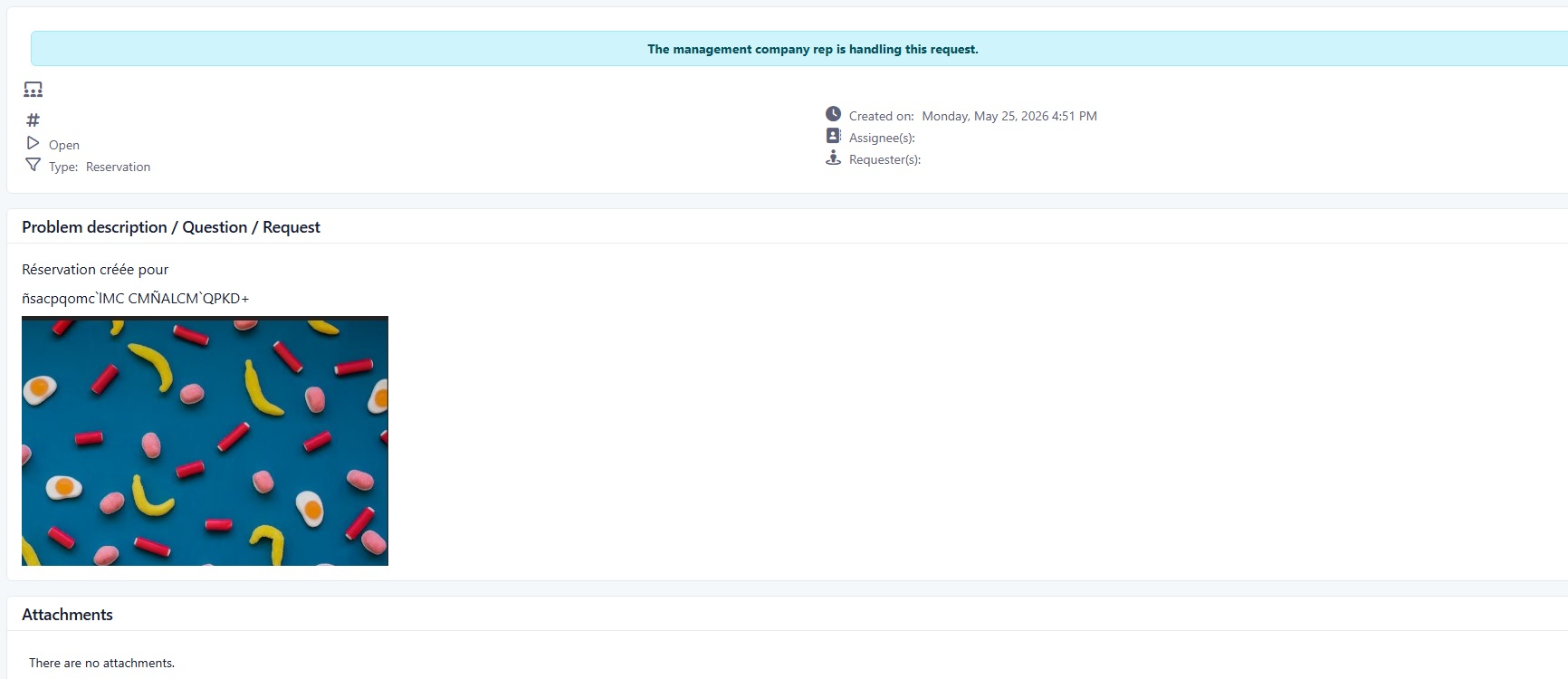
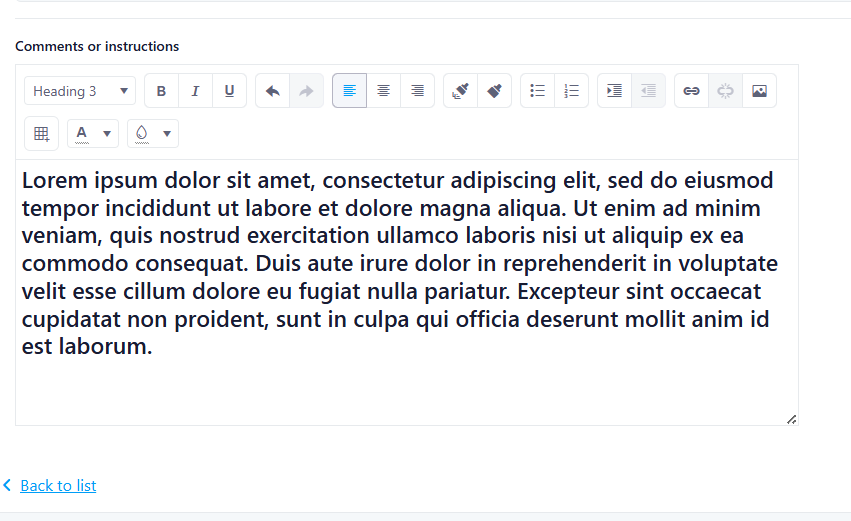
This release introduces a new optional description field in resident move-out and reservation pages, designed to allow residents to provide additional context or information when submitting a request.
Past State
Previously, residents could not add personalized details or explanations to their move-out or reservation requests. Request descriptions only contained the default system-generated message.
What’s New
With this release:
- A new optional description field has been added to resident move-out and reservation pages.
- The field uses the same input type as the existing manager reservation description field.
- The field is not mandatory.
- If left empty, the request description will only contain the default system-generated message.
- If residents enter text, the request description will include both the default message and the resident’s additional comments.
- The field height has been optimized to be smaller than the manager reservation version for a more compact resident interface.
How It Works
Residents can now enter additional comments or details when creating a move-out or reservation request.
- If no text is entered, the system will generate the standard default request description.
- If text is entered, the system will append the resident’s comments to the default description automatically.
Where to Find It
You can find this feature in:
- Resident Move-Out pages
- Resident Reservation pages
To access it:
- Navigate to the Resident Portal
- Open the Move-Out or Reservation section
- Create a new request and use the Description field if additional details are needed
Benefits
- Improves communication between residents and property management
- Allows residents to provide useful request context
- Maintains a clean and compact interface while offering more flexibility
Screenshot
Important Notes
- The description field is optional.
- The system-generated default message will always remain included in the request description.
Rent Increase Calculator Removal (TAL)
This release removes the TAL (Tribunal administratif du logement) rent increase calculator tool, designed to simplify the rent increase workflow and eliminate dependency on an outdated external spreadsheet.
Past State
Previously, users could configure a TAL-based calculation tool under Configuration > Settings > Accounting > Calculation Tool. This tool automatically pulled suggested rent increase amounts from a TAL spreadsheet and surfaced a "Suggested Percentage" option when bulk-adjusting lease renewals. Due to changes in the TAL spreadsheet format, this tool no longer functioned correctly.
What's New
With this release, the TAL calculation tool option has been removed entirely from the system. The "Suggested Percentage" option no longer appears in the bulk rent increase adjustment modal. The default setting is now "Do Not Use Calculator," meaning no amounts or percentages are suggested automatically.
How It Works
When a user navigates to the rent increase calculator settings, only manual options are available: a fixed percentage per year or no calculator at all. When adjusting multiple lease renewals at once, the dropdown now shows only Fixed ($), Percentage (%), and New Amount — with no system-generated suggestion.
Where to Find It
You can find this change in: Configuration > Paramètres > Comptabilité > Outil de calcul and Comptabilité > Renouvellements de baux > Ajuster les augmentations
To access it:
Log in and navigate to Configuration in the top menu
Go to Paramètres > Comptabilité > Outil de calcul
Confirm "Ne pas utiliser l'outil de calcul" is selected
Benefits
Eliminates broken TAL calculator behavior caused by spreadsheet format changes
Simplifies the rent increase settings page by removing an unsupported option
Prevents confusion from incorrect or missing suggested percentages appearing on lease renewals
Reduces maintenance complexity tied to external TAL spreadsheet dependencies
Important Notes
Any existing lease renewals that previously used "Pourcentage suggéré" will need to be manually updated with the correct increase type and value.
There may be additional UI areas impacted by this removal that have not yet been identified; a full regression test of the Renouvellements de baux module is recommended.
Was this article helpful?
That’s Great!
Thank you for your feedback
Sorry! We couldn't be helpful
Thank you for your feedback
Feedback sent
We appreciate your effort and will try to fix the article